Contents
What is Zoho?
Zoho (link) is actually a service like Gmail itself or any other mail service. But the difference between it and, let's say, gmail is that it offers the possibility to have an email with your domain for free, while at gmail this option is currently charged for about 12 dollars per month.
What are the advantages of Zoho over email hosting?
Actually there aren't any. Maybe there are if we look at their webmail compared to roundcube which seems to be simpler in appearance. Technically there are no advantages other than webmail. Below are pictures of zoho webmail and roundcube on cPanel hosting.
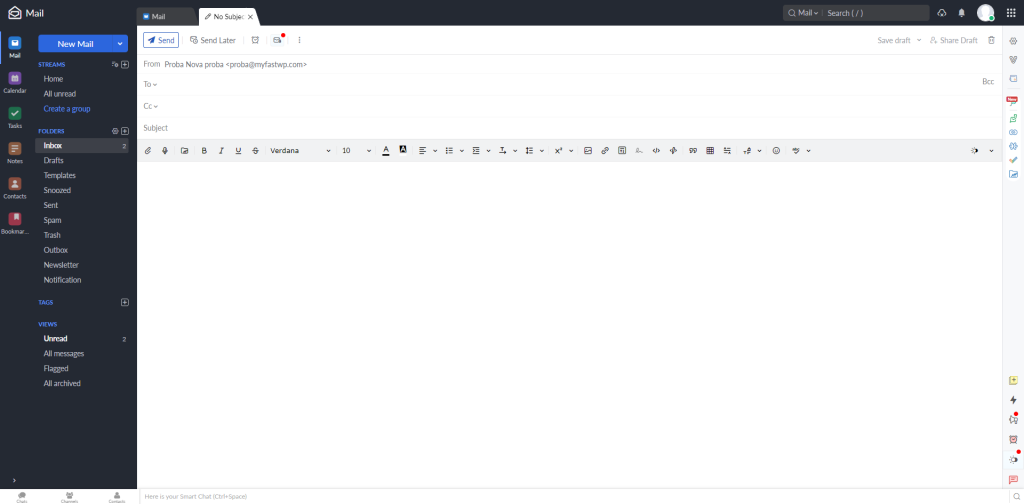
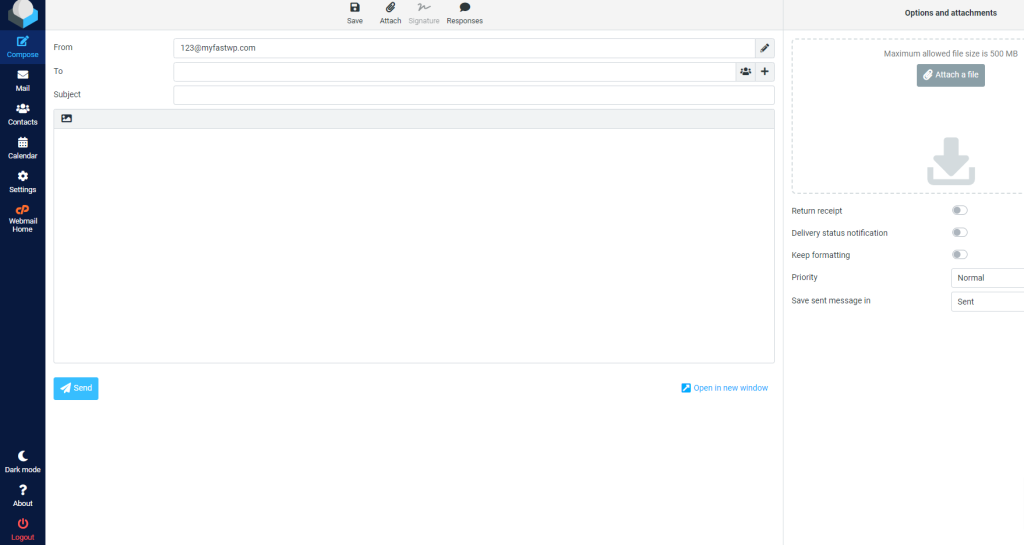
What is the advantage of Zoho over paid Gmail or Outlook?
Gmail and Outlook also have other tools, such as business meeting, file share and other tools for business business users, but you can get that with zoho for a fee. So you won't find any advantages because everything Zoho has, Gmail and Outlook also have, and vice versa. It's just a matter of whether the price range suits you. In terms of technical specifications, there are no advantages except that zoho is easier to use and setup compared to gmail workspace and microsoft outlook.
Connecting Zoho to a Domain
First of all, you need DNS management to connect to the domain. Unable to connect via NameServer. Requires DNS management such as Zone Editor in cPanel on hosting or Premium DNS our option that we have. You can also use any other like cloudflare.
In this guide, we will use the option in cPanel and Zone Editor, but postpak creating records is literally the same everywhere because records are universal everywhere and do not depend on options or hosting providers.
Register on Zoho
On this link you can see the email price list for Zoho. The direct link to apply for a free package on zoho is HERE. If it does not work, go to the first link where there is a price list and find it. It may happen that Zoho changes the link so you can always reach the link directly on their site.
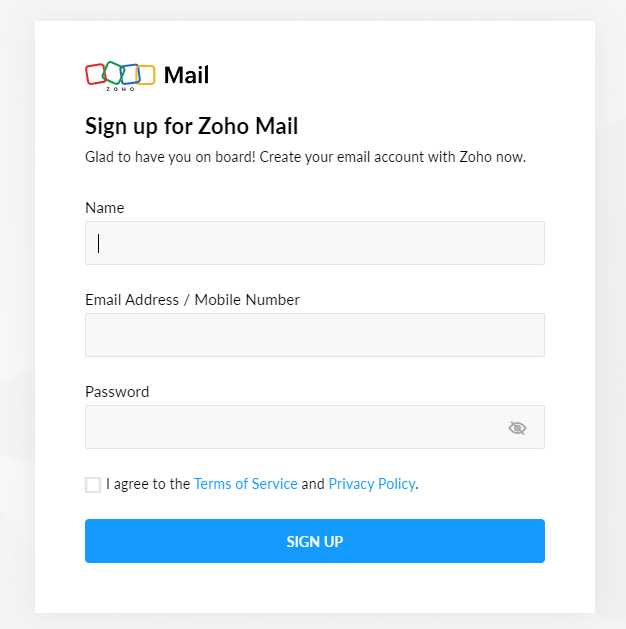
Registration on Zoho is quite simple, Name, Email and Password after that just log in. Follow the application process.
Adding a domain and verification
Now that we have registered and logged in, go to the Domains option (https://mailadmin.zoho.com/cpanel/home.do#domains/list). Here we go to the button +Add. You enter the domain and you will get an option as shown here.
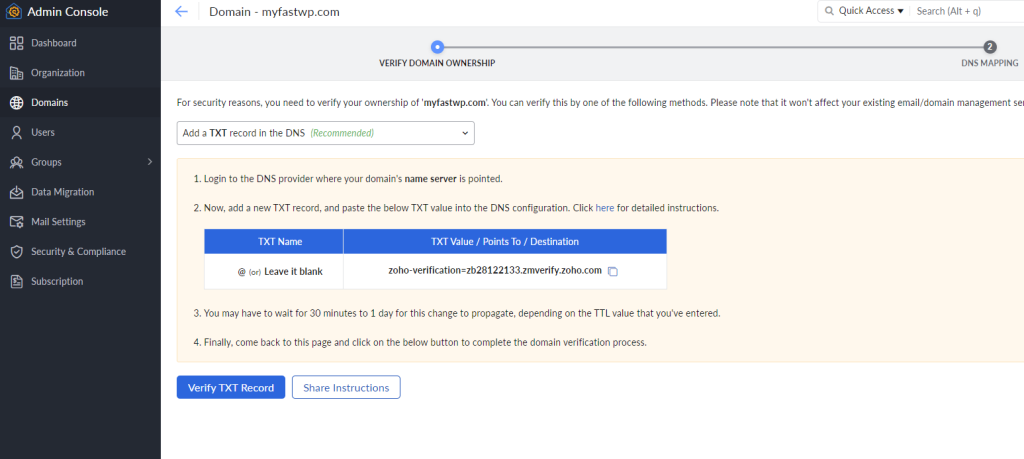
Now at this moment it is best to open cPanel > Zone Editor > Manage/Edit your domain code in one tab in the browser and Zoho setup in the other as in the picture above so that you can set it up at the same time.
The image above shows what Zoho asks you as soon as you enter your domain to verify ownership of your domain. And here's how it's entered in cPanel > Zone Editor > Manage > Add a Record
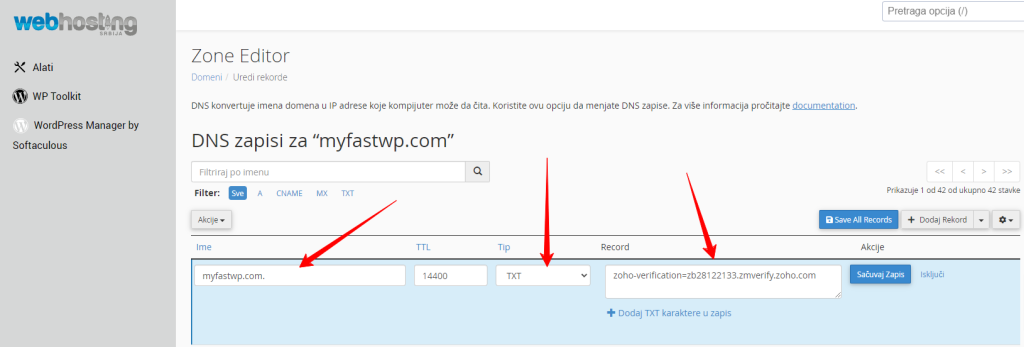
When we enter in cPanel, wait 1 min and then on the Zoho site, click to verify and we will get as in the image below
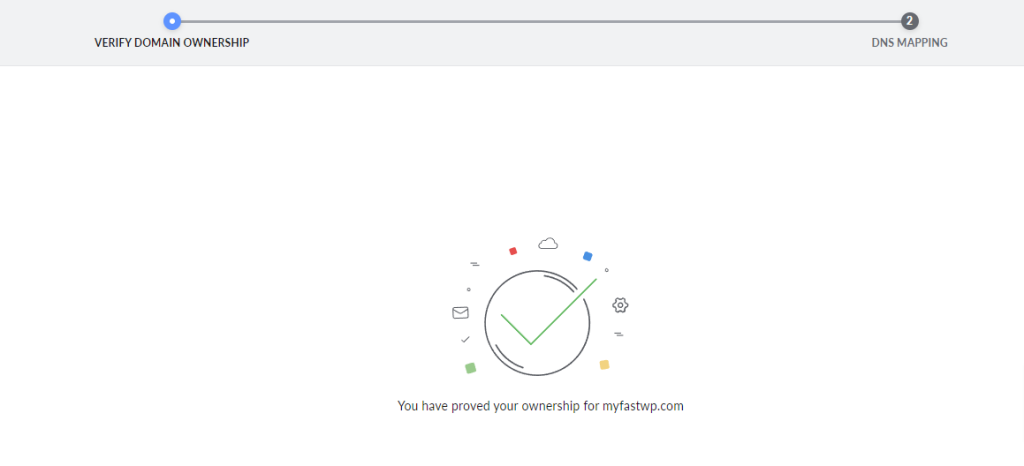
If you do not receive it and it says that it has not been verified, then you need to wait a little longer, say 30 minutes, then verify. (Due to DNS propagation, why is it like that, search our knowledge base for what it means).
After verification, go to the blue button at the bottom of Proceed. And let's move on to setting up DNS records.
Mail DNS records for Zoho Mail
Now that we have verified we will get the following settings from Zoho for the next step.
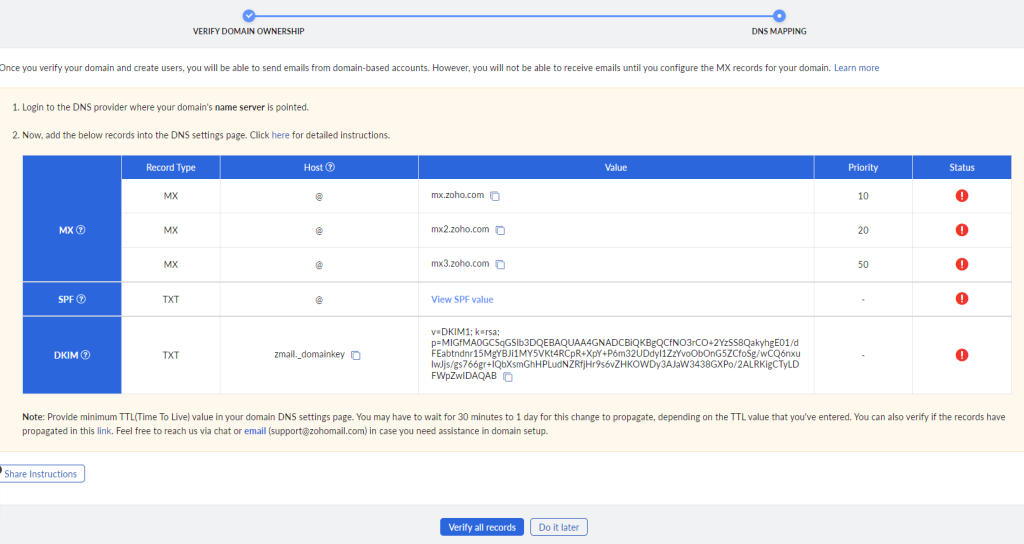
So in this picture we see that we need to have 3 MX records, one SPF record and one DKIM record. If you have more than one, delete the others from your DNS management.
Zoho Mail SPF record
In the previous picture, we showed what is needed, so let's start with the easiest, which is SPF. We follow the image we got in the previous step and set it up in our cPanel.

What the Zoho DNS setup tells us is @ is actually our domain so we enter our domain. We select the TXT record in the middle and enter the SPF on the right as shown. In the picture, Zoho DNS is not shown, we have to click on "View SPF value", but when we click it, it will show us as shown in the picture just above, so enter it and click to save that DNS.
If you have another SPF record, delete it because of the conflict.
Zoho Mail DKIM record
Now we go to the setting of DKIM records as well as SPF, they are necessary for the email to work. We have all the data in DKIM on Zoho, so we just copy it into our zone editor. Here's what it looks like when copied.

When you enter zmail._domainkey cPanel will automatically add your domain to you and that's fine. We select the type TXT and Record, we enter a lot of characters, just copy/paste and go to save.
Zoho Mail MX record
In this step we have as many as 3 records of the same type. But note that you already have an MX record in your settings that you need to delete due to a conflict, as was the case with the SPF record.
In the Zoho DNS shown above we enter all three records exactly as written one by one by clicking on Add Record and selecting TYPE MX record. @ zoho showed this character which actually means our domain. So here's what it looks like when everything is entered.
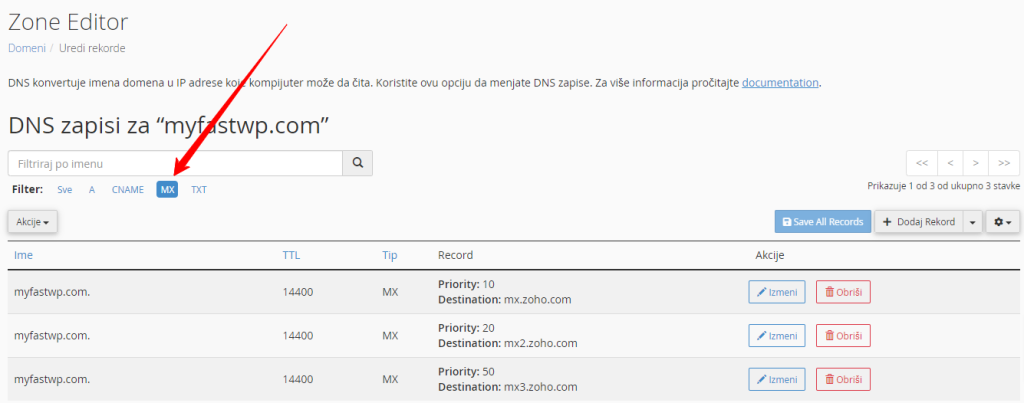
Now we have all the settings ready and it is best to wait few minutes say 30 minutes before clicking on Zoho site to verify.
DNS record verification
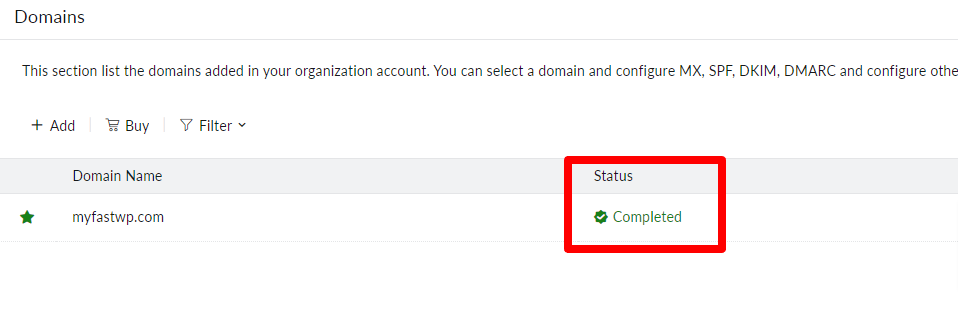
Now that we have entered as in the steps above, it will tell us that it is complete.
Creating an Email Address
Now that we have DNS set to Zoho, email on your hosting in cPanel no longer has any function. You can create and delete emails there, but it won't have any effect. Now you do everything related to email directly on the Zoho site.
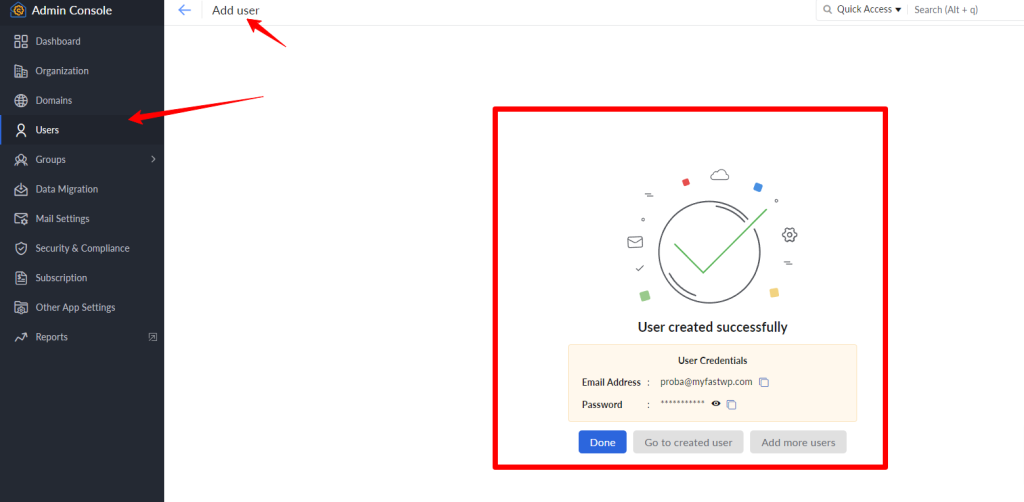
Go to Users, then Add User and fill in the data, in this case we have created a proba@domen email address.
Accessing Zoho Webmail
By the way THIS ONE link you can access Zoho webmail basically it is mail.zoho.com.
If it automatically logs you in with the email address you registered with, log out and then log in with the email address you created in the step above and that's it. Now you can send and receive emails directly from Zoho Webmail.