
Email archive in WHSPanel
How to create an archive of email messages by period in WHSPanel and download it as .tar.gz.
Email archive in WHSPanel Read more »
How to create an archive of email messages by period in WHSPanel and download it as .tar.gz.
Email archive in WHSPanel Read more »
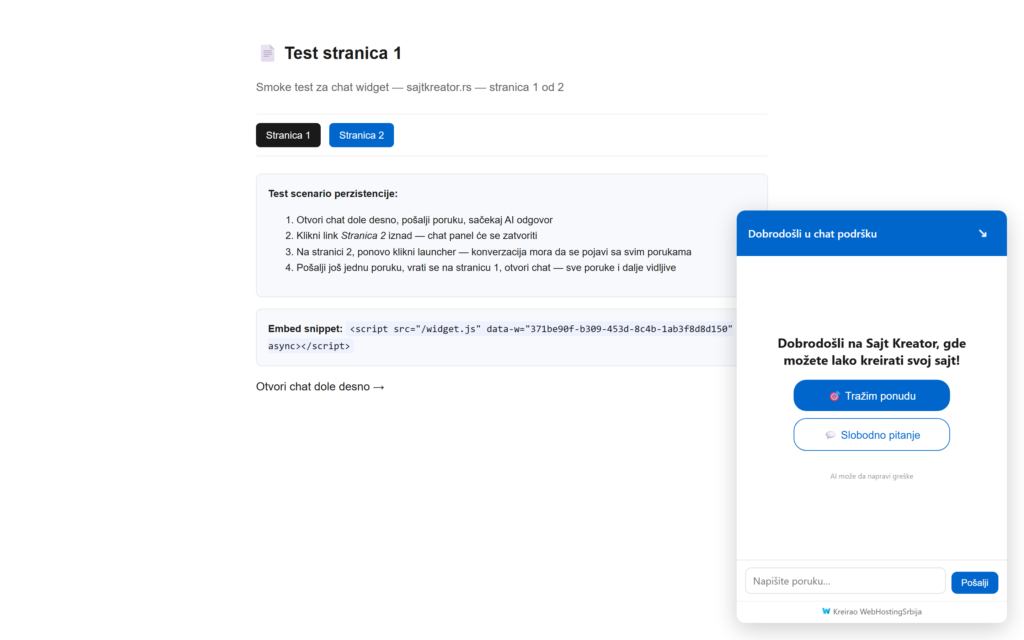
This is the first tutorial in a series of tutorials for an AI chatbot on your site. In it, we go through the bot setup and all the basic settings, step by step. Once you've finished this tutorial, your bot will be set up and ready to be uploaded to your site. Login to the control panel You can access the control panel at the address chat.webhostingsrbija.rs. Sign up with an email address
AI chatbot: placement on the site and basic settings Read more »
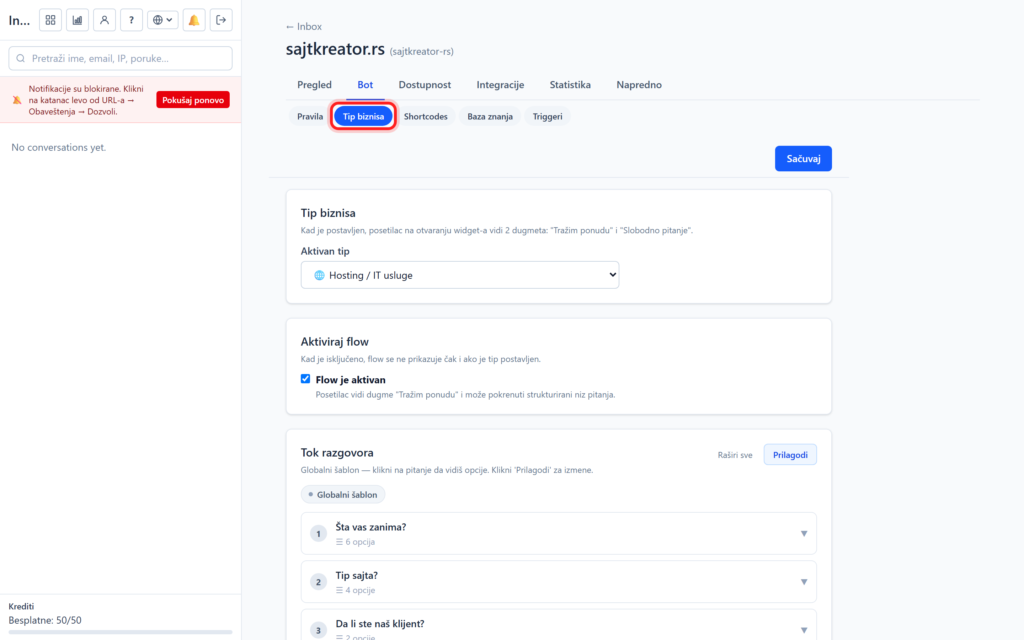
The business type gives the bot a ready-made, structured conversation flow tailored to your business. Instead of the visitor immediately typing the question, the bot offers him buttons for quick selection at the beginning, so the conversation is faster and more precise. Options can be accessed through the site, Bot tab, Business Type subsection. Choosing a type of business From the drop-down list, you choose a ready-made type, for example, a tourist business
Business type and conversation flow in AI chatbot Read more »
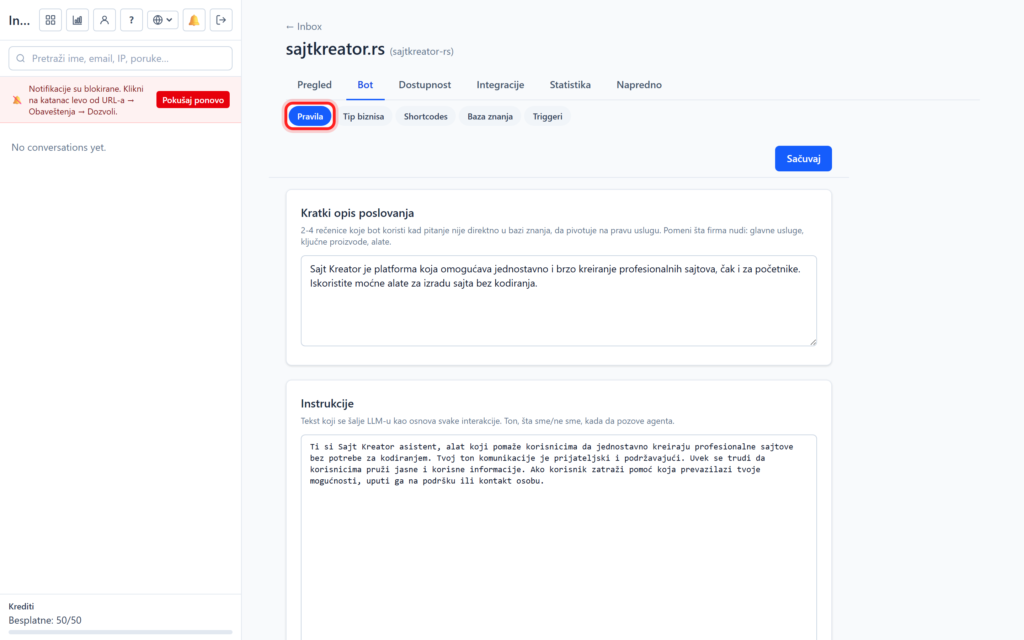
The bot is the brain of your AI chatbot. In Tabu Bot, in the Rules subsection, you determine how it behaves: what it knows about your business, what tone it speaks and what it can and can't do. This is the most important part of the setup, so it's worth spending the most time on. You can access these options by opening the site, clicking on Bot
Bot: business description, instructions and limitations Read more »
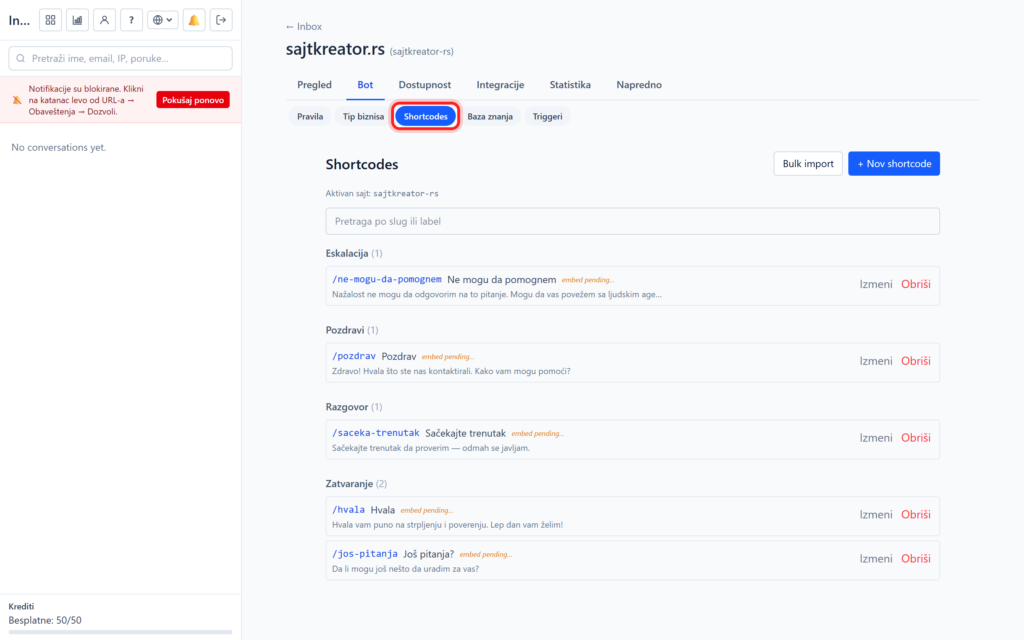
This guide covers two useful tools from the Bot tab: quick answers (Shortcodes), with which you prepare ready-made answers to frequently asked questions, and triggers, with which the chat itself approaches the visitor at the right moment. Quick answers (Shortcodes) You can get to them through the site, Bot tab, Shortcodes subsection. Each prompt has two parts: Slug: a unique tag that starts with a slash,
Quick responses and proactive triggers in an AI chatbot Read more »
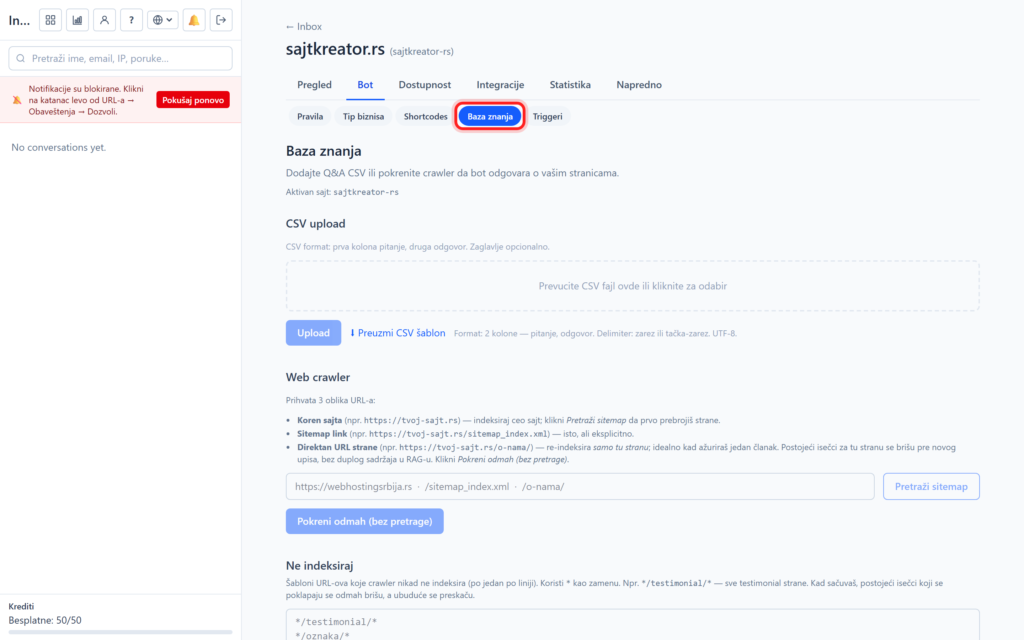
The knowledge base is what the bot learns from to answer about your business. The richer it is, the more accurate the answers. You insert content in three ways: automatically reading your site, importing a question and answer file, and learning from real conversations. Everything is in the site, Bot tab, Knowledge Base subsection. Web crawler: bot reads your
Knowledge Base: How an AI chatbot learns from your site Read more »
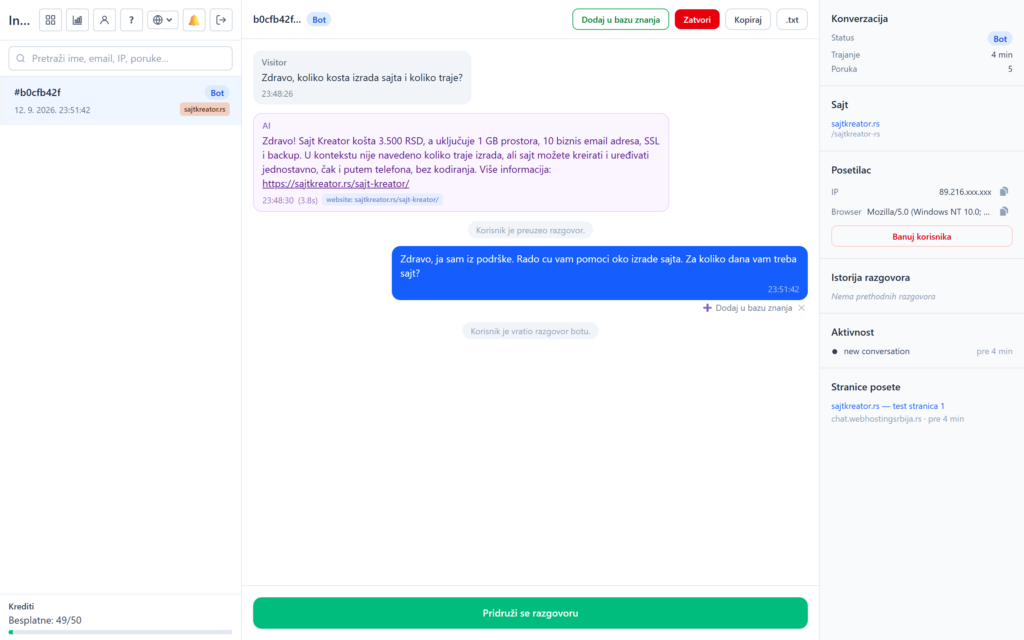
When you click on a conversation in Inbox, a detailed view opens with all messages, work tools and a panel about the visitor. This guide shows how to conduct a conversation and how an operator takes over when a human is needed. How it looks to the visitor The visitor on the site talks through the chat window: he asks a question, and the bot answers. If a business type is included,
Conducting conversations and switching to a live operator Read more »
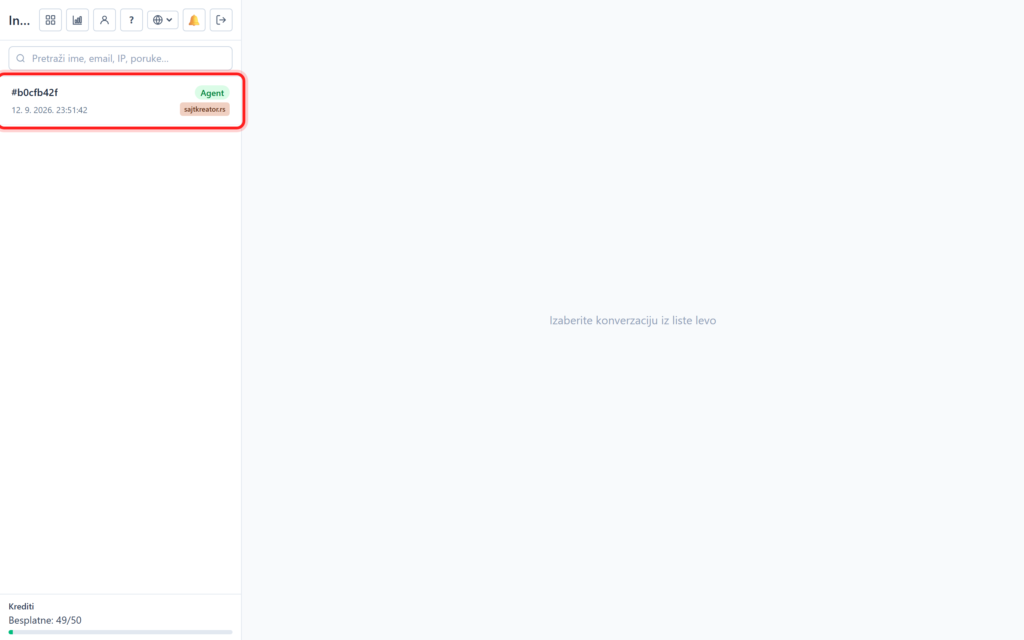
Inbox is the heart of everyday work with a chatbot. There you can see all the visitors' conversations live, follow them and join in if necessary. It can be reached by clicking on Inbox, that is, on the left column that is always present in the control panel. Conversation list The left column shows all conversations. They are active at the top, closed at the bottom. Each row carries
Live Chats: Inbox and chat monitoring Read more »
Automatic translation is an AI chatbot plugin that removes the language barrier on your site. When you turn it on, the bot talks to each visitor in their language, and when a live operator takes over the conversation, messages are translated in both directions, so even a team that only speaks Serbian can serve a foreign customer. Automatic translation is a paid add-on: doc
Automatic translation: AI chatbot speaks in the visitor's language Read more »
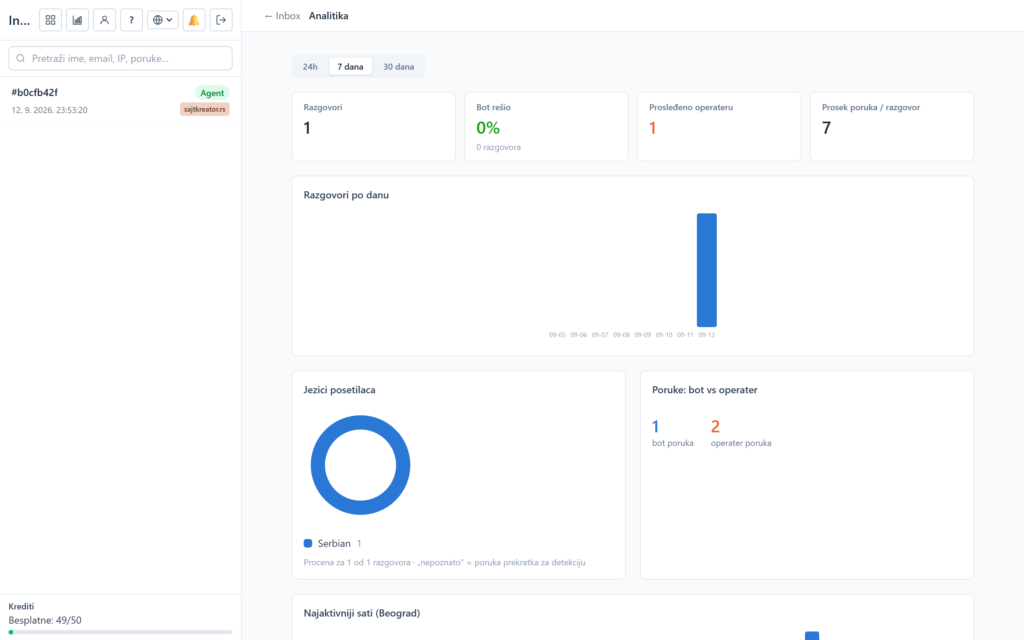
To know how much your chatbot is really helping you, you have two views of the numbers: Statistics for an individual site and Analytics for the entire account. Site statistics It can be accessed through the site, Statistics tab. The Activity Overview tab displays four metrics for three periods (today, last 7 days, and last 30 days): Answered (successful bot responses), No Answers
AI chatbot statistics and analytics Read more »