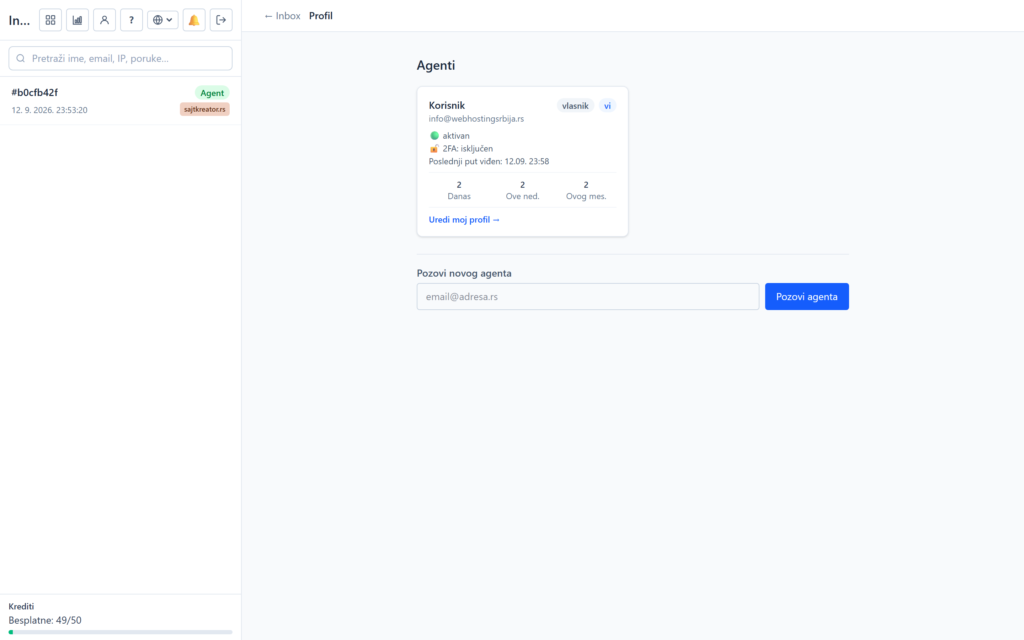
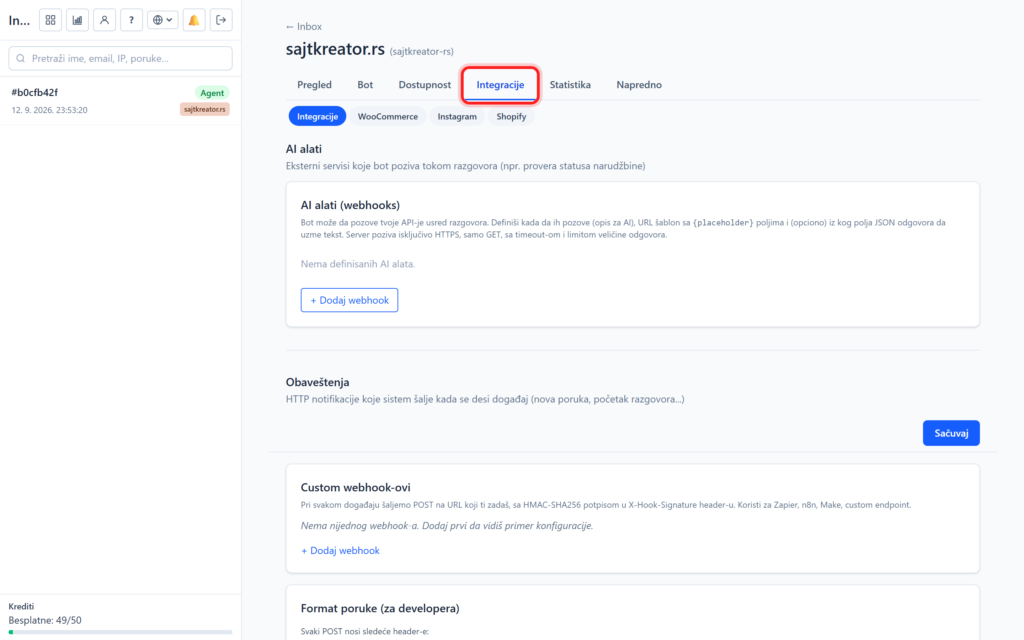
Inbox is the heart of everyday work with a chatbot. There you can see all the visitors' conversations live, follow them and join in if necessary. It can be reached by clicking on Inbox, that is, on the left column that is always present in the control panel.
Conversation list
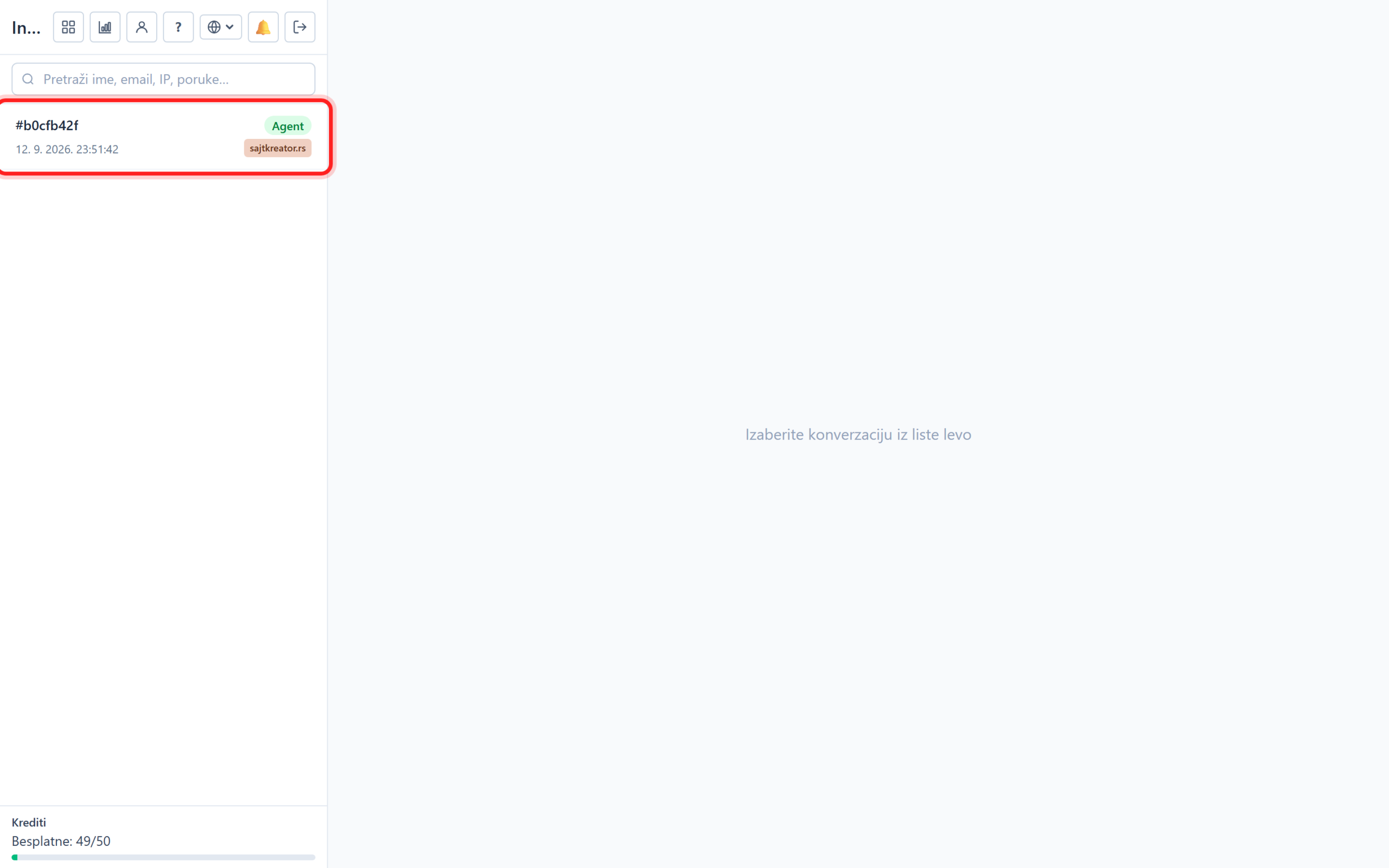
The left column shows all conversations. They are active at the top, closed at the bottom. Each line carries a colored site label, time of last message and status. By clicking on a conversation, the entire message history opens on the right.
Conversation statuses
The status tells you immediately what stage the conversation is in:
- Bot: the bot responds independently.
- Waiting for an agent: the visitor has requested a person and the conversation is waiting for someone to take over. This status is highlighted in red so you don't miss it.
- Agent: the call was taken over by the operator.
- Closed: the conversation is over.
Search
The field at the top of the Inbox searches by visitor name, email address, IP address or message text. Results are filtered as you type.
Website switcher
If you have multiple sites, the globe icon at the top filters conversations by site. The option for all sites shows all conversations at once, and by selecting one site, you only see theirs.
Notifications and sound
When a visitor sends a message, you hear an audible alarm even when another tab is open. The bell icon at the top plays a test sound. We recommend that you allow notifications in your browser, so that you will receive pop-up alerts even when you are not on that tab. About notifications on the phone and outside the browser, see the guide on working hours and notifications.
Message quota
At the bottom of the left column is the odds, for example "Free: 50/50". It shows how many free AI messages are left this month. Only bot-generated messages are consumed, while operator messages are unlimited. The quota is renewed on the first of the month.