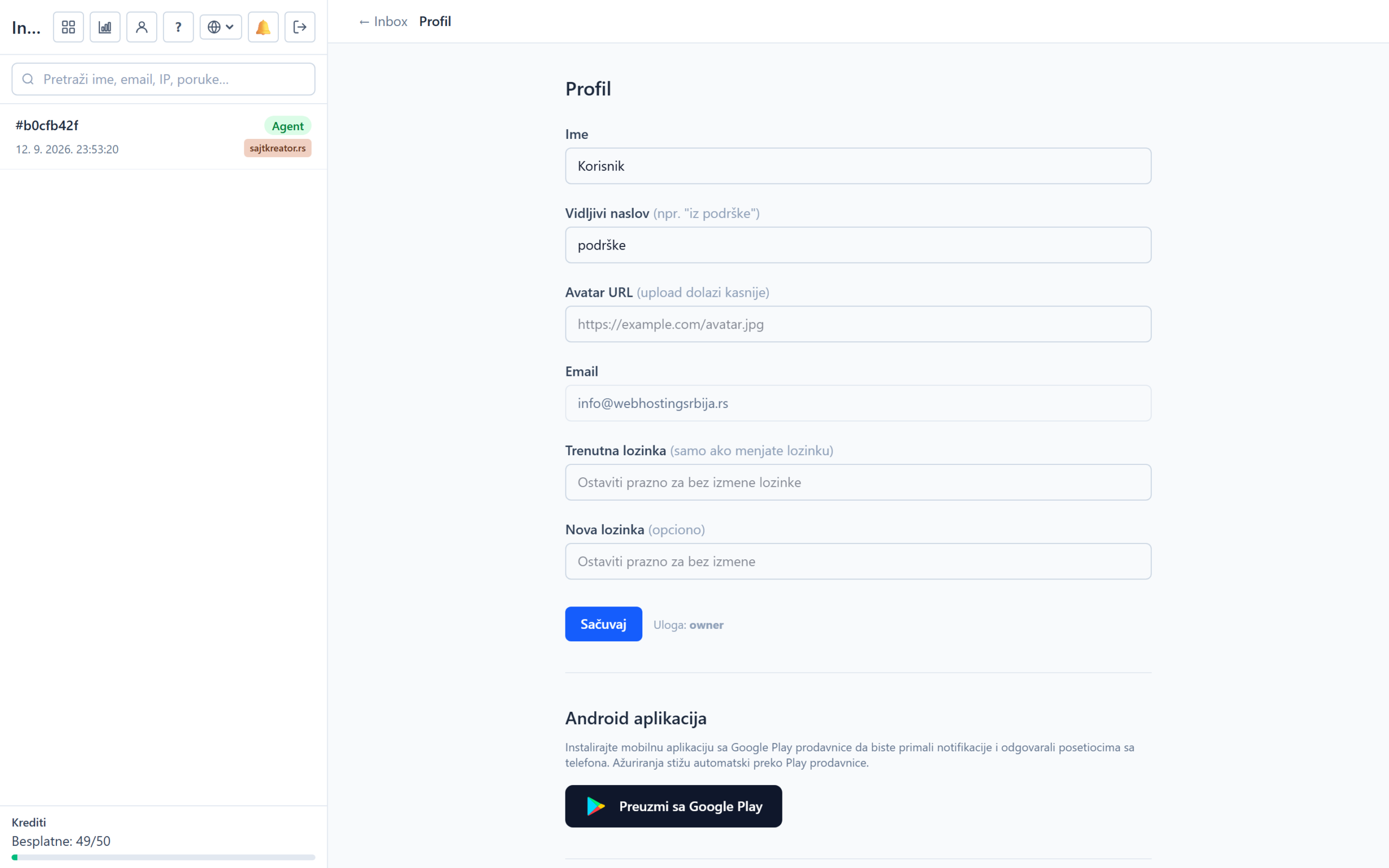
In Settings, you manage the account itself: company data, operators who answer calls, and your personal profile. You can get to them by clicking on the profile icon, or settings, at the top of the left column.
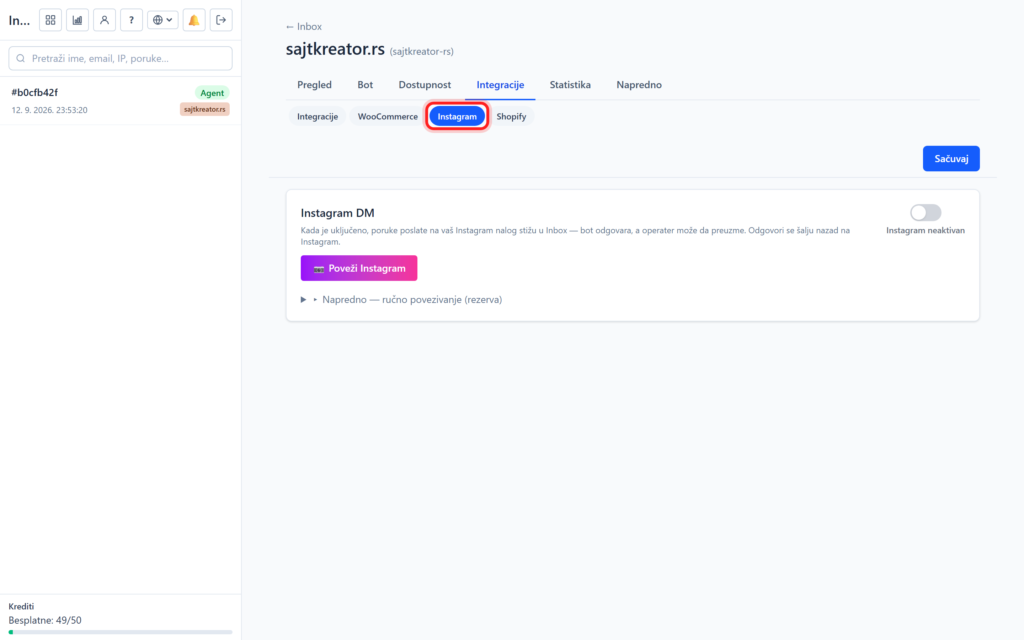
Agents (operators)
This is where you add and see operators who can pick up conversations. Each operator has its own login and role. The owner and administrator see all settings and all conversations, while a regular agent sees the Inbox and their profile. For each operator, you can change the data, reset the password and see the statistics of their responses.
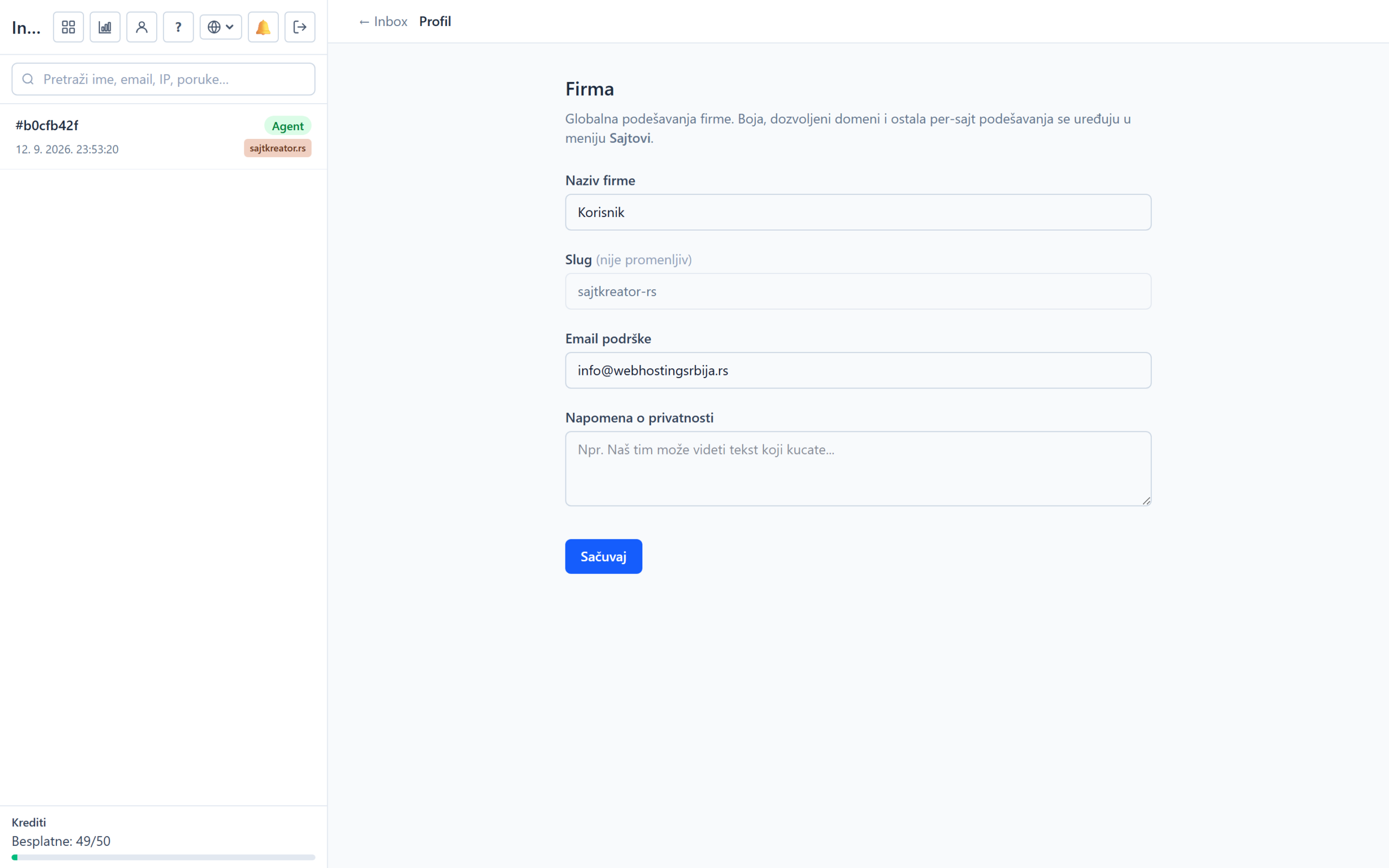
Company (order details)
In the company's settings, there are basic account data: the company's name that can be seen in the dashboard, a unique account identifier that does not change, and a global support email that is used in all widgets, in offline messages and when the bot closes the conversation. There's also a privacy notice, a short text for visitors, for example so the team can see what they're typing in a conversation.
Profile
The personal profile of the operator includes the name and visible title that the visitor sees when you download the conversation, picture (avatar) and password change. There are also your personal working hours, so the bot will not offer you visitors outside of your shift. The push notification option is especially important: it sends you an alert about a new message even when the browser is closed or the phone screen is off, which is the only way for the alarm to reach the phone outside the browser. For additional account security, there is two-step protection (2FA).