When you click on a conversation in Inbox, a detailed view opens with all messages, work tools and a panel about the visitor. This guide shows how to conduct a conversation and how an operator takes over when a human is needed.
How does it look to a visitor?
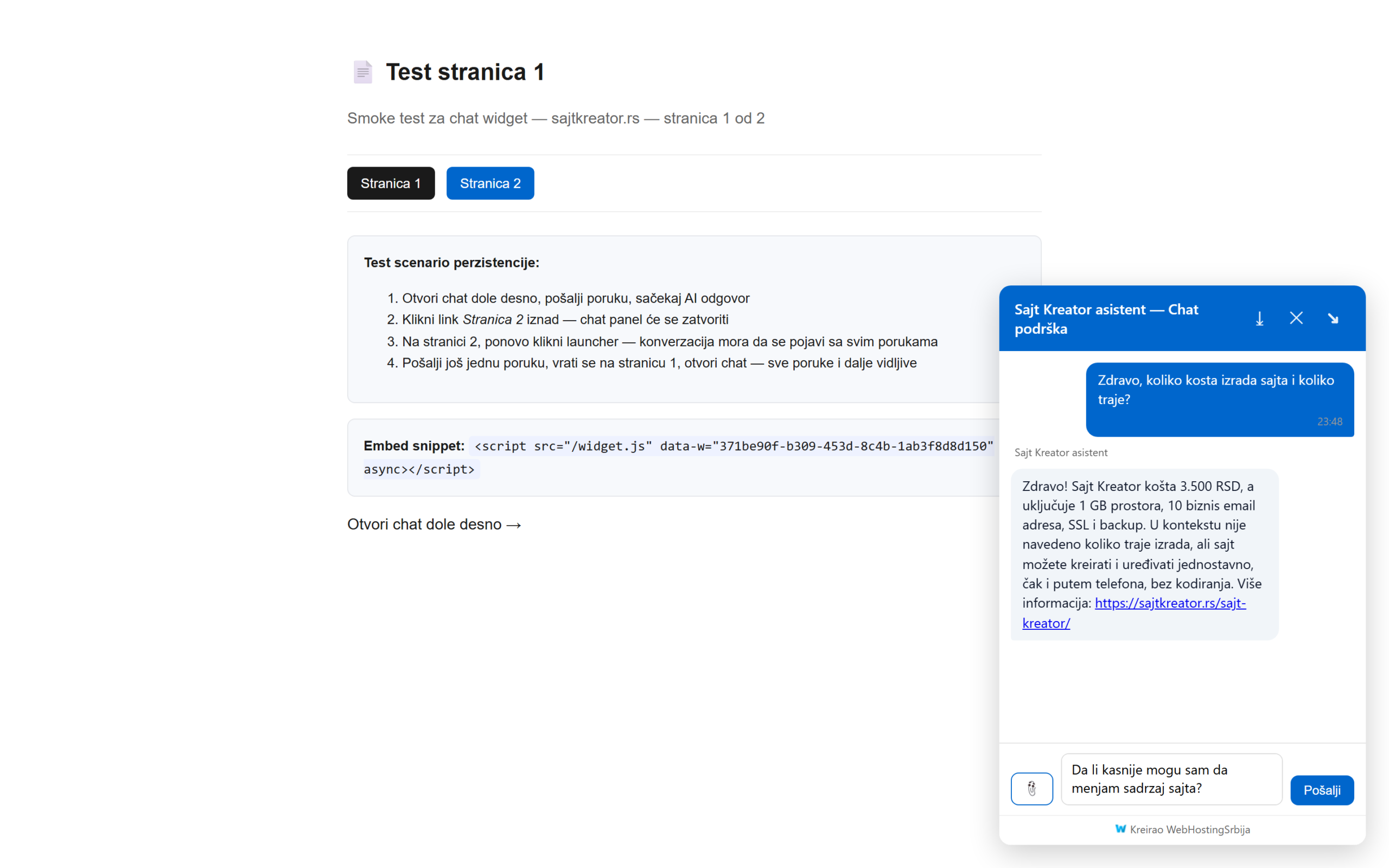
The visitor on the site talks through the chat window: he asks a question, and the bot answers. If the business type is included, first select the topic by clicking the button.
View conversations in the board
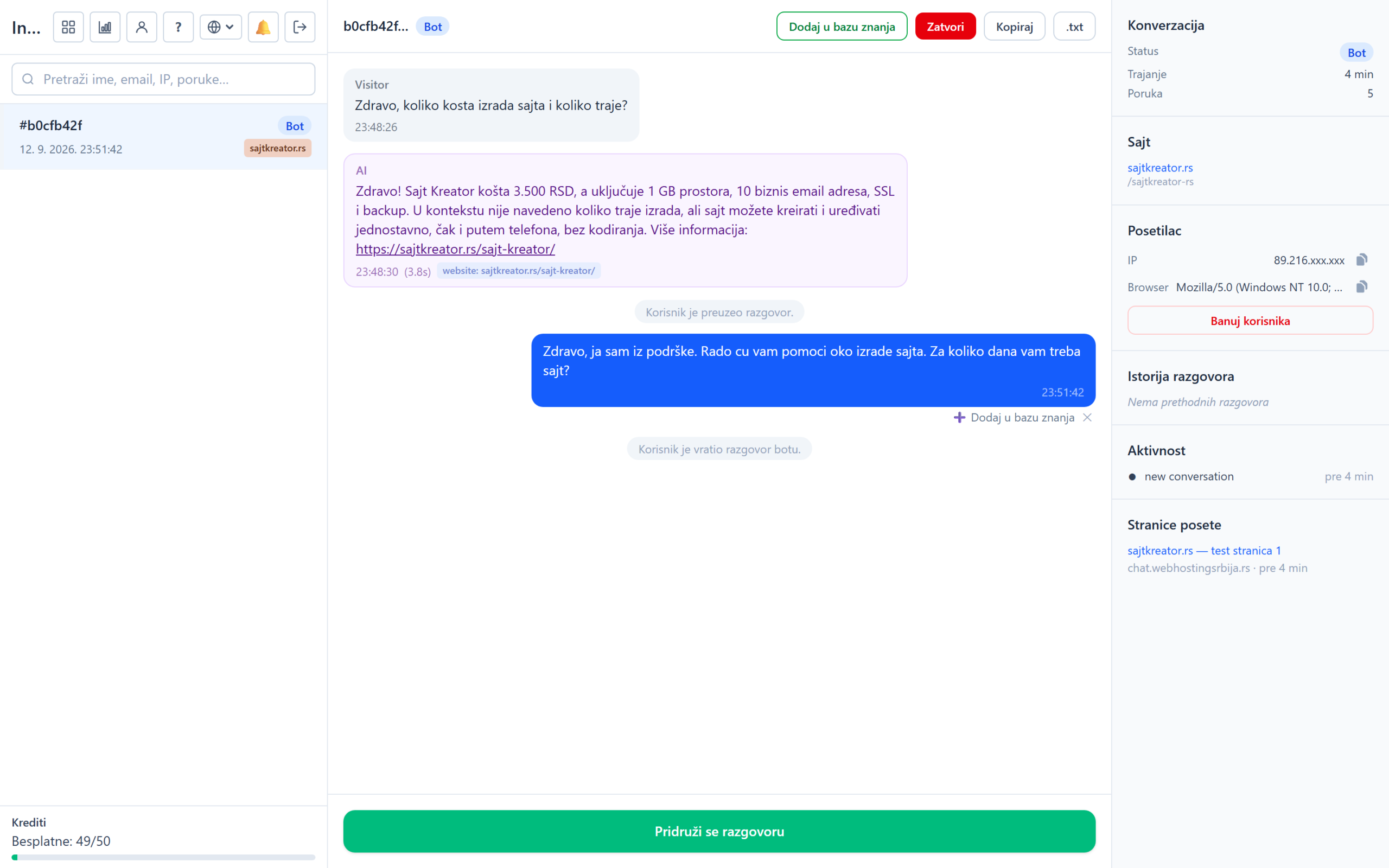
In the middle is the flow of messages: the visitor's questions and the bot's answers, along with the time and, in the case of the bot, the source from which it pulled the answer. On the right is the data panel:
- Conversation: status, duration and number of messages.
- Website: on which site the conversation is taking place.
- Visitor: IP address and browser, with the Ban user button.
- Conversation history: previous conversations of the same visitor.
- Activity and Visit pages: what the visitor did and which pages he visited.
Call pick up (switch to operator)
While the bot is having a conversation, there is a green Join the conversation button at the bottom. By clicking on it, you download the conversation: the status becomes Agent, and the writing field opens. The visitor then talks to you live and sees your messages next to your name. Operator messages are not charged.
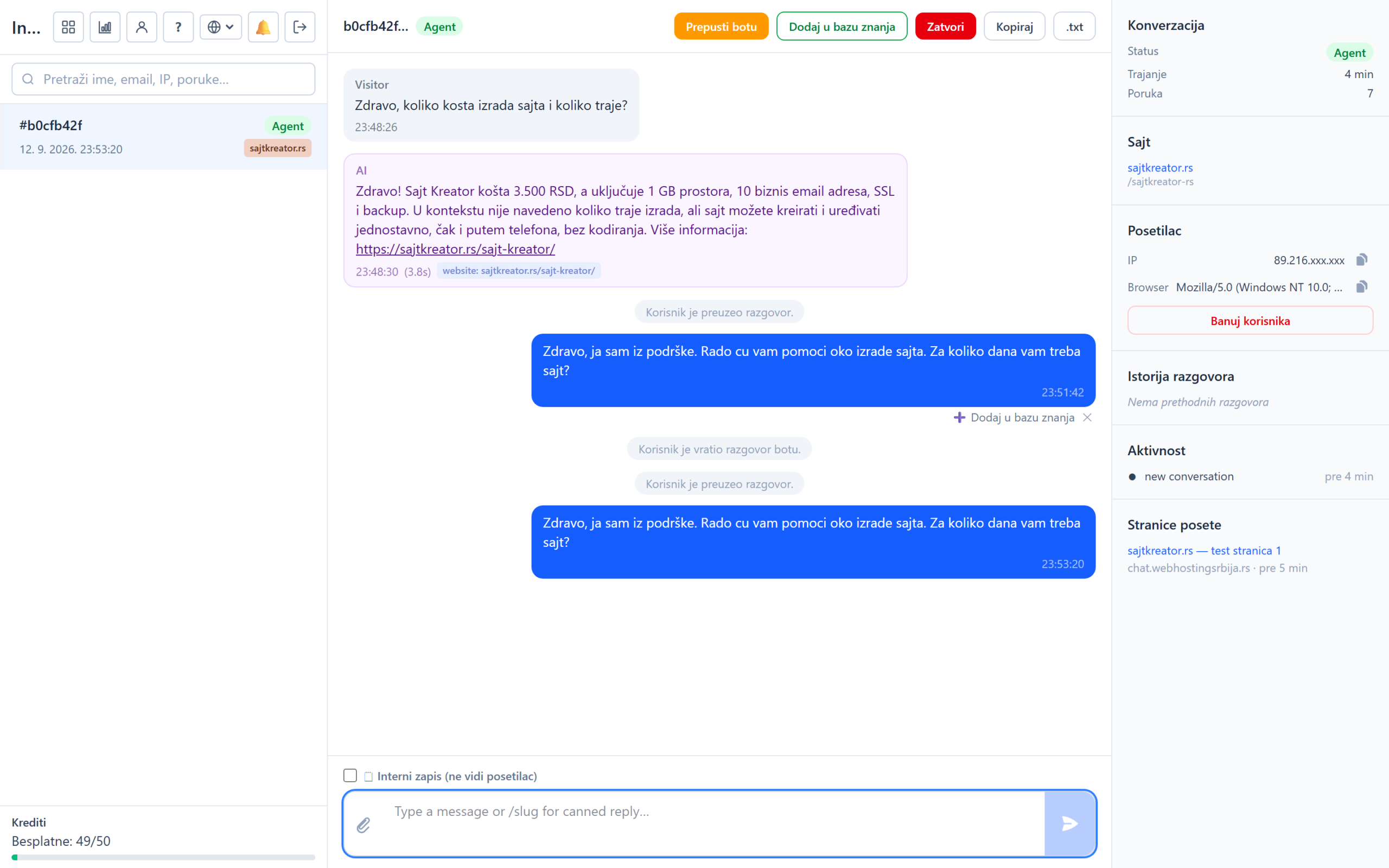
At the top of the conversation is a row of buttons with all the tools for work, and two more options are next to the message field itself. Here's what everyone does:

- Add to knowledge base: the most important tool for long-term bot improvement. You choose one question from the visitor and one good answer, save it, and the bot remembers it immediately, so it answers similar questions in the future. Every time you give a nice answer, in a few clicks that answer becomes the bot's permanent knowledge.
- Leave it to the bot.: returns the conversation to the bot to continue automatically, when your help is no longer needed.
- Close and Reopen: closes the finished conversation, i.e. reactivates it if the visitor returns.
- Copy: copies the entire conversation flow, all messages at once, so then just paste it (Ctrl+V) into an email, a support ticket or a note. Nothing is downloaded, only the text is copied.
- .txt: downloads the entire conversation as a plain text file. It is the simplest form of the document, with the extension .txt, which can be opened in any text editor, for example in Notepad. Use it when you want to save a conversation to your computer or forward it as a file.
- Internal record: by checking this option under the message field, the message becomes a private note that the visitor does not see, convenient for the agreement between operators.
- Quick answers: typing a slash in the message field opens a list of ready-made answers that you can choose from.
Banning visitors
If someone abuses the chat, click Ban user in the visitor panel. You can block by user, by IP address, or both, with an optional reason. A banned visitor can no longer see the widget on any of your sites.