You can delete old emails in 2 ways. The first way is to manually delete emails from webmail. Another way is to use the out-of-the-box option in cPanel and solve it with one click.
Log in to cPanel and then click on Email Accounts.
After that, we will get a list of emails that we have created as in the picture below and we need to click on the word "Manage" at the email address that occupies the most space.
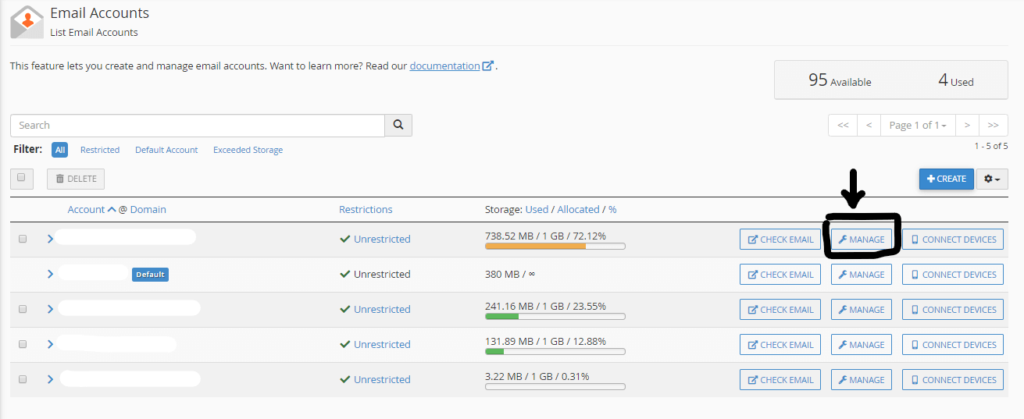
Now when we click on the word "Manage" we get the image as below.
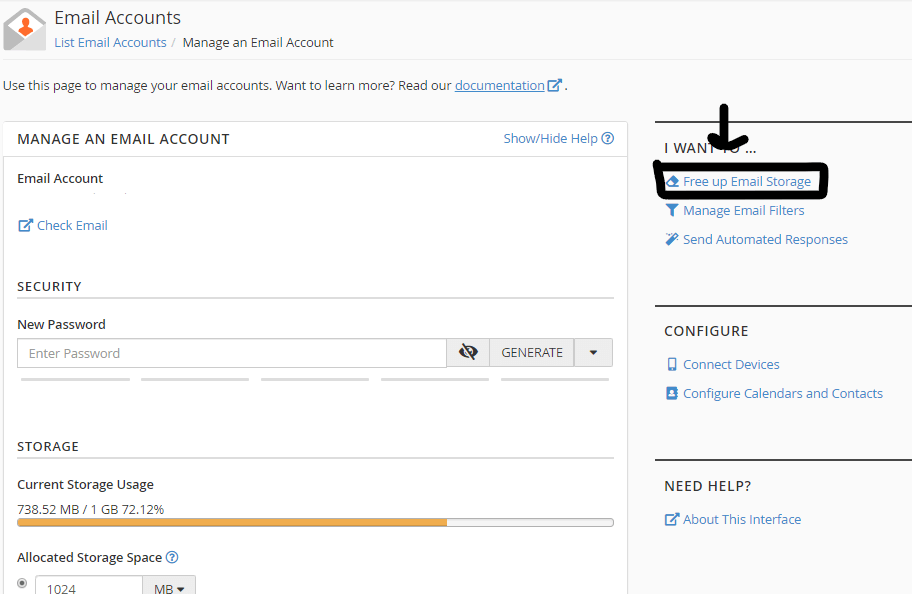
As you can see here we immediately get the next step which is a link called "Free up Email Storage". After that we get a new option as in the picture below.
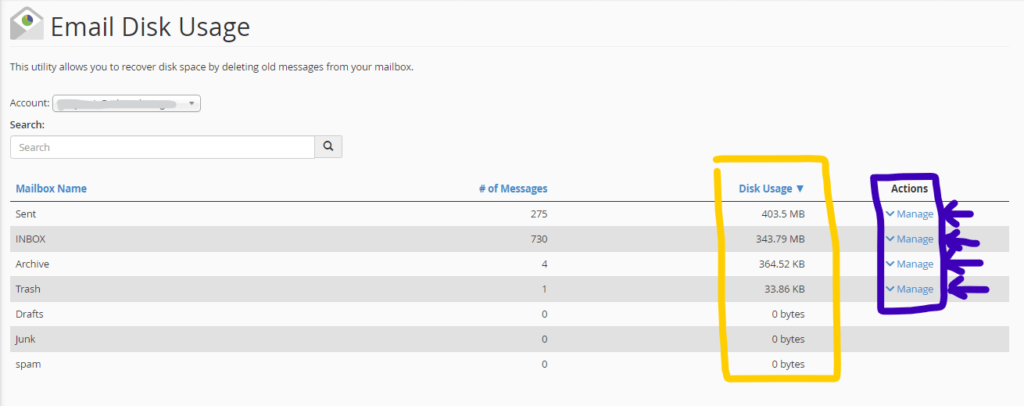
In this picture, we can see which folder takes up the most space.
„"Sent" refers to emails sent by you that have been saved.
„"Inbox" means emails you have received.
„"Archive" is the emails you have saved and archived.
„"Trash" refers to emails that you have deleted but not completely deleted.
„"Drafts" refers to emails that you have started to write but have not sent or deleted
„"Junk" are spam emails
Now if you want to delete e-mails from the "Sent" folder, click on the word "Manage" in that row and immediately get an additional option as in the picture below.
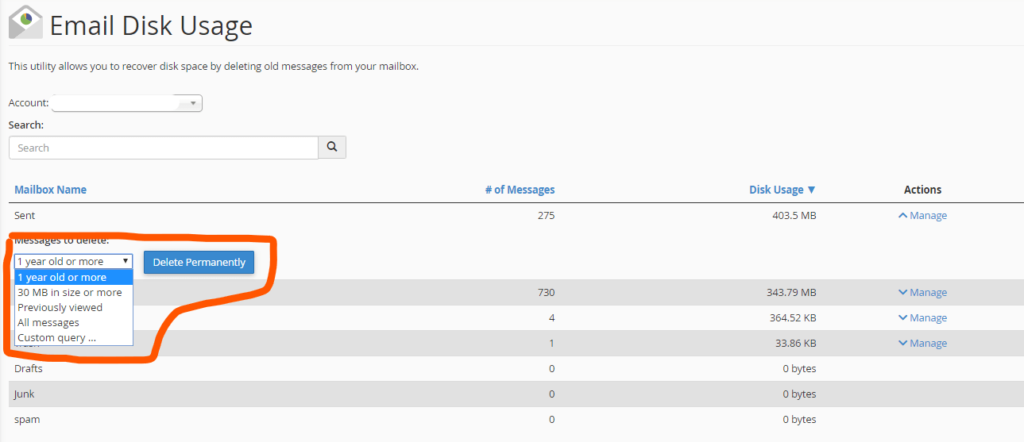
„"1 year old or more" - means that we delete emails that are older than one year from today.
„"30MB in size or more" - means that we delete emails that are larger than 30mb.
„"Previously viewed" - means that we delete emails that we have marked as read.
„"All messages" - means that we delete all email messages
„"Custom query.." - this option allows you to set the command and delete it in different ways, but it requires advanced knowledge.
When you select the option you want, click on "Delete Permanently" and it will delete those emails without the possibility of return.
If you want to delete redundant emails from other folders, click again on "Manage" in the row of the second folder, then select the desired option and delete.
Is there a possibility to delete by month or just the last month and so on?
There is, it is the last option but additional knowledge is required. If you want to try it, you can certainly choose the last option, where you will be offered a link with documentation and explanations of how it works.
Of course, before trying it, it is advisable to make a backup so that if you delete the emails you need, you can restore them.