Connecting to SSH through cPanel I will explain using the Bitvise client program that you can download here and install.
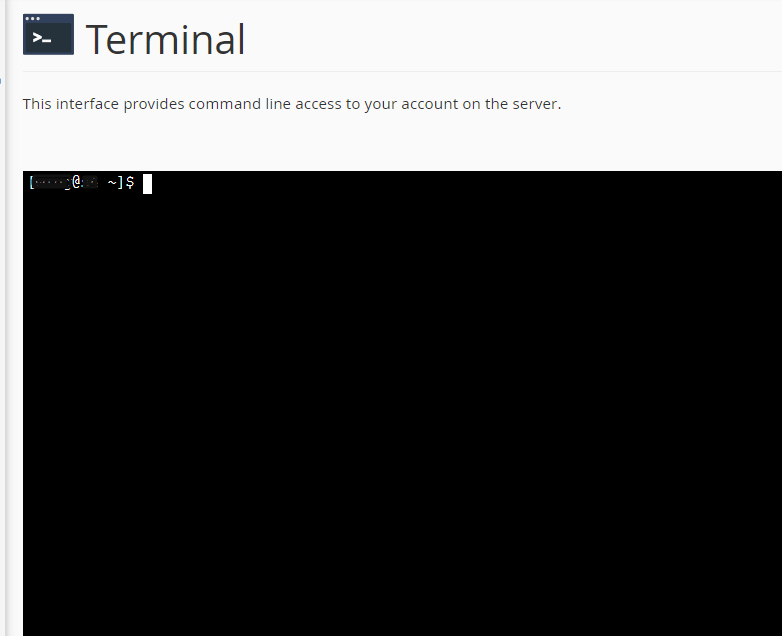
At the bottom of the article there is an easier and faster one-click access to the Hosting Terminal.
After installation, you need to open the program and click on Client Key Manager.
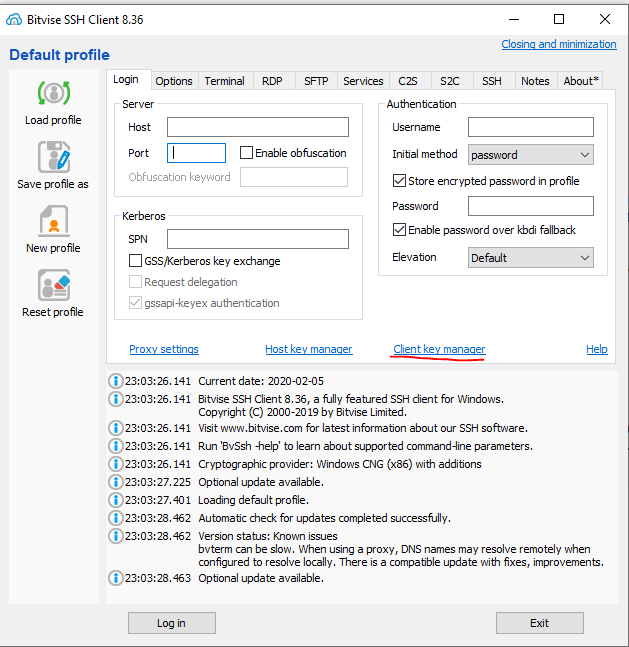
After which a window will open where you can click on the button Generate New another smaller window opens.
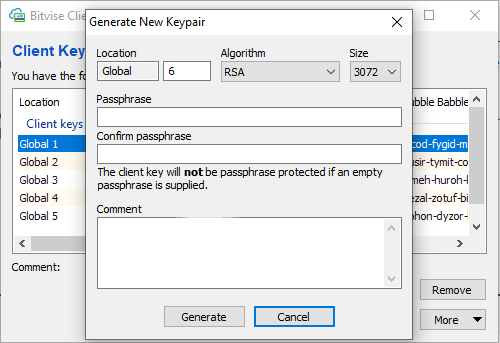
Enter the password in the passphrase field. Enter the same password in the field below Confirm passphrase. And click Generate.
Now wait the speed depends on your computer.
When finished, click Export and a small window will open as in the picture.
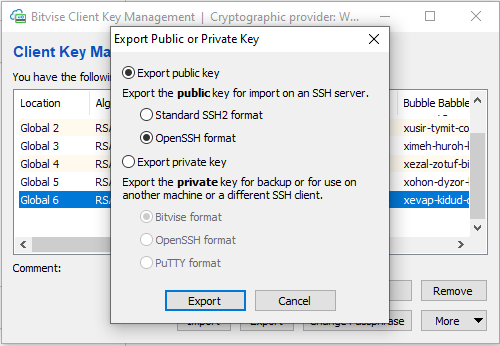
When you select the OpenSSH format and click on the Export a window will appear to save the file. Name the file as you like and click save (the name doesn't matter). Open that file (on windows you can open it with notepad). When you open it will look like the image below.
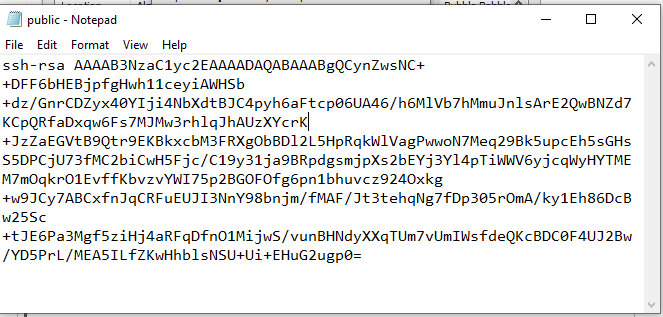
Now you need to select ALL and right click and copy.
You are now logging in. cPanel so you click on SSH Access option then on Import Key.
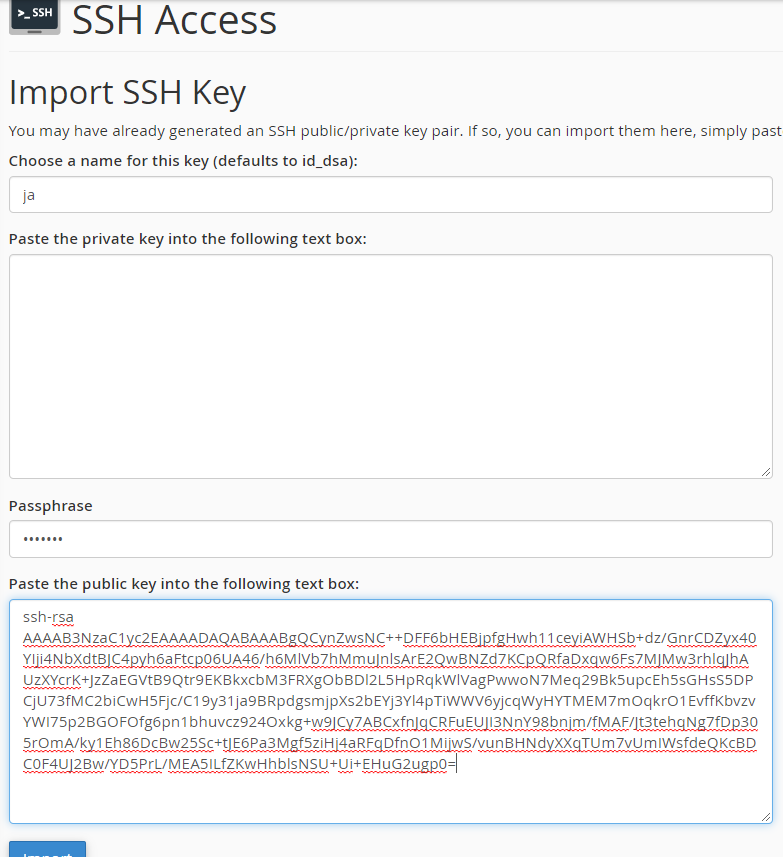
In choose a name, you can or do not have to enter anything in the first field, the second field remains empty, in the third field Passphrase, enter the password you entered during creation in the previous step.
In the last field, click right well pasta to upload the content from the file you saved. After that, click the button.
When you have done that, it will be listed in the Public Keys key that you created.
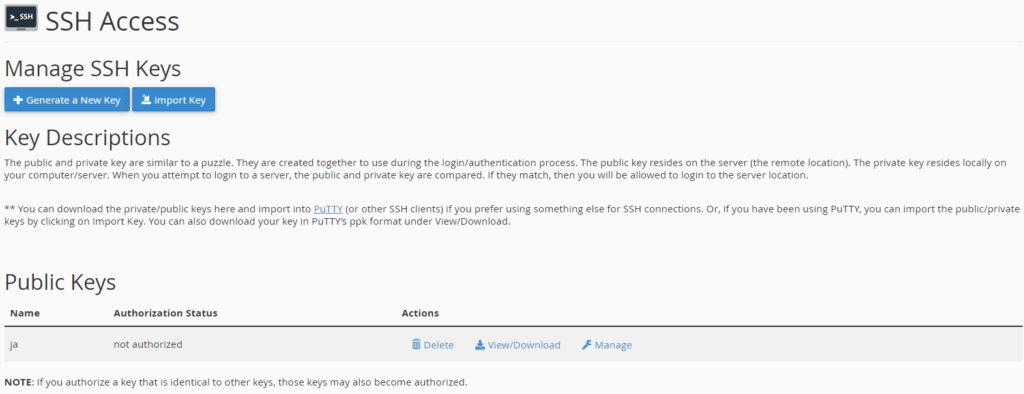
You have successfully added the key. Now all you need to do is to authorize by clicking on Manage so on Authorize.
Now login to SSH and hosting.
Let's go back to the bitvise.
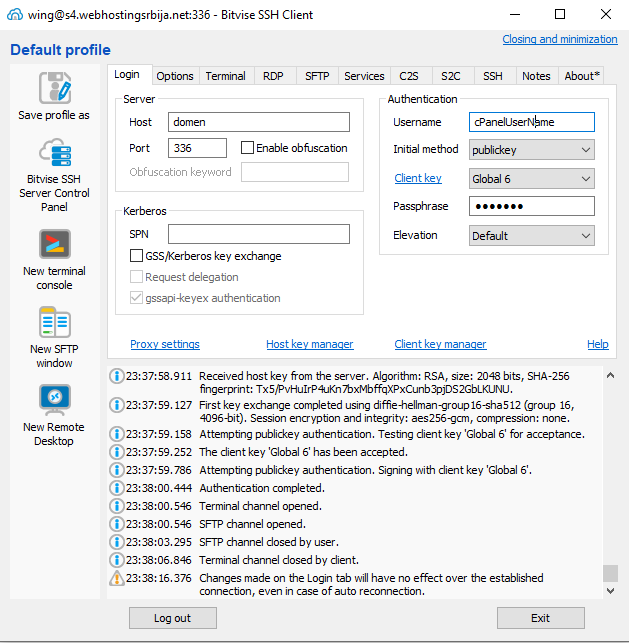
In the Host field, enter your domain (or the hostname of the server if you are using CloudFlare).
In the Port field, enter 336.
Enter your cPanel username in the Username field.
Initial method select publickey.
Client key select the key you created (second image in this guide).
Passphrase Enter the password you entered during creation.
If you have followed each step then you should have no problem connecting and your terminal will open.
If all this is too complicated for you, there is an easier solution.
u cPanelyou click on the option Terminal.
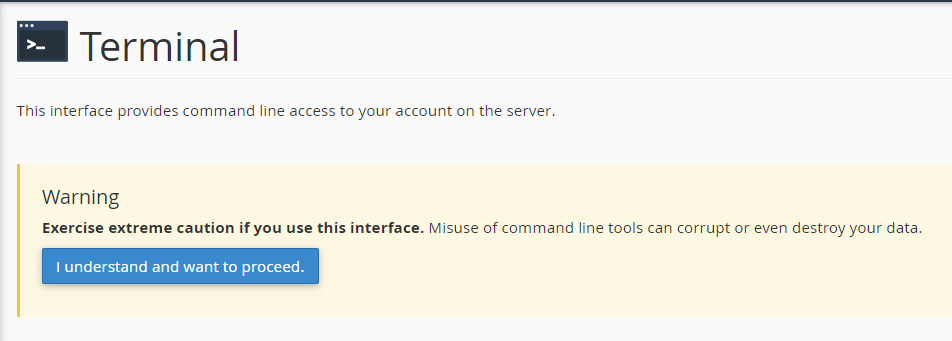
Then click the "„I understand and want to proceed." a terminal will open and that's it.