Now let's visit the site. https://my.quic.cloud/
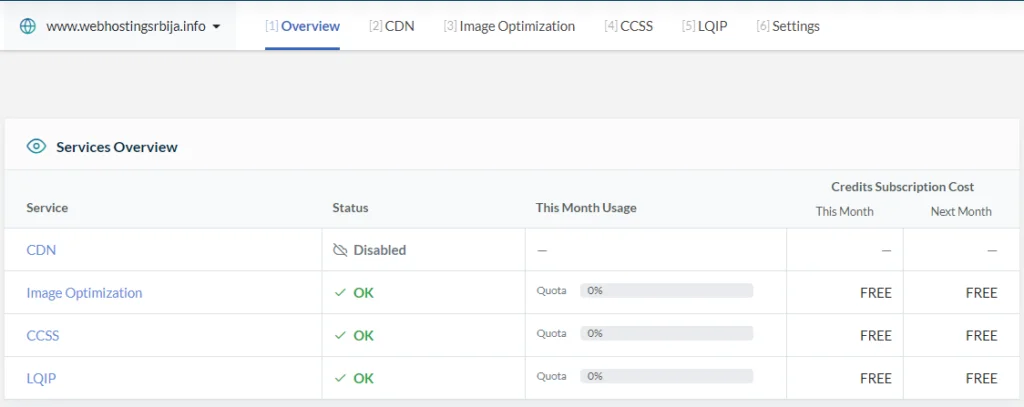
You have usage statistics on the site. We need a CDN option.
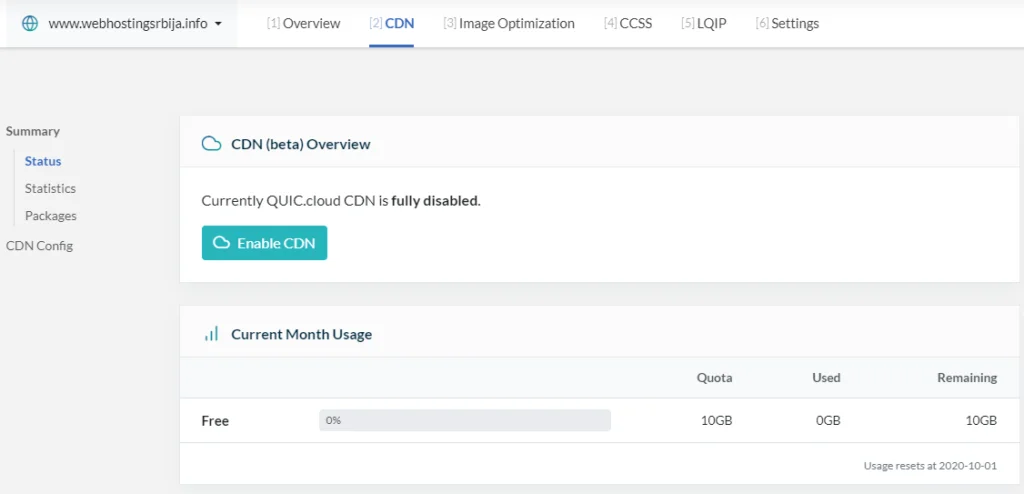
CDN is not enabled by default. Click Enable CDN and then the following page will appear:
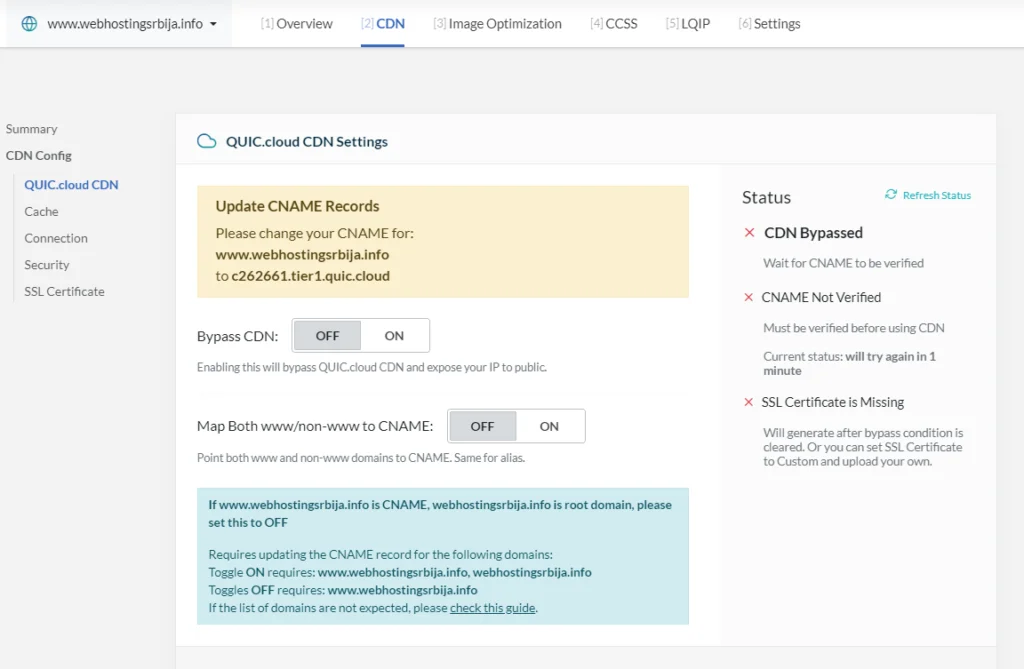
There are two ways to set up a CDN at the moment. You need to enable the CNAME for the domain as outlined in yellow in DNS management (this option is not supported by all DNS management systems).
Another option is to open your site with www (if it is not already). So you need to change everything on the site to www.vašdomen.rs instead of just https://vasdomen.rs to https://www.vasdomen.rs, you can do that with the better search and replace plugin.
Below we have described 3 methods of setting this, choose the one that suits you. We did method 1 because it requires the least work and has the least complications. Followed by further settings.
Method 1 (highlighted in orange)
Here below is an example of how to set up the first option using CloudFlare DNS Management
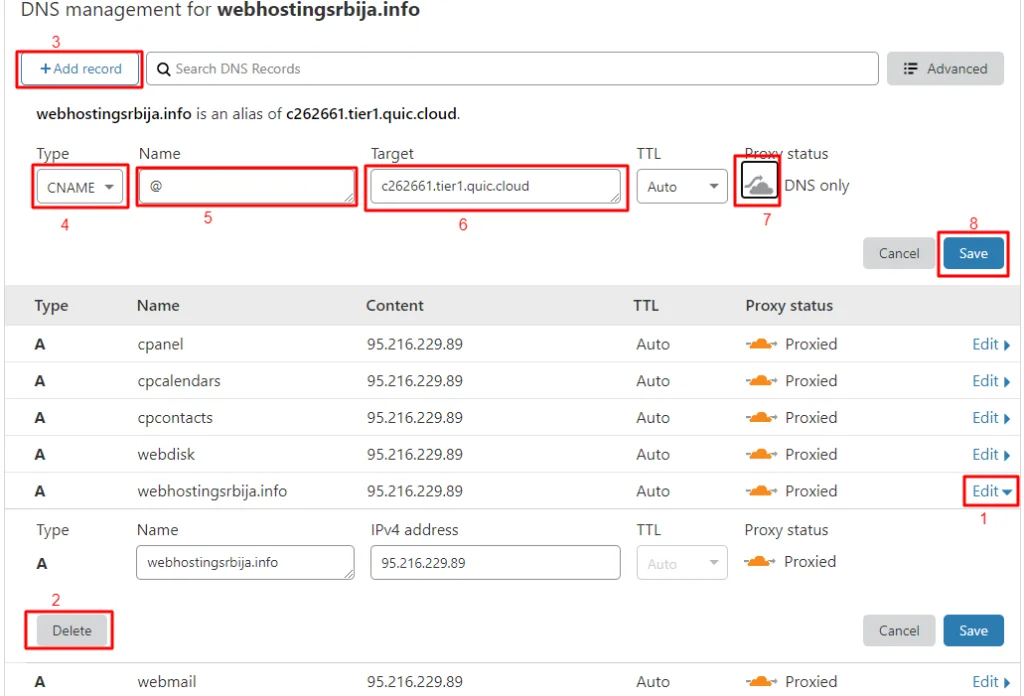
- You click on Edit at the A record of your domain as in the example from the picture
- You click on Delete and then on the popup again on delete
- Then click on Add record and you will see fields like in the picture below
- In Type, select CNAME.
- In name, you enter the @ character that changes your domain, or you enter your domain
- Target you enter what you got in the quic.cloud site when you enabled the cdn
- Turn off the orange cloud
- Click save.
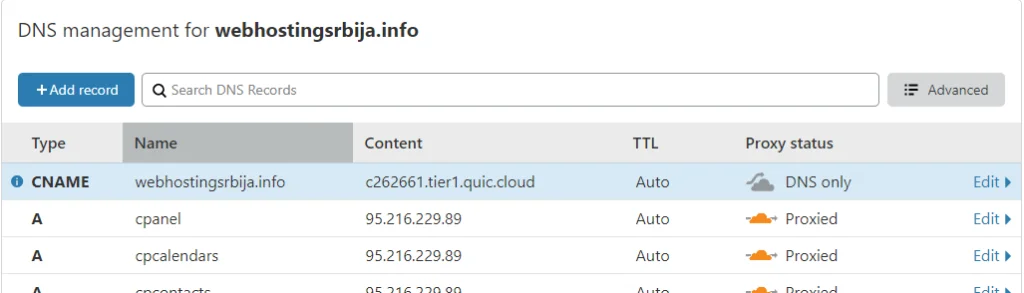
That's all you will get as in the picture below
Method 2
Click Bypass CDN
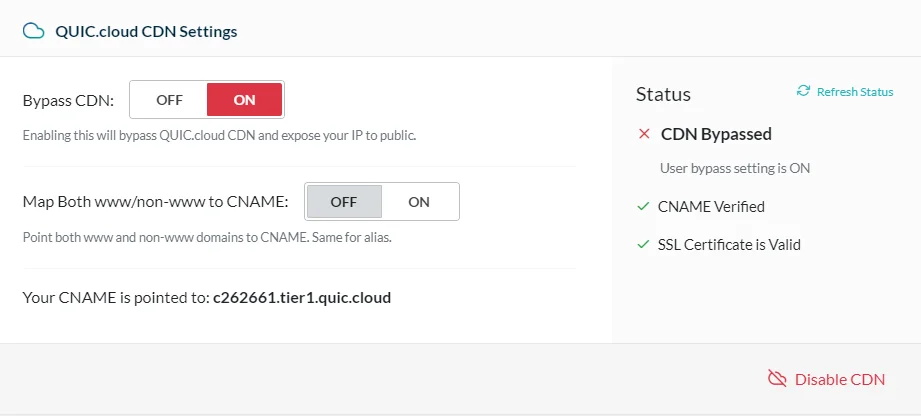
That's it, you're done and the CDN sends a request directly to your page.
Method 3
Map Both www/non-www to CNAME this enables CDN by using www in front of your domain. Therefore, you need to change the domain if it is not already at www.vasdomen and that it opens with https://www.vasdomen.rs instead of https://vasdomen.rs.
Now that we've finished those settings, let's move on to the next CDN settings.
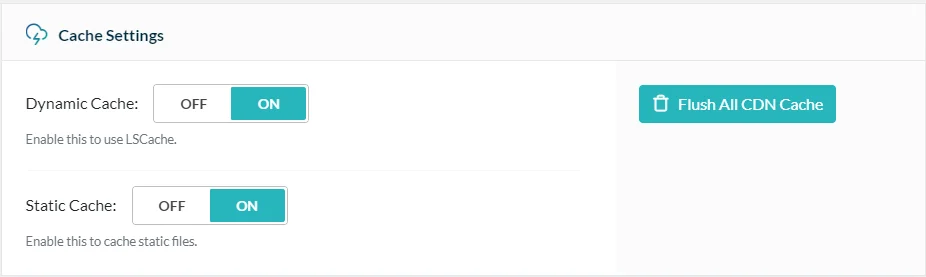
Here we set both options to ON. Very important.
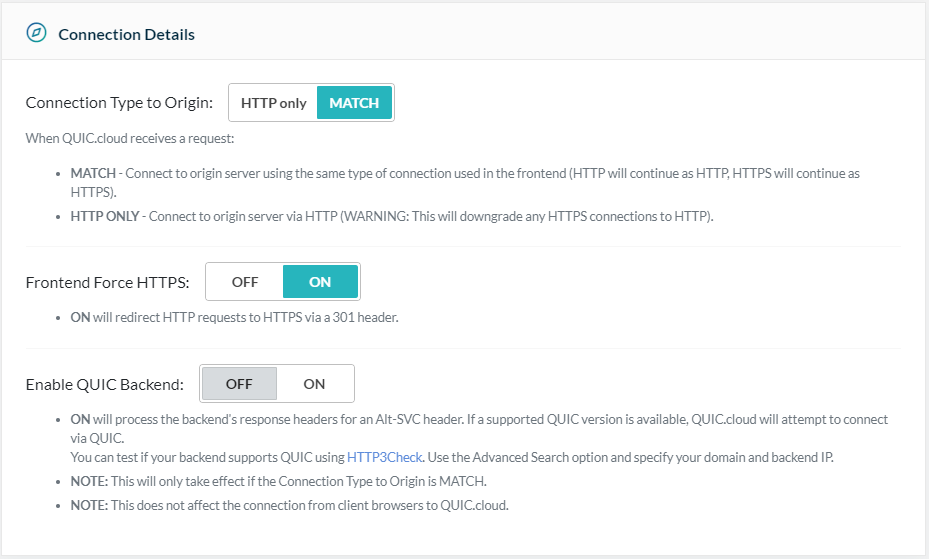
In this section we leave the options as they are as in the image below.
In addition to the part where this plugin allows your site to load faster, it raises the level of security to a higher level. In the next section are the security options it offers.
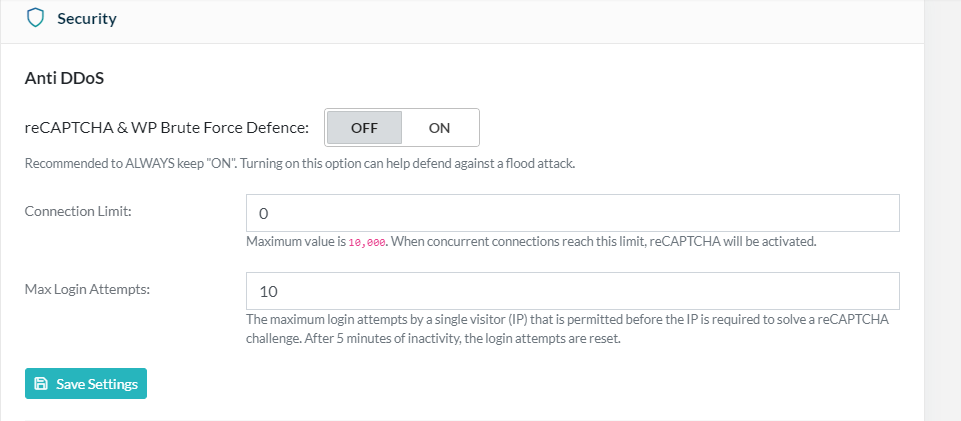
Here you have the option to protect your site if it is under a DDOS attack or to enable the maximum number of login attempts. This prevents your site from being overloaded by hackers and bots.
When one of these two limits is reached, a reCAPCHA will appear that must be solved to continue. If you have doubts such as that your site is under load and you don't actually have visits, then turn on this option and monitor the situation to see if the load will decrease.

This option allows you to immediately block access to the site by automatically setting reCAPCHA on the site when entering the site. This is useful if you are under attack that you cannot block.
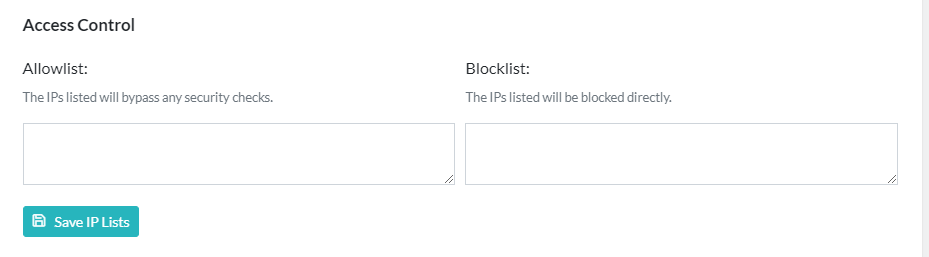
In this section, you can set a whitelist so that that IP is not blocked and that recapcha is not displayed when the site is visited from that IP address. This is useful when, for example, you are under attack and you have turned on the previous option, but you do not want recapcha to be opened, then set your IP address here and thus avoid having to fill it in every time. You can also put it on the BlockList, if you know which IP is problematic, you can immediately block access to the site.
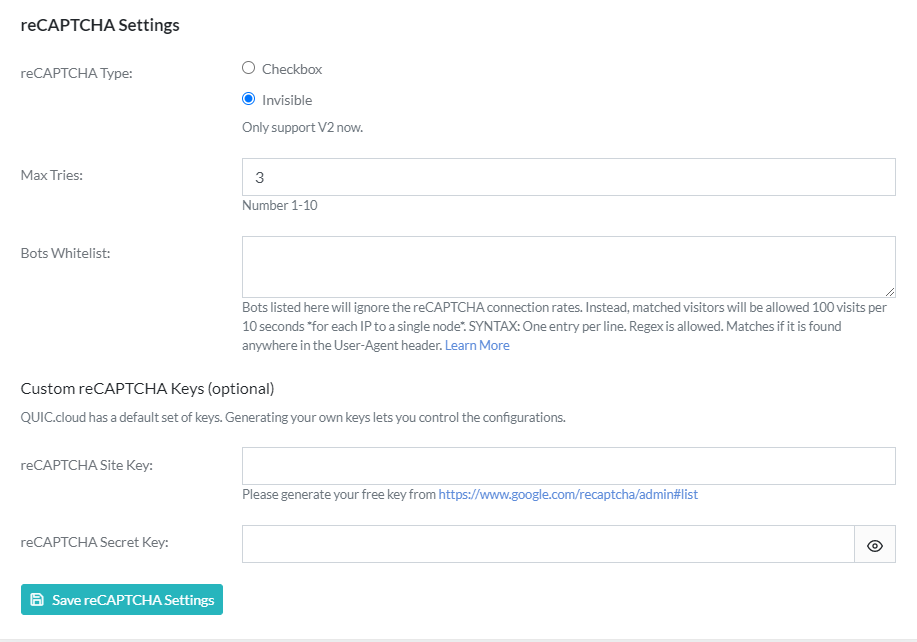
In this part you enable recapcha how many times it will be possible to try it, you can whitelist the bots so that they will not be displayed (this is good to include). An example of what you need to enter is at this link: https://quic.cloud/docs/cdn/setup/bots-whitelist/
In Custom reCAPCHA, you can set your key if you have one.
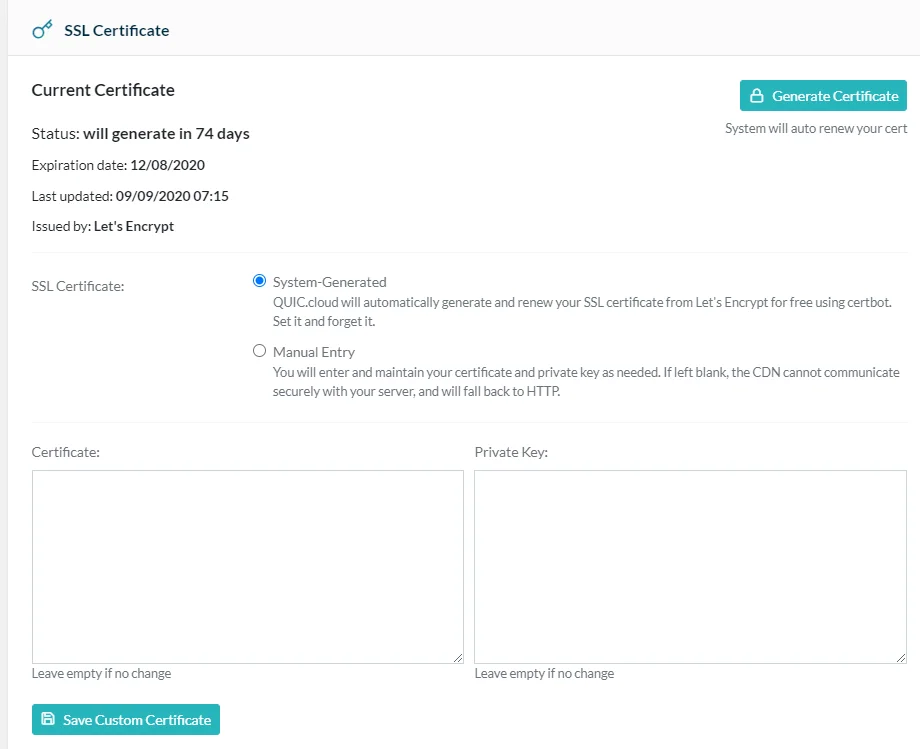
In this part you do nothing and skip because the system automatically sets up SSL and renews.