In this short guide, the complete procedure for setting up an HTML site from a computer to the hosting itself will be shown.
First of all, it is necessary to ZIP-uite files (.zip extension is necessary because .rar is not supported). The example image was made on Windows 10 and every Windows has this. If you do not have this option, then find a program through which you can ZIP files (such as winrar).
IT IS VERY IMPORTANT:
It is very important to go into the folder where all the html files and similar are, and not to zip the folder inside which the files are. Just like in the picture, go into the folder and select all the files from your site and only then zip it. If you zip the folder and when you unzip it later, it will not open the site.
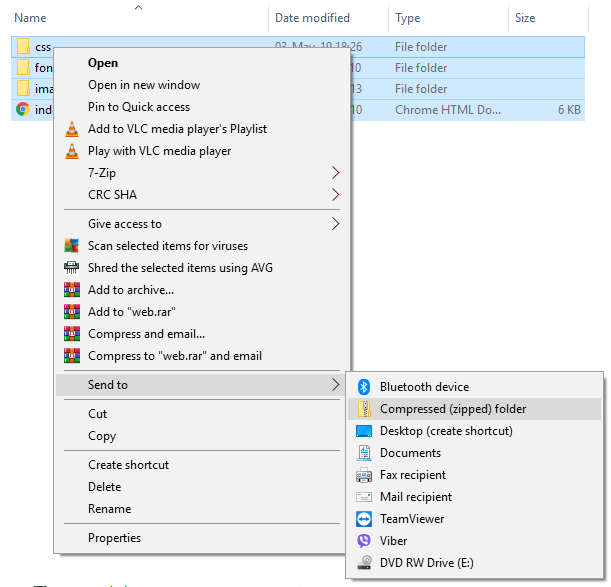
When we clicked on the "Compressed folder" option, the computer packed the desired files into one file.
The next step is to log in to cPanel (vasdomain/cpanel). Then we click on "File Manager", where we then open the folder "public_html" as shown in the picture.
(If you have a cgi-bin folder in public_html, don't worry, nothing bothers you and you can delete it.)
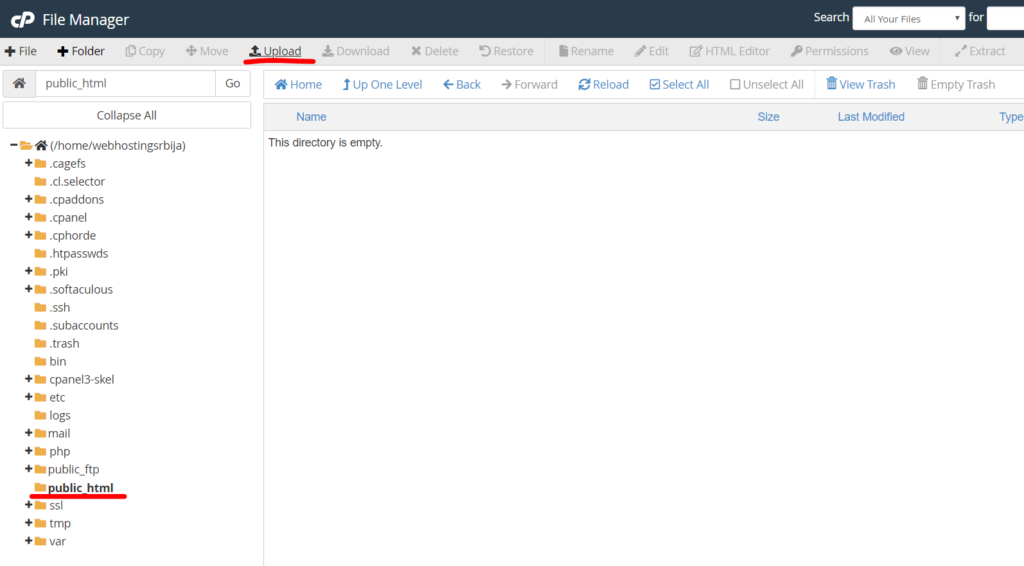
As you can see, public_html is marked on the left side, where on the right side it will appear empty or only the cgi-bin folder.
What is still marked is the "Upload" option, with which we upload the ZIP file that we did a little while ago.
When 100% turns green during upload, it means it's done and you can close that TAB.
In this step, you will return to the previous tab where it says public_html and you need to click on "Reload" and your ZIP file will appear.
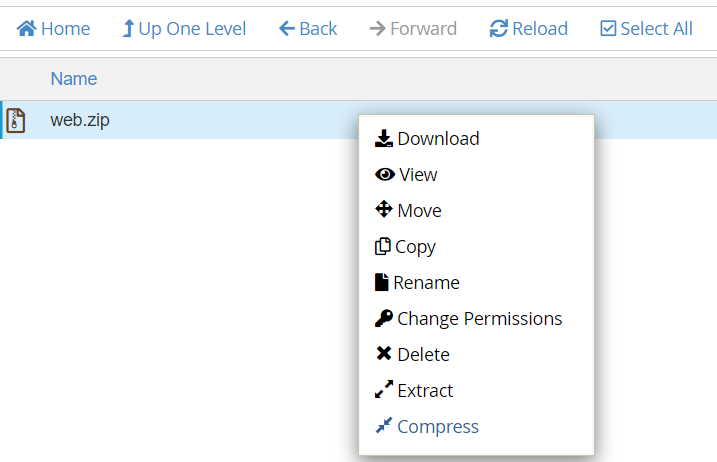
Right click and the options will appear as in the picture and click on "Extract". And after that, in a small window, just confirm the option by clicking "Extract file".
That's all.
Most common mistakes
403 Forbidden
If when you open the site and it says error 403 forbidden, it means that you have not followed the part that we indicated with "very important" at the beginning of the text. And that your files are not in public_html itself.
Note: The first page of your site must be called index.html or home.html.
Doesn't open images
And now the most common mistake is when the question "so what is this on the computer is working fine now, but look at what it looks like, nothing works...".
Most often, the problem is the images because they are placed incorrectly and you get the following icon instead of the image:

This means that image links are not good.
One possibility is that you put the wrong path in your code
<img src="C://webroot/mojsajt/slike/slika.jpg"/> --- incorrect
<img src="/slike/slika.jpg"/>                    --- correct
Just text without style
If instead of a website, you received only text without appearance and nicely arranged as in this example:
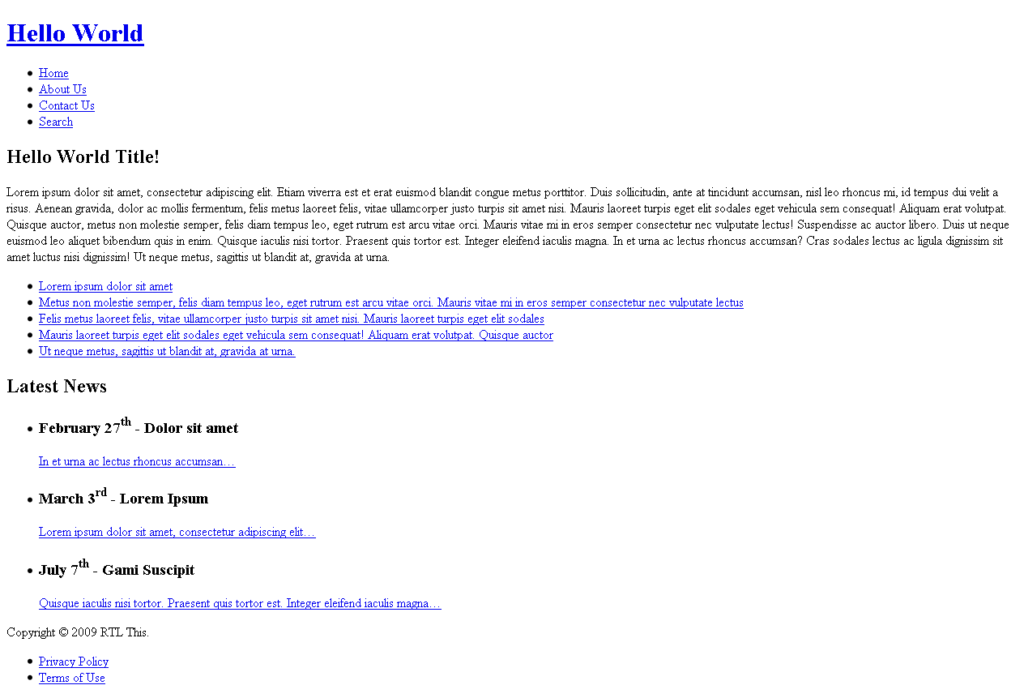
This means that the CSS file is not loaded correctly, ie the path to it is wrong and it is the same problem as with the images we mentioned above.
So files (css, js, images...) their path should go from your site.
Check out the post on optimizing HTML sites:
https://www.webhostingsrbija.rs/seo-optimizacija-za-html-sajtove/