In order to speed up your site, sometimes it is not enough just to activate a cache plugin and expect some magic. A choice of caching method is also required. In addition to memceched caching, you also have Redis and on the server we have caching that allows the WordPress site to work much better than on other hostings. Set yes
Set your site to run on PHP version 7.3. If you do not know how to contact our support, it is available non-stop!
In order to activate memcacached on wordpress, you need some plugin, we have chosen the most popular one, which is W3 total cache. Of course you can use any plugin you want for something like this. Some work better, some worse, so test a few and see which one gives you the best results. You can test your website speed with gtmetrix.com
Page cache
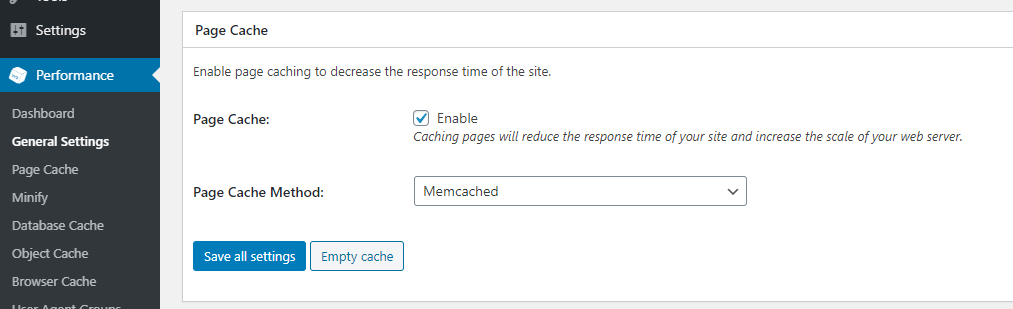
When we installed it, we click on General Settings and a little below we have a huge list of settings, the first of which is Page Cache.
Click Enable and then from the drop-down list select Memcached and then Save All Settings.
Minify
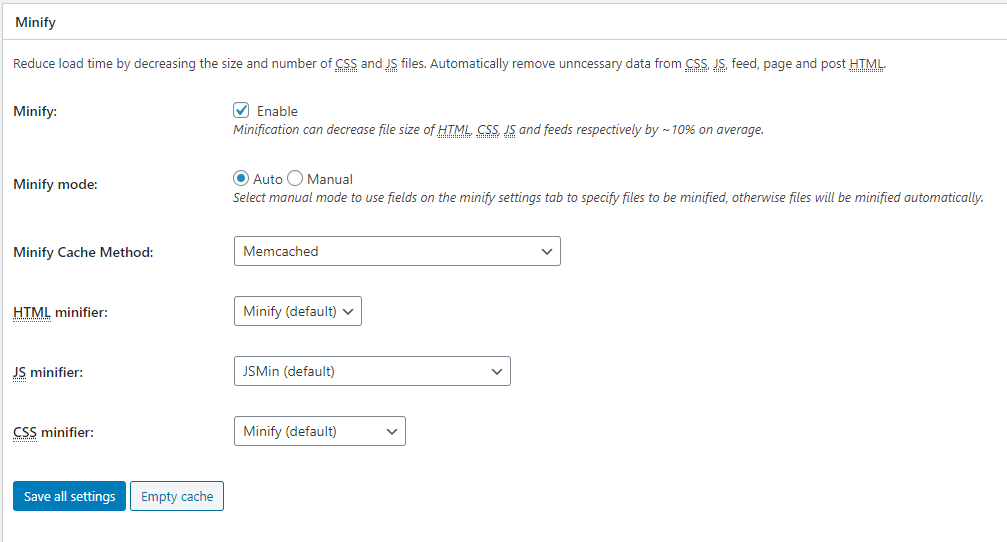
Here we look for the Minify section where we check Enable and select the Memcached caching method. Note that minify changes all the html,js,css code and puts it in one line. I'll show you how it works with the following example:
<html>
<head>
<title>Ovo je primer</title>
</head>
<body>
... . ....
</body>
</html>
converts to code:
<html><head><title>Ovo je primer</title></head><body>.....</body></html>This works with all code so while this is a great idea and should work in most cases it can happen when you turn on minify that your site doesn't work properly or some part breaks.
Database Cache
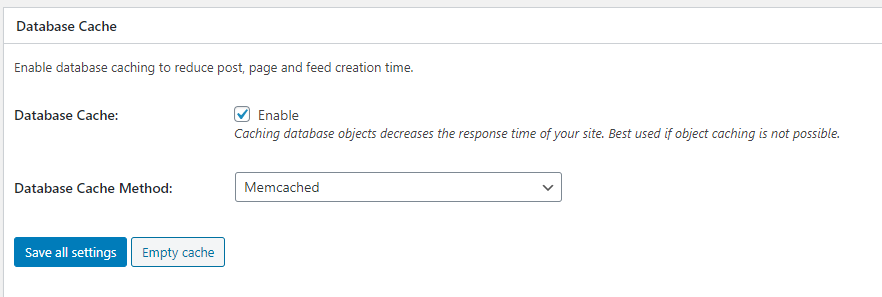
For this option, check Enable and then select Memcached from the drop-down menu. Don't forget Save All Settings to make sure we haven't missed anything and haven't saved anything.
Object Cache
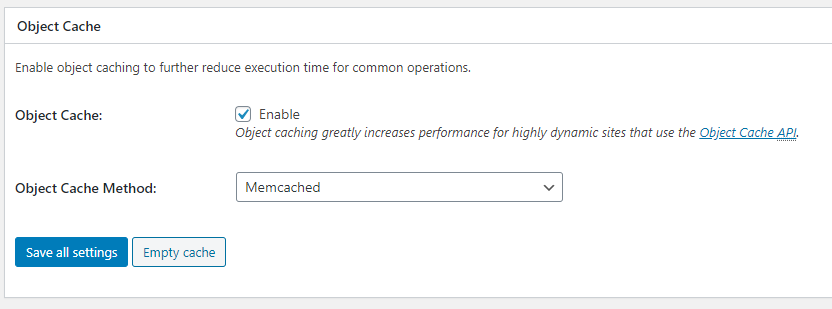
We tick Enable and then select Memcached. We save and that's it.
Fragment Cache
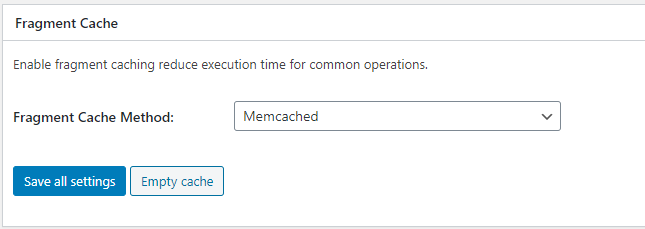
When we select Memcached from the drop-down menu, click Save All Settings.
All of this is part of the basic setup and cache method selection. Of course, besides this basic one, there are even more possibilities. In addition to the free ones, there are also premium options that this plugin provides for an additional fee that will further enhance your site.
In addition to this plugin, you have other plugins that enable Memcached caching and that will allow you to speed up your site in one or more ways. We tested with these basic settings and got very good results, I note only with the basic settings without additional settings. If you have enough patience to study each option then it will definitely help you get amazing results.
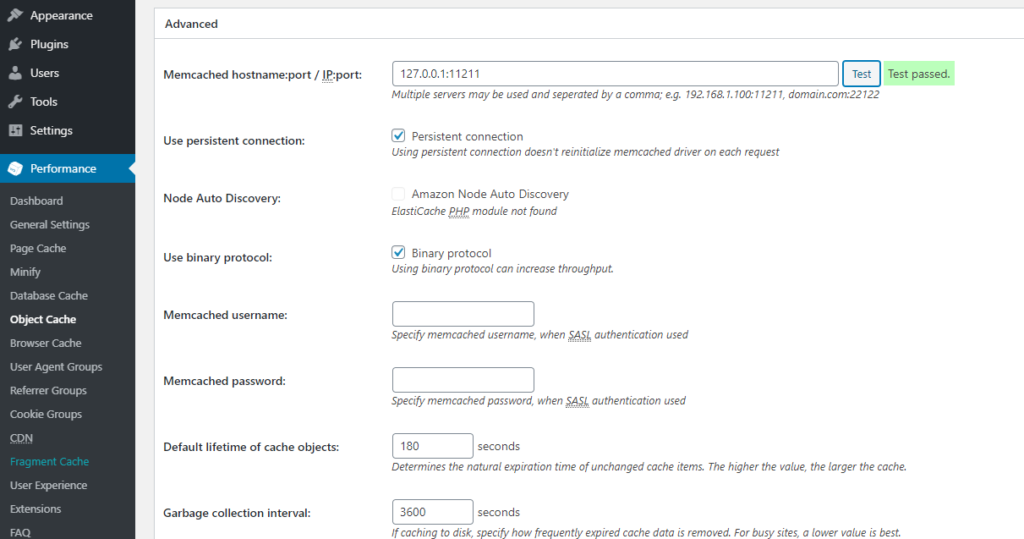
When you are done with all these basic settings, you can click on any of the mentioned options on the left side of the menu and then in Advanced you will get additional settings as in the picture below and to test whether caching works.