The following items will help those who are new to the process of creating websites in WordPress, but also those who are a little more experienced, to remember what they may have missed.
– Fix and optimize. You can optimize the database in the following way
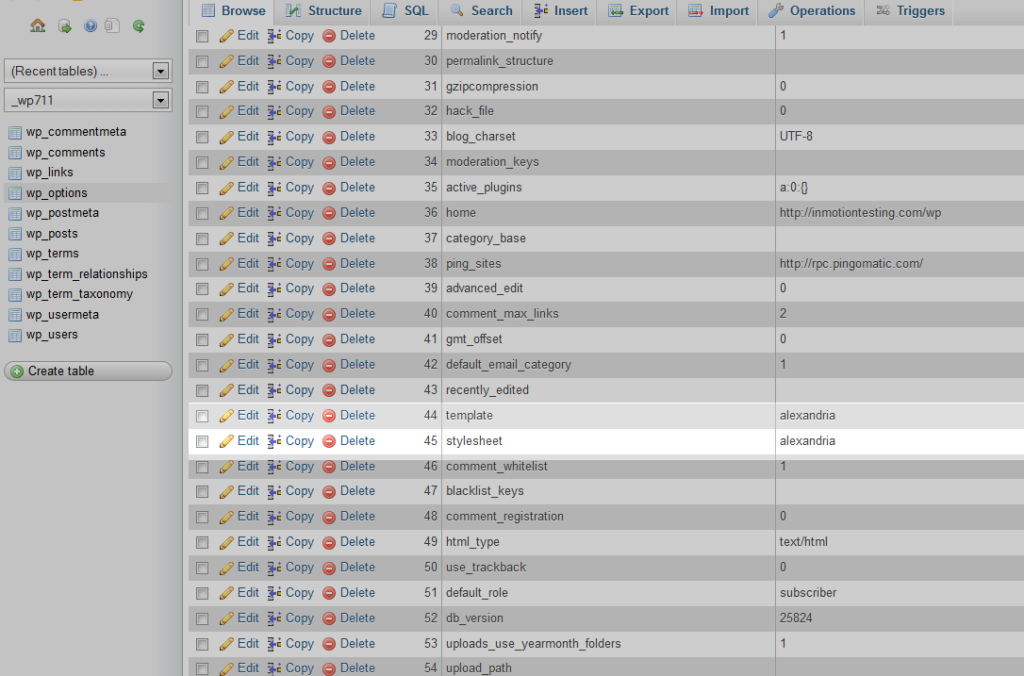
a) In the database section of cPanel, click on PHPMyAdmin.
b) The table that appears contains all posts, categories, comments, blogroll links, users, and so on.
c) Scroll to the bottom. Click on Check All.
d) On the right side of the Check All field you will find a drop down menu. Select Repair
e) Repeat the procedure and select Optimize from the drop-down menu.
– Delete plugins that you don't use completely. You don't just deactivate it, you delete it completely.
- Close every page where you enter articles if you are not using them. WP automatically saves everything on the server which requires more CPU than just loading a post.
- Avoid a plugin or widget that automatically loads RSS. Also remove any RSS widgets that load rss like Tweets or anything like that.
- Do not post via email. Submit articles exclusively through the WP interface as any other method requires more system resources for processing.
– Use summarie in Feeds. In Settings->Reading, select Summaries in Feeds.
- In Settings - Discussion, turn off email notifications.
- You can use Google Search in addition to earning, it will certainly reduce the processing of the database and browsing the entire site, thus reducing server resources.
– Control exactly what you upload images or video. Use Photoshop, Gimp, or Fireworks to reduce images.
– You can try installing the Cache plugin. Let's say WP Super Cache or W3 Total Cache
You can also use WP Minify to minify CSS and JS.
- It is possible that there is some plugin that causes frequent refresh of the wp-cron.php page.
How to disable more at: http://wordpress.org/support/topic/124485?replies=13
- Update. Update and finally do a regular Update! WP makes very frequent updates where it improves and corrects errors. This is the most important thing when using WP. As soon as a new version comes out, try to update. Of course, a new update can cause changes to the theme you are using, but that risk certainly exists later.
You can find more information at: http://wordpress.org/support/topic/164456?replies=61
The following code is taken from:
http://www.askapache.com/htaccess/speed-up-your-site-with-caching-and-cache-control.html#caching-with-mod_headers
Caching with both mod_expires + mod_headers
# Turn on Expires and set default to 0
ExpiresActive On
ExpiresDefault A0
# Set up caching on media files for 1 year (forever?)
ExpiresDefault A29030400
Header append Cache-Control "public"“
# Set up caching on media files for 1 week
ExpiresDefault A604800
Header append Cache-Control "public"“
# Set up 2 Hour caching on commonly updated files
ExpiresDefault A7200
Header append Cache-Control "proxy-revalidate"“
# Force no caching for dynamic files
ExpiresActive Off
Header set Cache-Control "private, no-cache, no-store, proxy-revalidate, no-transform"“
Header set Pragma "no-cache"“
Caching with mod_headers
# 1 YEAR
Header set Cache-Control "max-age=29030400, public"“
# 1 WEEK
Header set Cache-Control "max-age=604800, public"“
# 3 HOURS
Header set Cache-Control "max-age=10800"“
# NEVER CACHE
Header set Cache-Control "max-age=0, private, no-store, no-cache, must-revalidate"“
Caching with mod_expires
ExpiresActive On
ExpiresDefault A0
# 1 YEAR
ExpiresDefault A9030400
# 1 WEEK
ExpiresDefault A604800
# 3 HOURS
ExpiresDefault A10800″