During installation and startup, you will be presented with the request domain key option.
What is a domain key and what is it for? What is QUIC.cloud and what is it for?
The domain key is used to connect your site to the quic.cloud service.
CDN is a global network of servers that delivers data quickly, using cache servers as well as PoP "access points" that are geographically closest to the user. Your static site content is stored on each of the servers on the network.
With it, you will be able to speed up the site additionally and significantly. It will help you with image optimization and caching of static parts of the site in order to further speed up the site and thus reduce the load on the account.
Setting it up is semi-automatic. You simply need to click as in the image below:
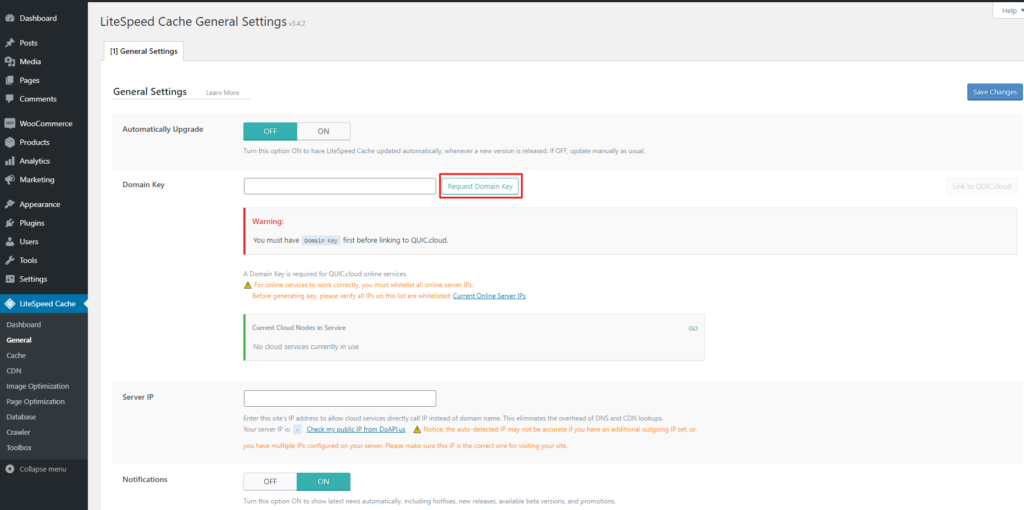
When you click, your page will be refreshed and it will take some time for the system to process itself and set the key. When it is done the field will show stars. After that, you need to click the Link To QUIC.cloud button as in the image below:
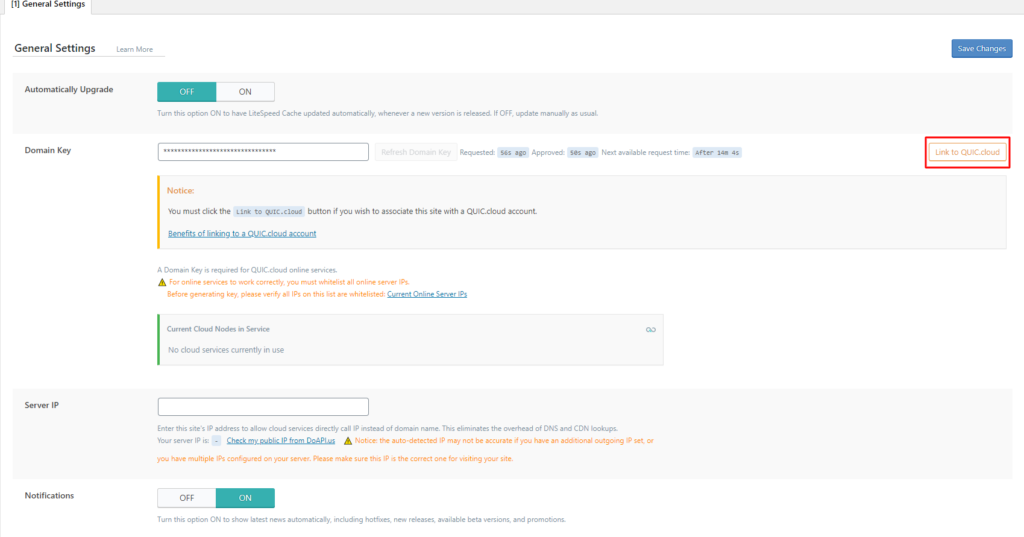
After clicking, you will be redirected to the quic.cloud site where you have the option to register or to skip the registration and just connect the site to the quic.cloud service by clicking on the stay anonymous button.
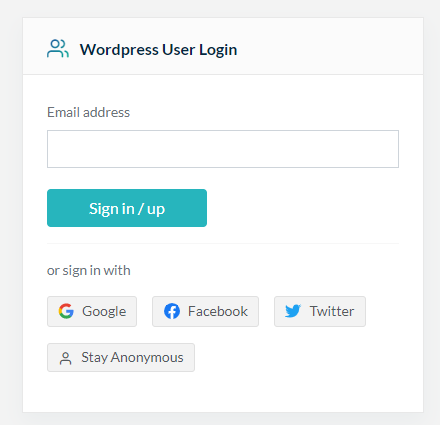
We advise here to create an account by entering your email address, as you will have additional options as well as an overview of caching and optimization usage.
Considering that this is a premium option and that the hosting provider (in this case we) pays for this option and you get it without any additional charge, you already have a paid option that uses image optimization and CDN. We will deal more with this in other articles.
Now in the same place in the general options we need to add the IP address of the server where your site is located. By clicking on "Check my public IP from DoAPI.us" the ip address of the server will appear right next to it as in the picture and all you have to do is select the ip address and enter it in the field above and then click on Save Changes.
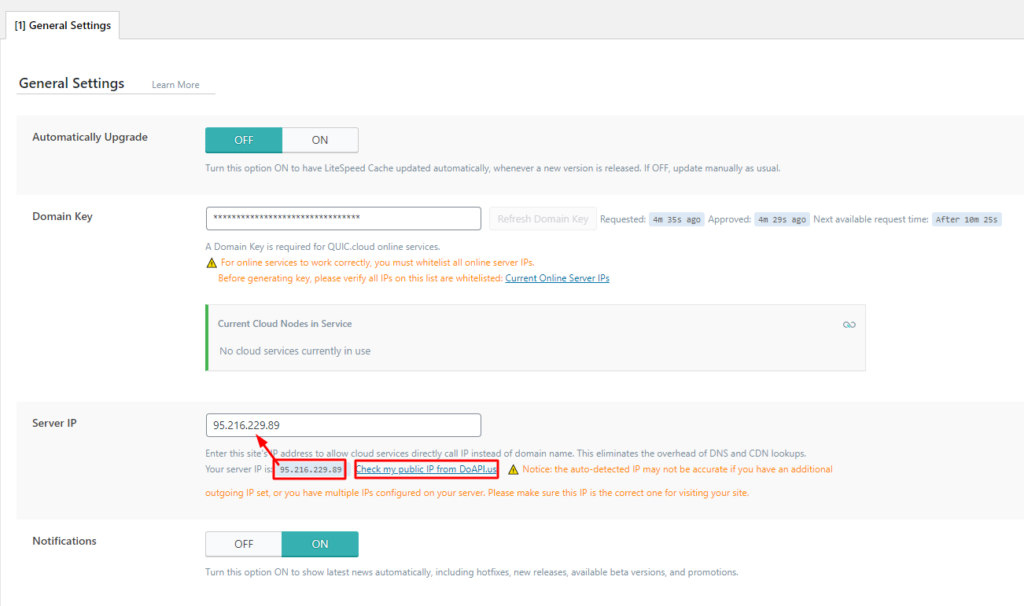
This completes the domain key setup and connection to quic.cloud.