In this article, we will describe one of the most popular email clients in our country. Although we are not personally fans of Microsoft products because of the big problems, we decided to make this short tutorial.
The instructions themselves require more steps than other email clients, but they are certainly not complicated and far from impossible.
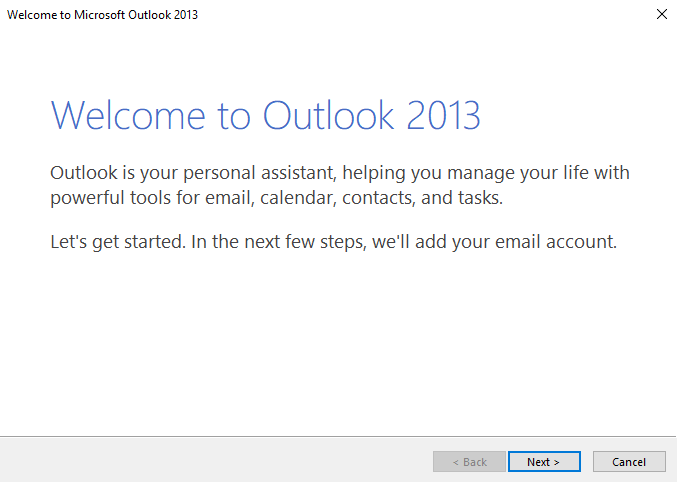
The first step is the easiest 🙂 click next
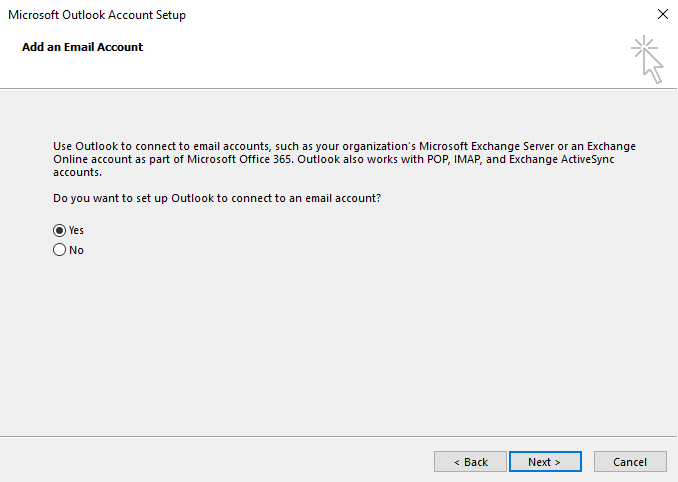
In this step, we choose that we want to create an Email account and then on next.
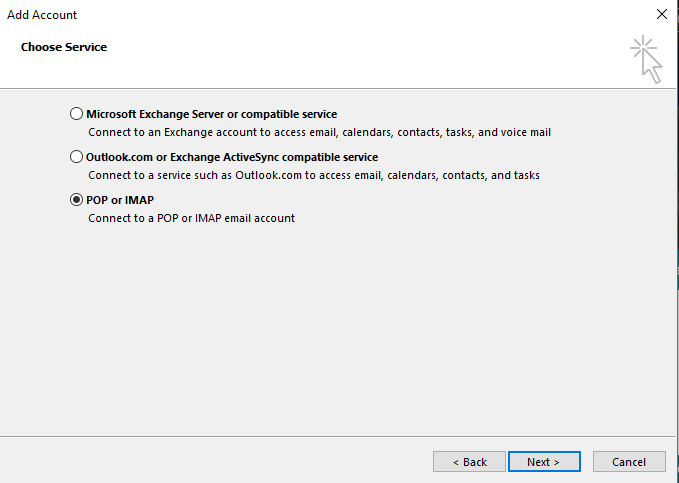
Here we do not choose what outlook offered us, but choose another option as in the picture. The reason is because microsoft wrongly assumes a connection to the server unlike other email clients.
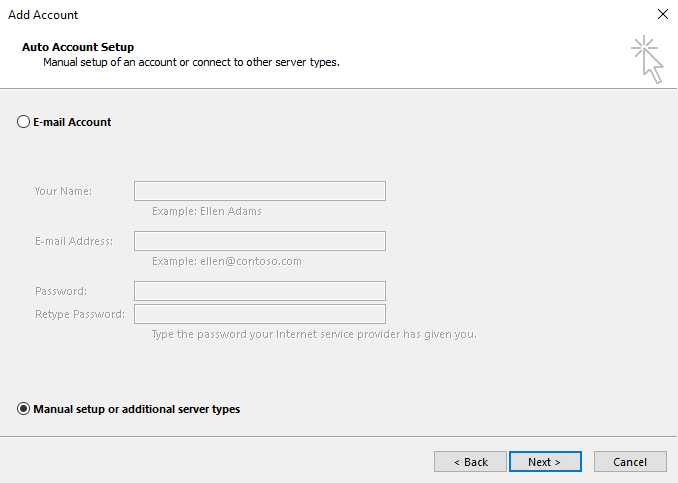
In this step we select POP3 and IMAP, that means connecting to our server and not theirs.
In this step, the entire connection to the server takes place.
In the first field, enter the name that will appear with the email address.
The second field is your email address
Third POP3 setup
Fourth and fifth goes the incoming and outgoing email server. And that is mail.vasdomen.nesto, like ours is mail.webhostingsrbija.rs, replace it with your domain. If you are in doubt, ask support via the livechat option.
Username is the ENTIRE email address, not just the first part of the email address.
The password is the one you set yourself when creating that email address in cPanel.
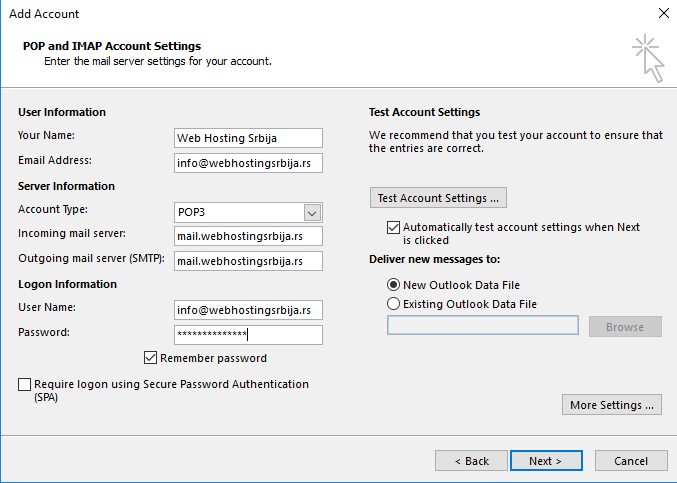
When we have filled all this, we go to the lower right corner "More settings..." A new window will appear where we select the third tab "Advanced" and enter as shown in the picture. Literally like the picture.
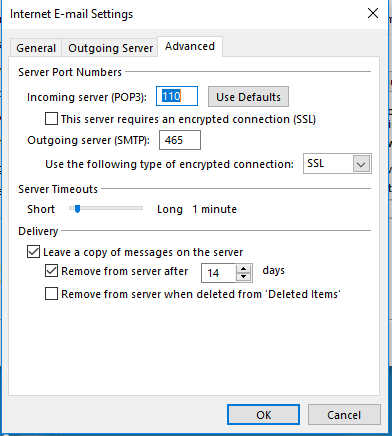
After that, we click "Ok" and when that window closes, we go to next. You will see a window like in the image below where the program will perform a test which should look like this where it has successfully connected to the outgoing and incoming server. If not, check again whether you have filled in everything as per the instructions, if not contact support.
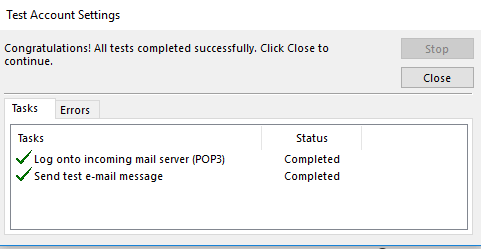
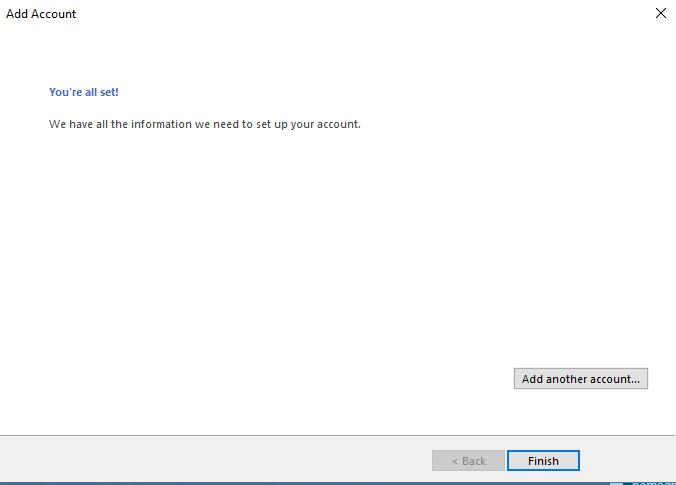
Since we connected everything as we wanted, that's all. The program has been successfully connected and your email address is ready to use.
Of course, keep in mind that we are always available online for any questions. We often help via teamviewer to make it easier and faster to set up the email client.