If you didn't know Gmail can be your email client. Almost all of us have a gmail address open and google realized the popularity of it and decided to make it possible for everyone to use gmail even if you don't use google and gmail to send and receive emails (interface yes but no server).
Instructions
Go to Settings and then to all settings.
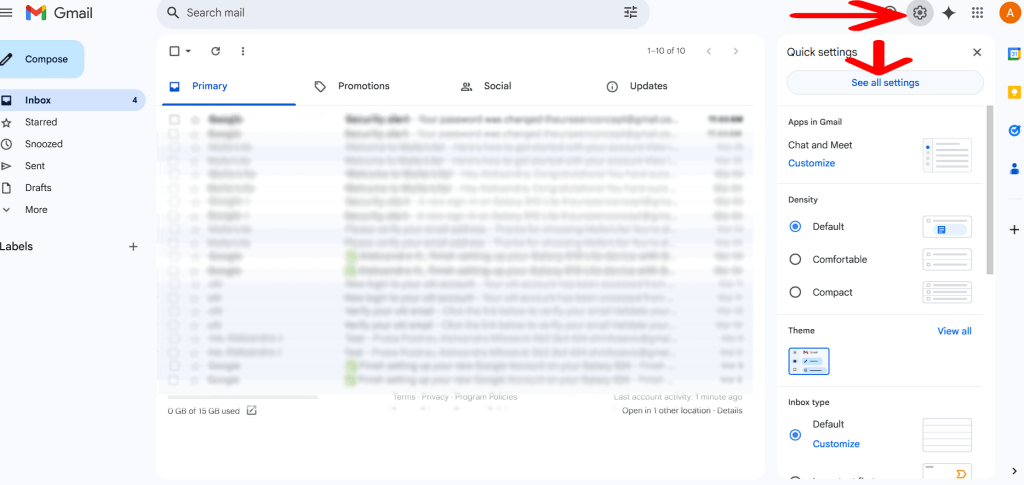
Then select the option for further instructions below.
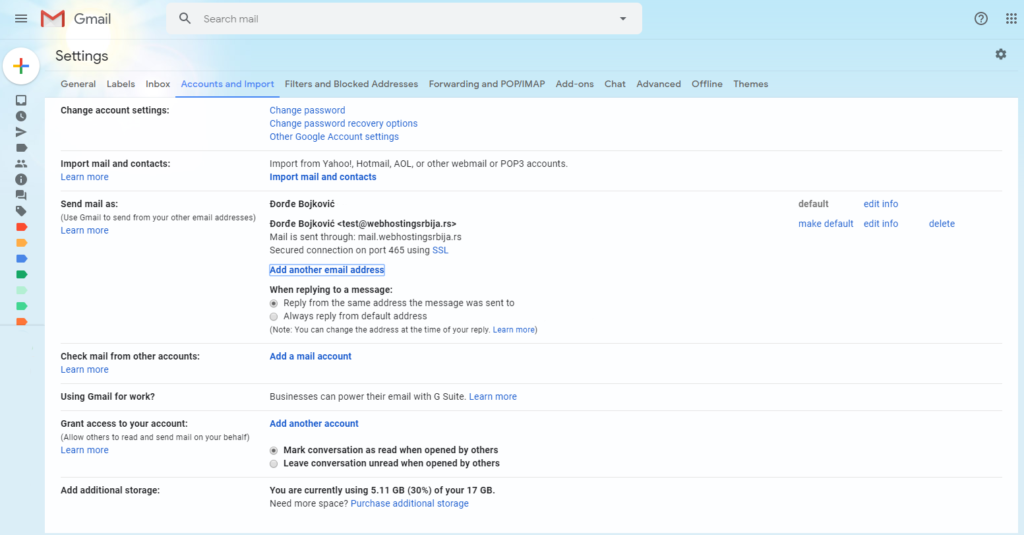
In the picture above, we can see how the settings look like in gmail and the option we need is "Accounts and Import".
There are other options in that section, and we especially need two for this instruction, namely "Send email as" and "Check mail from other accounts".
First of all, click "Add another email address" on the right side of "Send email as" in that option. As soon as you open it, a popup will appear as in the picture below.
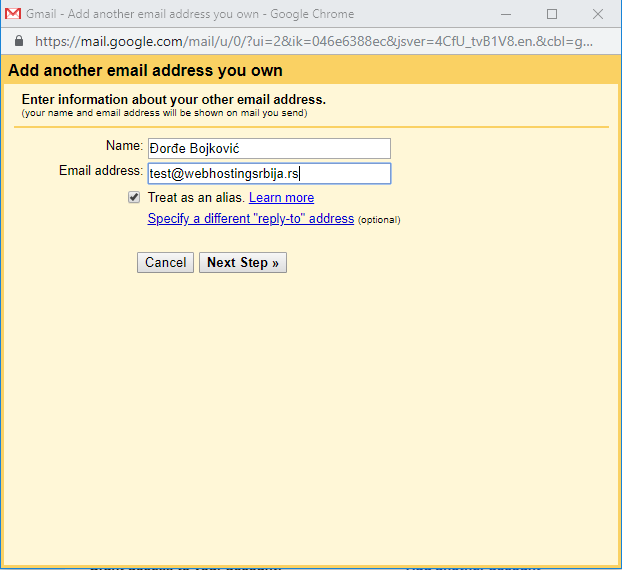
What we enter here is "Name", that is, the name that will be written to our email recipient when we send him our email address. Fill in and click "Next Step".
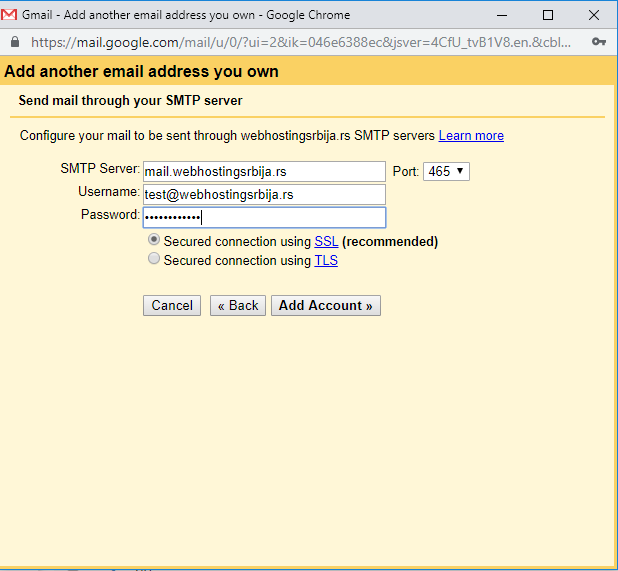
Now in this step we set up the SMTP server that we use to send emails. Here you can see that we actually use Gmail only as a program like outlook, thunderbird and similar and that we actually send email from hosting and personal email server and not from google.
In the first field where "SMTP server" is, enter your server, which is mail.vasdomen.rs, and choose 465 for the port.
Username is the ENTIRE email address.
The password is the one you set when creating the email address.
When we are done, go to "Add Account".
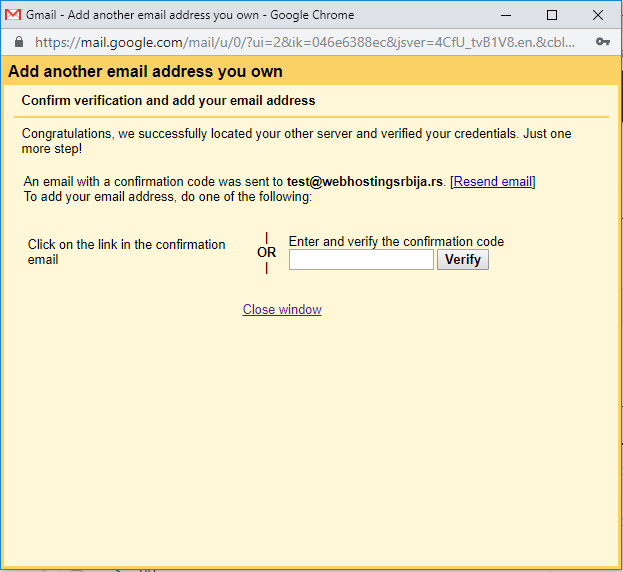
Now in this step you need to check your email and click on the link that google sent you or enter the verification number that was also sent in the email.
You can see the email by entering webmail.
Log in to cPanel and click on Email Accounts and then on check email.
Now that we have entered, we are left with one more option.
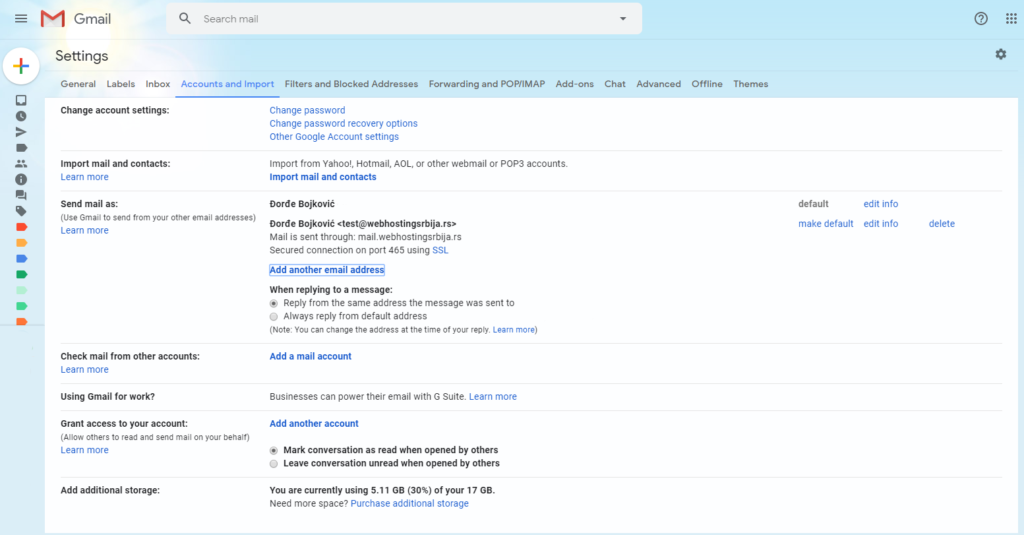
Now in this second part is that when someone sends us an email, that email reaches us in Gmail. And we do that by clicking on "Add a mail account" in the "Check mail from other account" section.
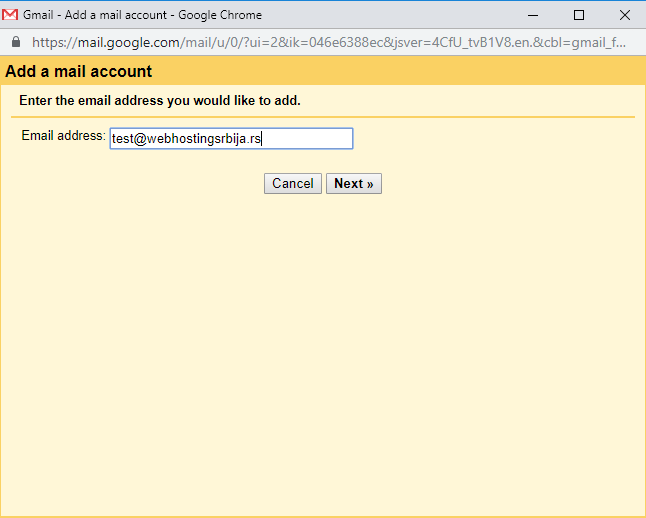
Here we enter the email address and click Next.
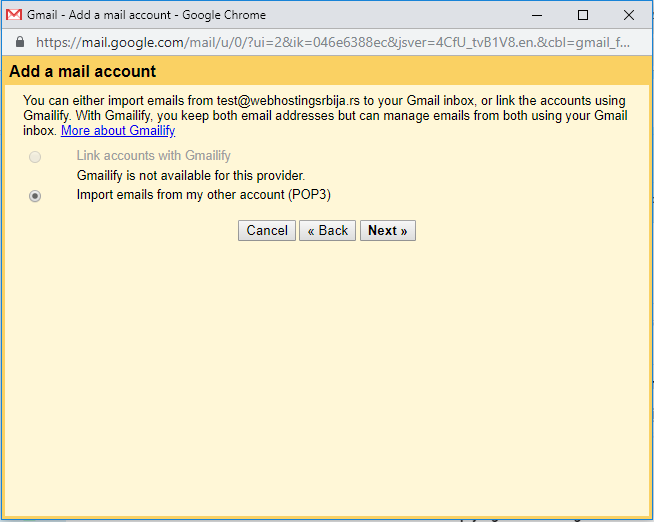
Here we have nothing to choose, the only option offered to us is already selected and we click on "Next".
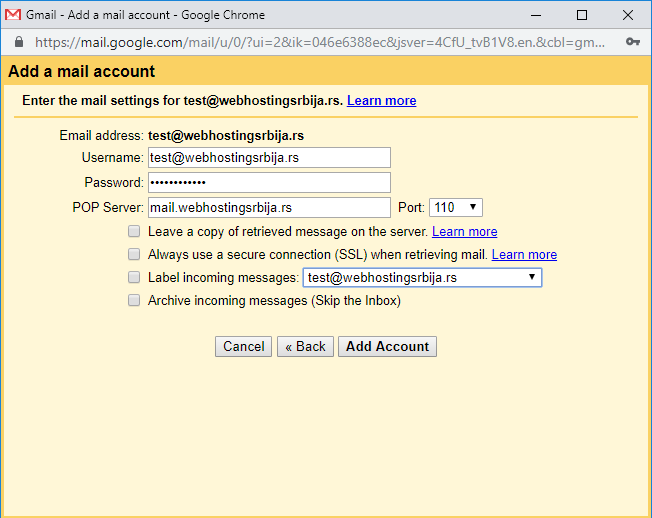
Now this is the most important part of the settings and it is the access data as for any email client.
Username is the ENTIRE email address.
The password is the one you set when creating the email address.
The POP Server is mail.vasdomen.rs and the port is 110 (it can also be 995 for SSL, but then the option "Always use a secure connection SSL when returning mail" is checked).
Leave the rest as it is and click on Add Account.
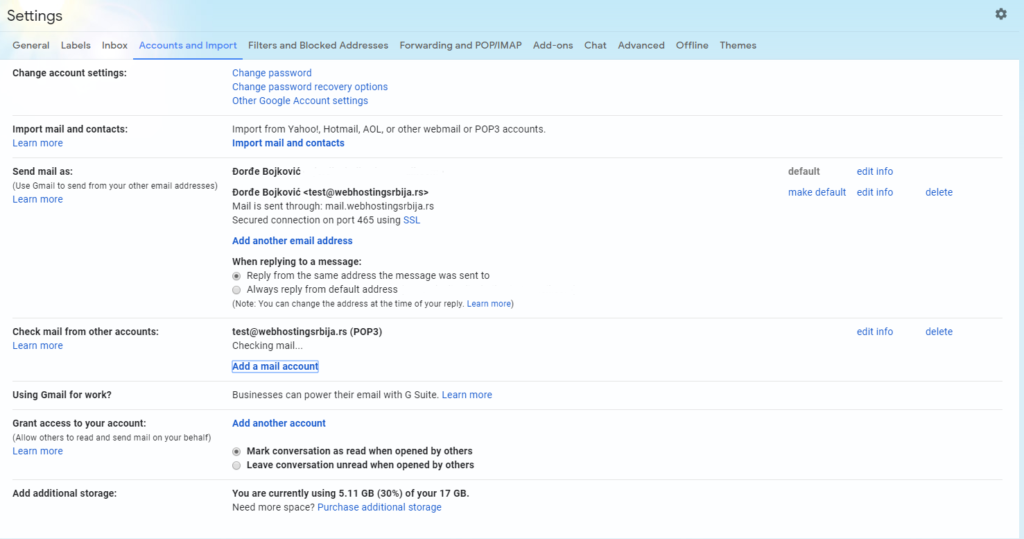
This completes everything and the email is set up. Now you can send yourself an email and you will see that it will go directly to gmail. Note that POP is set, which means that emails will be stored in gmail and not on the server. IMAP is not possible.
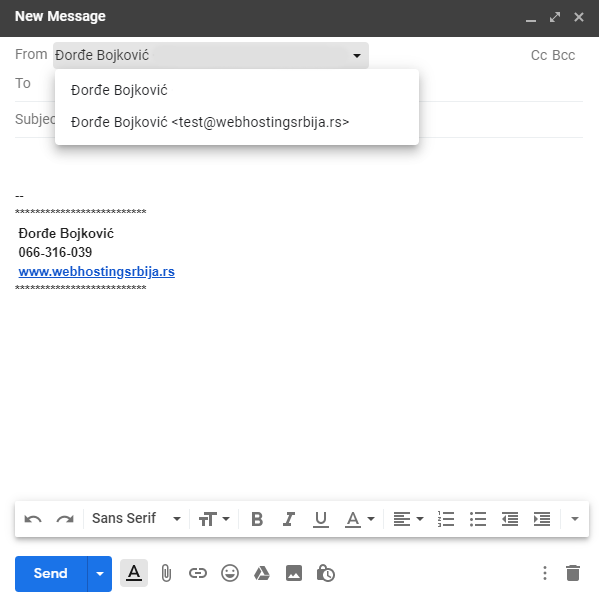
Now, when writing a new email, you choose from which email you are sending. You can also choose which email you want to reply from when replying.