Contents
This guide helps to find errors even if the site is working but parts of it are not. Let's say image upload doesn't work or theme upload, endless page loading or whatever. WordPress has enabled the display of errors, and this guide is just for that option.
Internal Server Error occurs for several reasons. Code error, .htaccess problem
The error that appears on wordpress since the latest version are:
- This website is experiencing technical difficulties.
- This web site is experiencing technical difficulties
- There has been a critical error on your website.
Solving comes down to a system of elimination.
PHP error display
If the site is something other than wordpress (since the instructions for wordpress are at the end of this article), activate the debug in php using the following code:
error_reporting(E_ALL); ini_set('display_errors', 1);Enter this code in the first line immediately below.
First of all, log in to cPanel - File Manager and look for the "error_log" file in public_html (or cPanel > File Manager and the LOGS folder inside it you will see the "vasdomen.error_log" file). See what it says inside which file is causing the problem and where the error is located in which line of code. There should also be the date when the error occurred, if it is a recent date, then it is possible that the error is causing error 500, if not, then search further.
Check the .htaccess file. It is possible that not everything is written correctly or that an error has occurred somewhere. It's best to reset htaccess to the beginning. In order not to delete lines of code from the file, it would be best to place a checkmark at the beginning of the line and that will "delete" it, that is, that line will no longer be important.
WordPress error finding
WordPress debug via wordpress manager
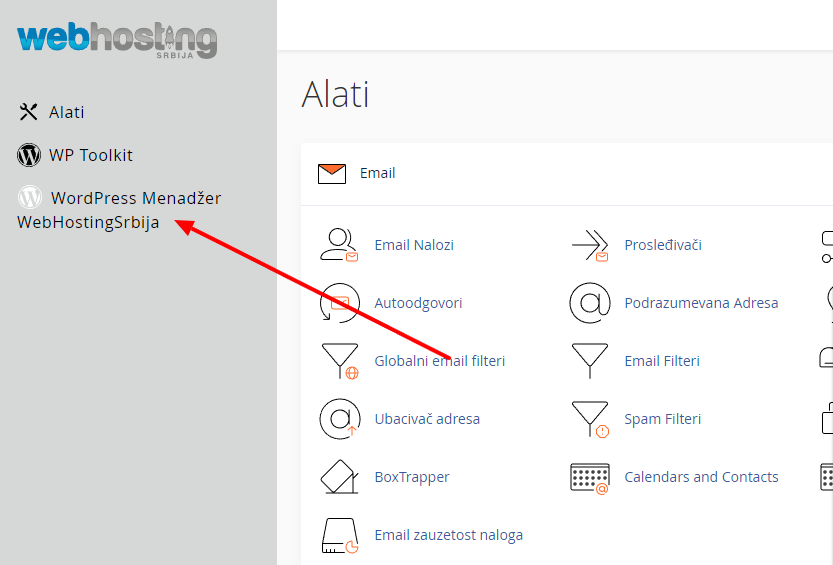
We can turn on the debug option through the WordPress Manager
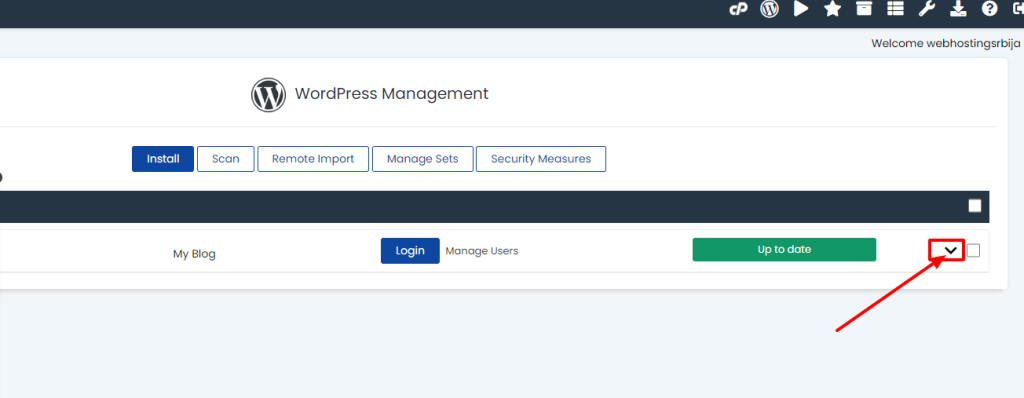
Now will appear a list of WordPress sites we have that we have installed through this tool. If there is none, you can scan by clicking on Scan and then it will appear in the same place. In this tutorial, we're going to the right arrow.
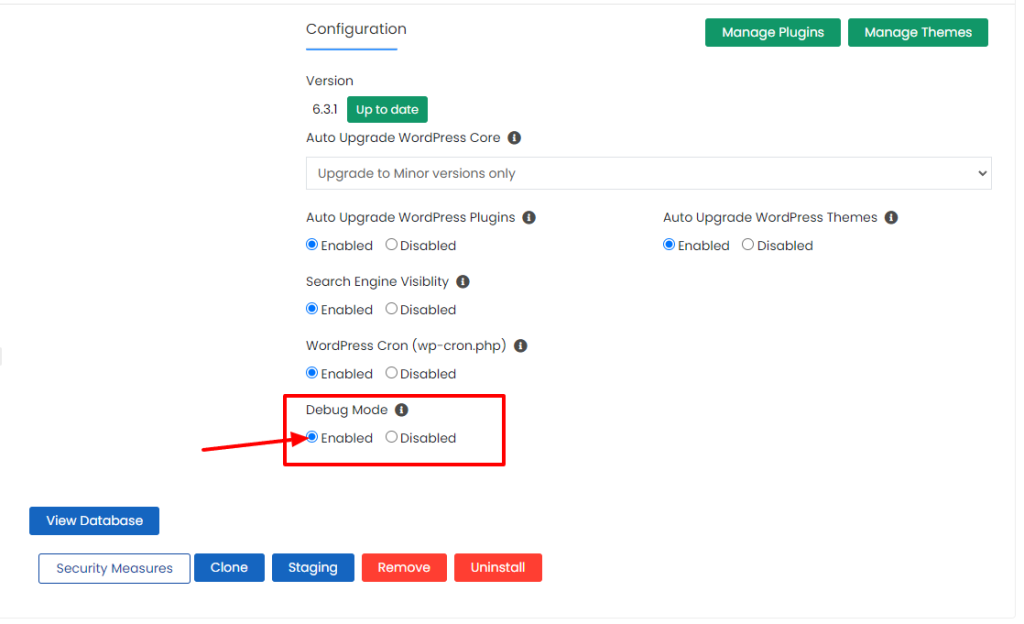
Now we will see various options from those we need, the first is Debug mode, which we set to Enable
Now that we have done that, we go to our site and try to get the same problem, ie we get an error. and We will get something like this:
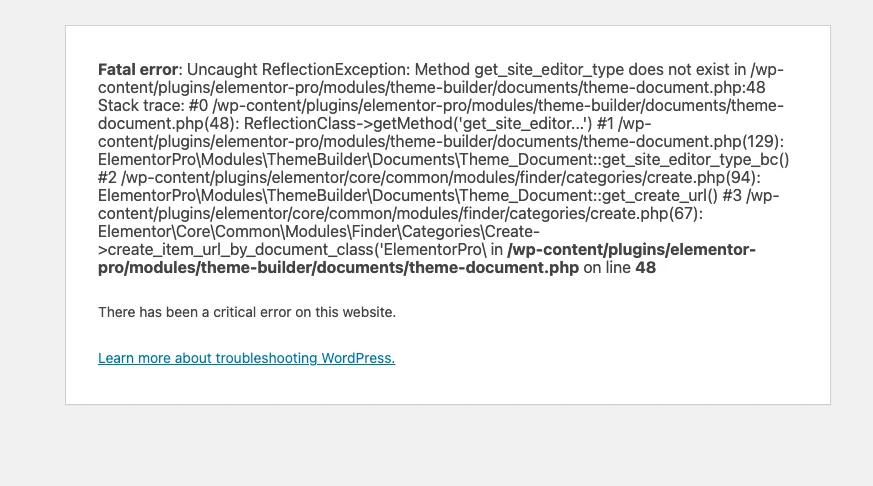
In all the lines you get, look for where it says ERROR and then try to find where it says which plugin it is or maybe even a theme. And you do that by looking for a path. The path of all wordpress sites is wp-content/plugins/pluginname/
For the path to the theme, similar to the plugin wp-content/themes/imeteme/
How can we solve it if it's a plugin? If there is an irrelevant plugin without which the site can work, then we can temporarily turn it off, we do it as follows:
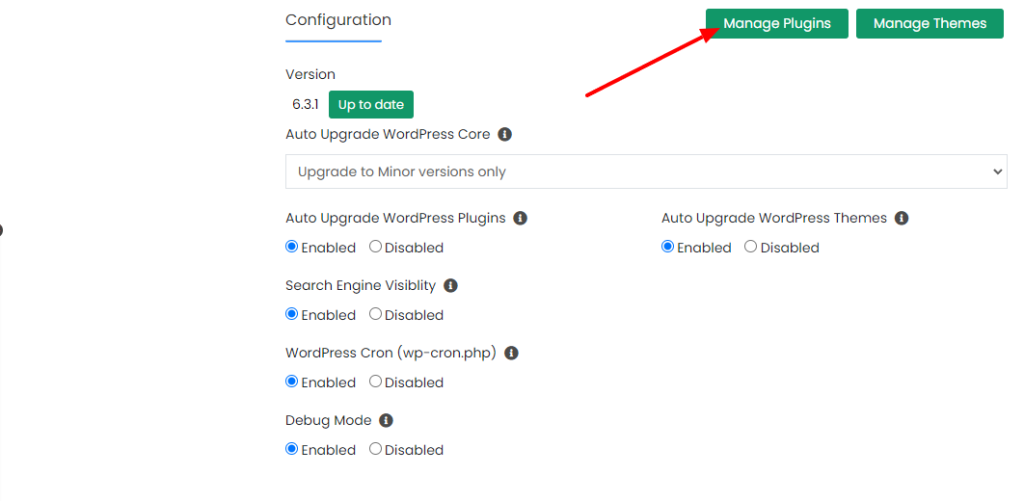
When we click there, a popup will open where we can delete, activate and deactivate plugins. This is especially useful when we cannot enter the Dashboard of our site due to an error and do it from there.
In addition to that option, we can install the plugin, especially if the update broke during the update of the plugin itself, and then the entire plugin was not installed, but only part of it, and then we got an error because of that. This is even a better option than just turning it off if we are sure the plugin is fine as it is with some popular plugins like elementor, woocommerce, yoast etc…
WordPress manually
Through this link you will find the instructions you need to activate the option that will help you show where the error is.
Before starting, change the PHP version to ea-php80, so if that solves the problem, that's it, if it doesn't, then continue with this guide. Instructions for changing the PHP version.
Each part of this guide is required to be done in order to find the problem.
Every WorPress site has its own wp-config.php file, which includes the display of errors (the so-called debug).
If the site you have a problem with is main domain on the hosting account then its wp-config.php file is located: in cPanel > File Manager > public_html
If the site you have a problem with Additional domain (additional domain on hosting) then its wp-config.php is in a different folder and not in the public_html folder. You can find the main folder (document root) if you go to cPanel and click on Domains and under the Document Root field, the path of your site's folder will appear, which is also a link, and when you click on it, it will immediately open your site's folder containing the wp-config.php file.
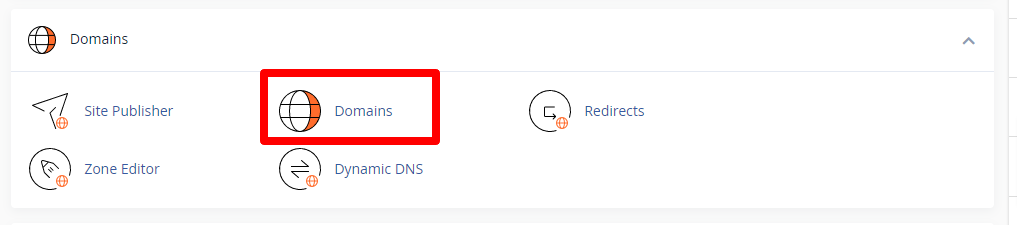
Right-click on the wp-config.php file and edit (if a small window opens, just click on the edit button), when it opens, find the line that says:
define( 'WP_DEBUG', false );Instead of that line you should insert this:
define( 'WP_DEBUG', true ); define( 'WP_DEBUG_LOG', true ); define( 'WP_DEBUG_DISPLAY', true ); @ini_set( 'display_errors', 0 );Simple copy-paste and save in the upper right corner.
Then look at the debug log file in your site folder (in the same place where wp-config.php is) you have a wp-conetnt folder and inside it will appear debug.log.
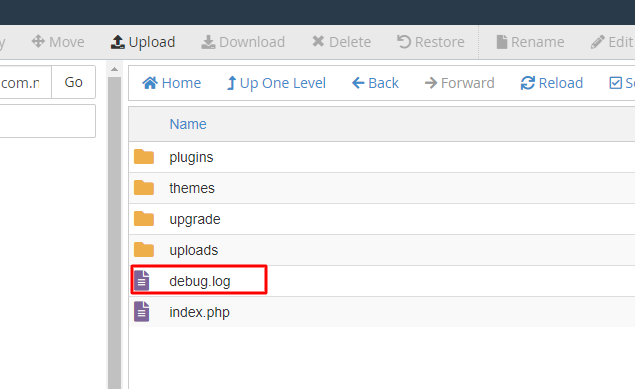
If it is not there, then open the site several times to show you the error, then refresh that folder by clicking on reload and it will appear. If it is still not displayed, then you are in the wrong folder or you have not done the first part of the instructions, turning on the debug option in the wp-config.php file.
Now we're going to read the errors. To open it, right-click and then "view".
If you see something like:
[05-Feb-2019 13:38:17 UTC] PHP Fatal error: Allowed memory size of 41943040 bytes exhausted (tried to allocate 65536 bytes) in /home/username/public_html/wp-content/plugins/everest-forms/includes/class-evf-log-levels.php on line 14 [05-Feb-2019 13:39:33 UTC] PHP Fatal error: Allowed memory size of 41943040 bytes exhausted (tried to allocate 32768 bytes) in /home/username/public_html/wp-content/plugins/jetpack/locales.php on line 236This means that the plugin caused the problem. In this case, two everest-forms and a jetpack.
- but only if it says PHP FATAL ERROR, if it says warning then that is not the cause
There are two ways to solve it in this case, which is to delete the questionable plugin and replace it with another one that does not cause a problem (in this case, the site may be disrupted depending on the plugin and its purpose).
And in this particular case you see it is solved from cPanel option MultiPHP INI Editor where you increase the memory_limit. There you can put double of what it says or say 256MB so that you won't have any problems.
I mentioned this example because it is the most common mistake that you can easily solve with two clicks.
It is possible to solve the problem by changing the PHP version from MultiPHP Manager from cPanel, because some plugins work on other versions of php. If something doesn't work on newer versions like 7.4 (at the time of writing this article) or higher then it's definitely not safe to use that plugin.
If the error log file does not show anything, then the error is in the .htaccess file, you can solve it by simply changing the .htaccess file back to the default, and the content that should only be in that file for wordpress to work is as follows:
# BEGIN WordPress RewriteEngine On RewriteBase / RewriteRule ^index\.php$ - [L] RewriteCond %{REQUEST_FILENAME} !-f RewriteCond %{REQUEST_FILENAME} !-d RewriteRule . /index.php [L] # END WordPress
Video tutorial
Webmaster support
If you cannot solve the problem independently despite the instructions shown above and you do not have a person in charge of working on the site, we can help you with this problem as well as with any other arrangement on the site. We have a special price for our customers of 50% site work.
Contact support for more information.