Contents
Updating is necessary to keep the site safe, fast and always available. If you use some autoinstallers to install WP at the very beginning it is probably already included and WP itself has that option. Anyway, below is how to do it manually.
Updating WordPress itself
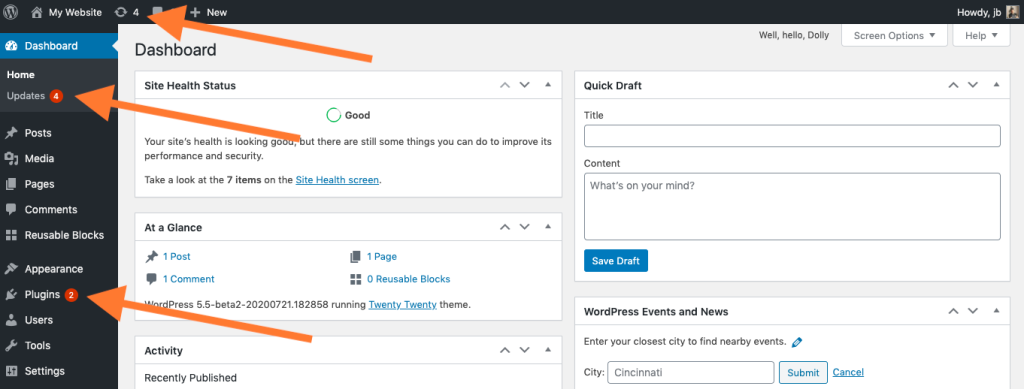
Here we see how updates are displayed in WP. The first option above and the Updates option lead to the same page where possible updates are displayed for both WordPress and plugins as well as themes. For example, we click on Updates on the left in the Dashboard or control panel in Serbian and the page for updates will appear.
Now that we have clicked, everything that we can update will appear, and in this case, in this part of the article, it is Core WordPress, that means WP itself, which has nothing to do with plugins or themes. Already WP as the carrier code of all that. It receives various updates both security and functional where they add new features.
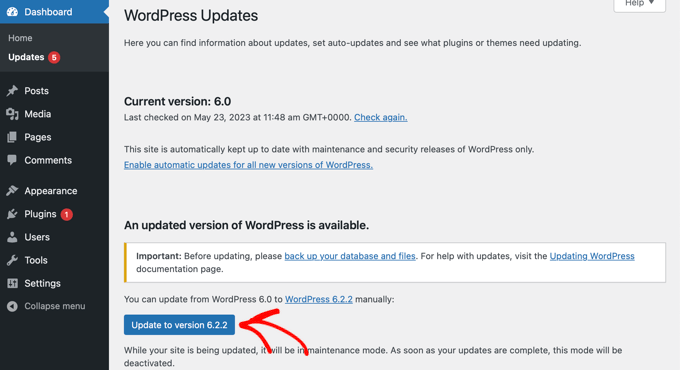
The update consists simply of clicking on Update or Update in Serbian and that's all. We wait until the update process is finished and do not click further, because in that case there is a big chance that the site will get stuck in update mode and you will not be able to access it further.
Plugin update and automatic update
As in the previous part where we updated WordPress itself, here we go to the plugin updates on the same page because it is the easiest way and we can select all our plugins and update them at once.
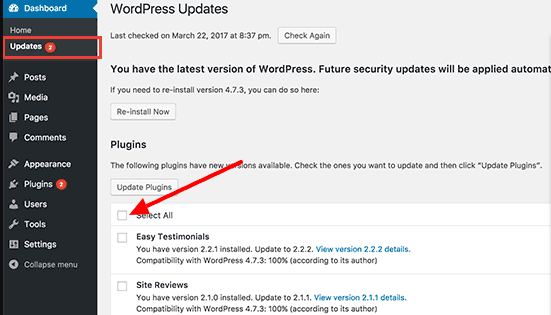
When we tick all the plugins, go to Update plugins and then be patient and wait otherwise we will stop the process and we may get error 500 or be locked in update mode.
Automatic update
Automatic updates help us to always be safe and have the latest versions of plugins or add-ons so that we are both safe and receive the latest options.
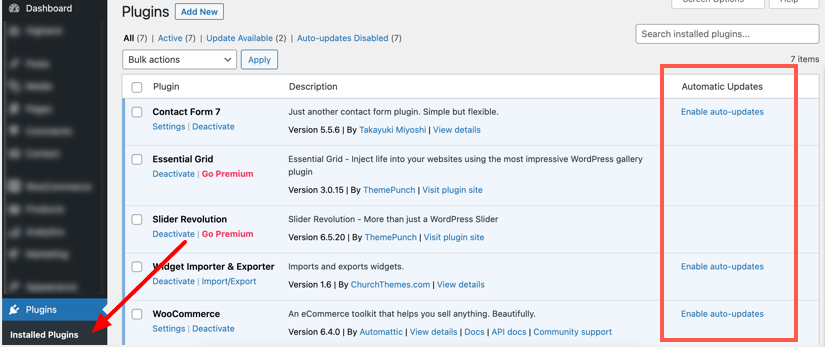
We go to Plugins, then installed plugins and on the right side we will see the option to enable automatic updates. If you have a premium plugin then this option will not appear because these updates are downloaded automatically from WP.org servers until the premium plugins are there. Some plugins have such a possibility through themselves or not, you will have to see that for each plugin separately.
Updating Themes and automatic updates
As in the first and second parts, go to Updates and then tick All topics and click on update.
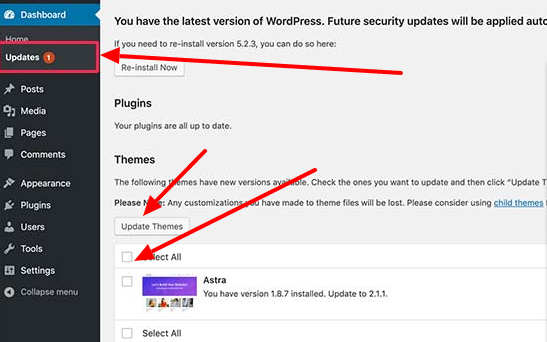
And here it is valid to wait as in the previous options because if we stop, error 500 can happen or we can be locked in maintenance mode. When that's done, we can turn on auto update if it's available.
Automatic update
As with everything else, updating the theme is of key importance so that our site is first of all safe and then has the latest functions and is fast and always available. Here's how to turn on auto-updates in a theme.
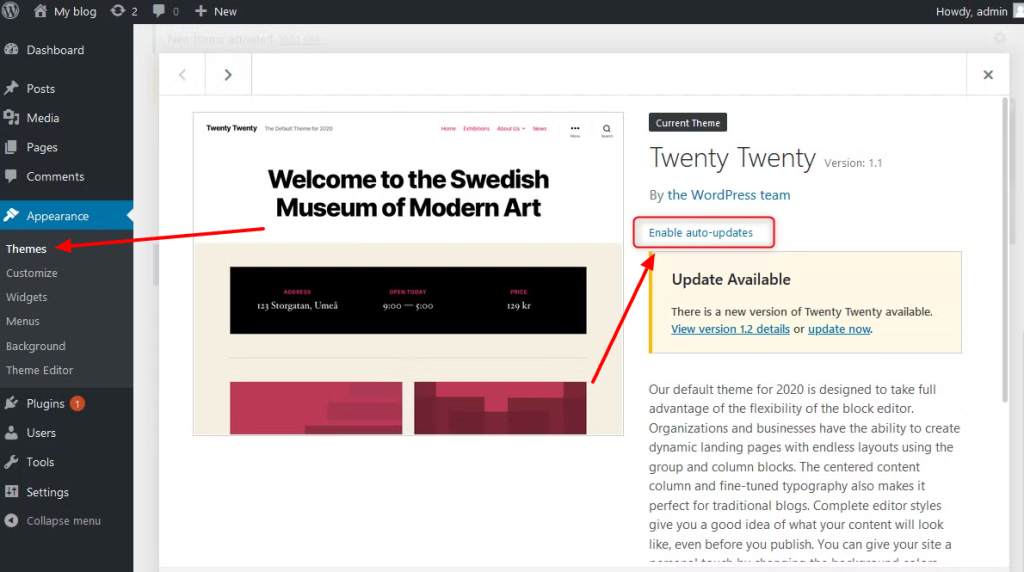
We go to Themes and by clicking on our theme (or on each individually if you have more) we will have the option Enable Auto-updates or Enable auto-updates.