Mass email or marketing email (spam) can be sent using services that allow mass emailing. Please note that spam is also prohibited by law.
Spam is an unsolicited email message with the purpose of advertising a product or service.
For the purposes of this instruction, we will use the site: https://www.mailerlite.com/pricing with which we will be able to send mass email (not spam).
First of all you need to register for free https://www.mailerlite.com/signup
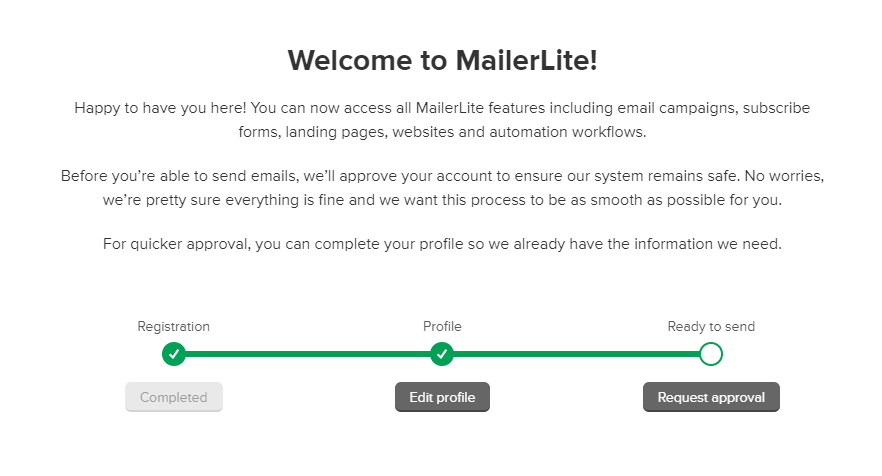
After registering and verifying your email, you go one step further on their website as in the picture below:
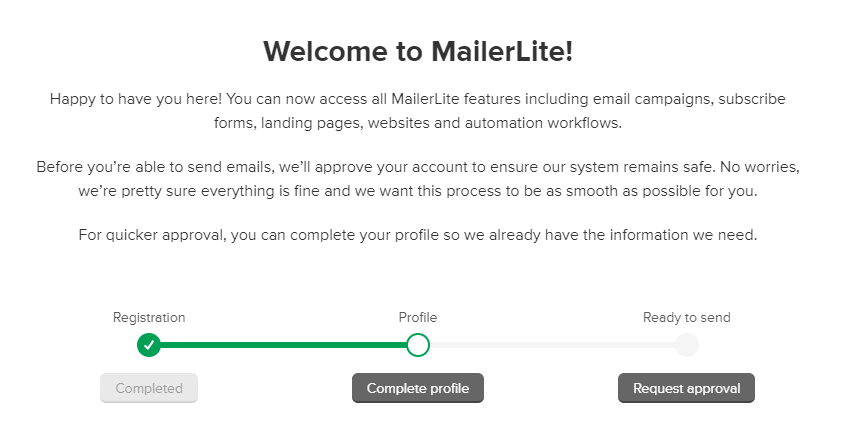
When you click on the gray Complete profile button, you get a page where you enter data, fill in your data and then one step further.
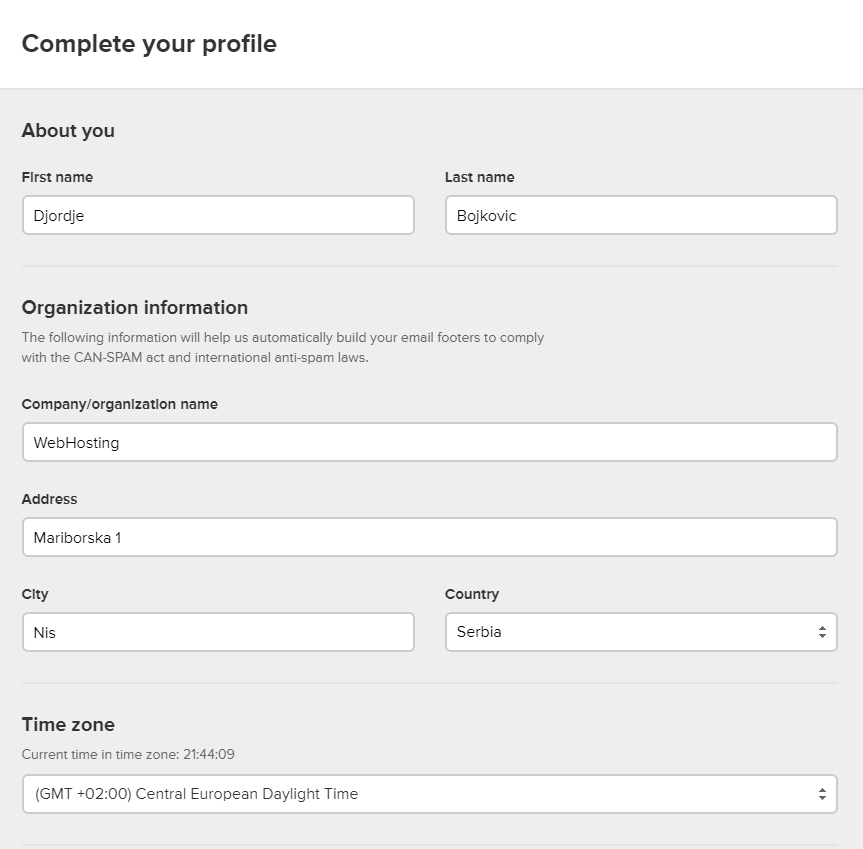
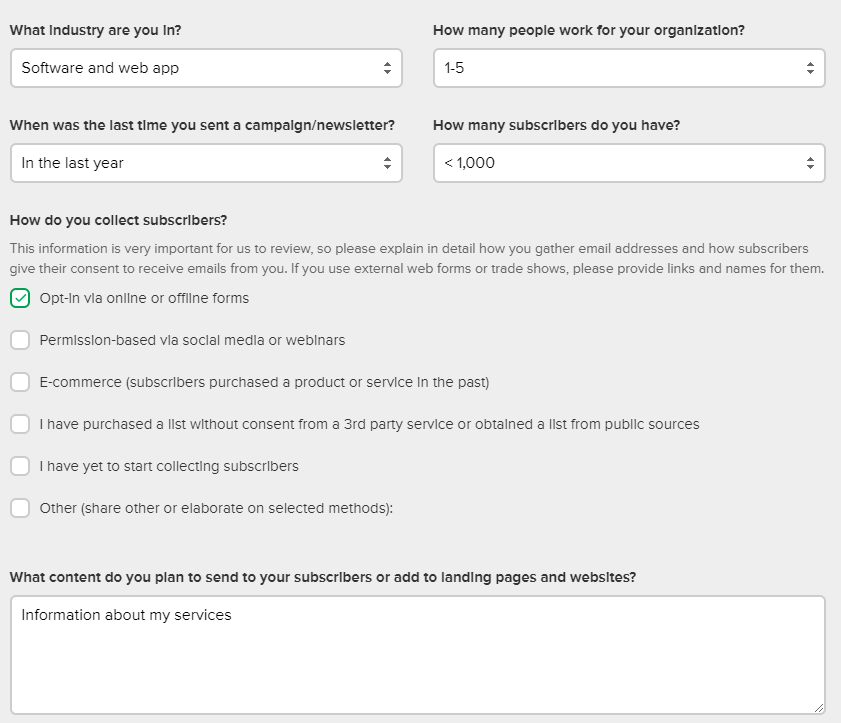
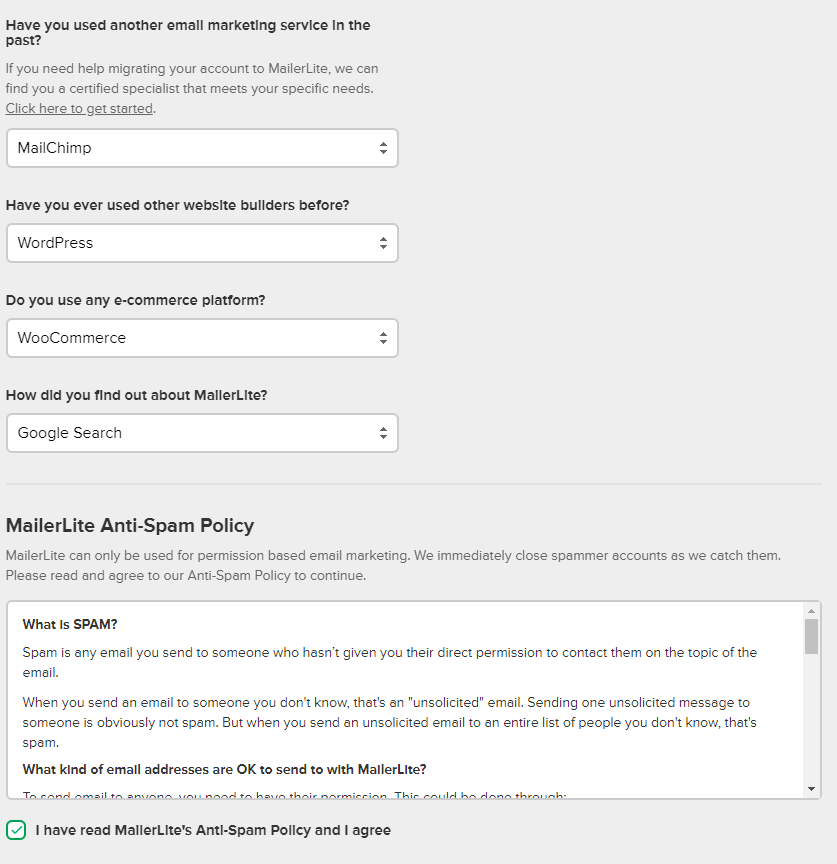
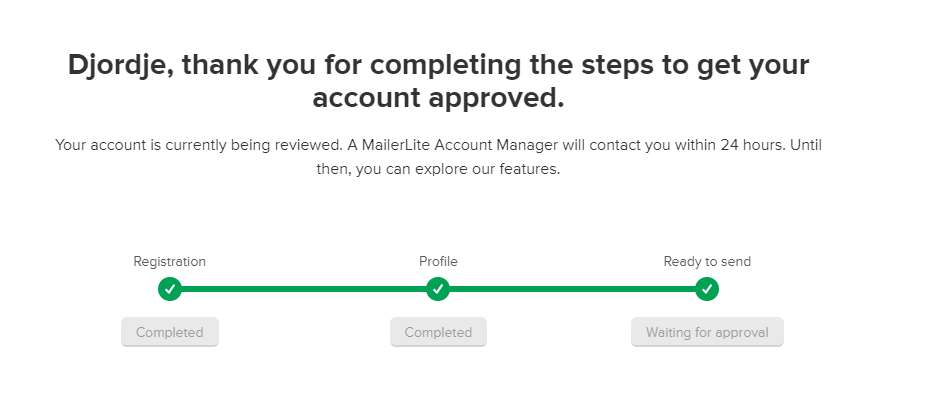
After that, click on the Request Approval button where you send the request for processing and confirmation. When the instructions were given, our order was approved in 6 minutes.
While waiting for approval you can create a campaign and create your email and set the email addresses you send to.
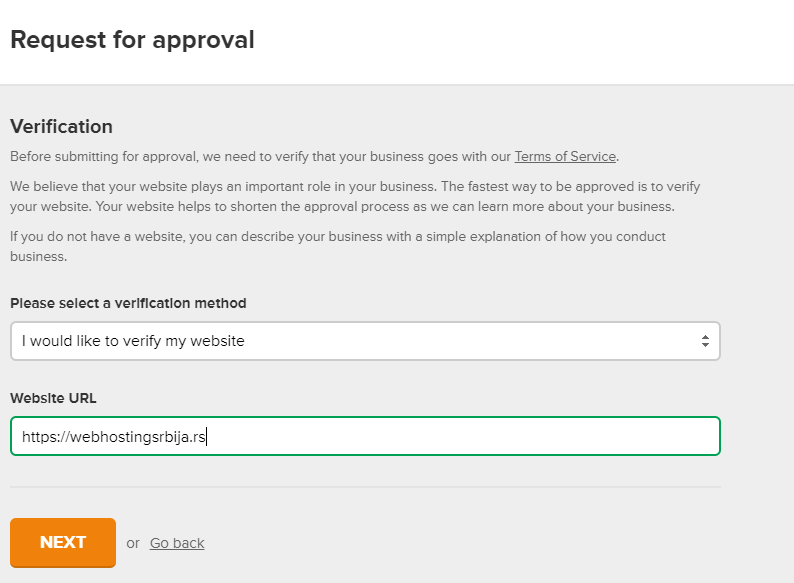
After you clicked on request approval, you got the picture above where you enter your site and in the next step an email as in the picture below.
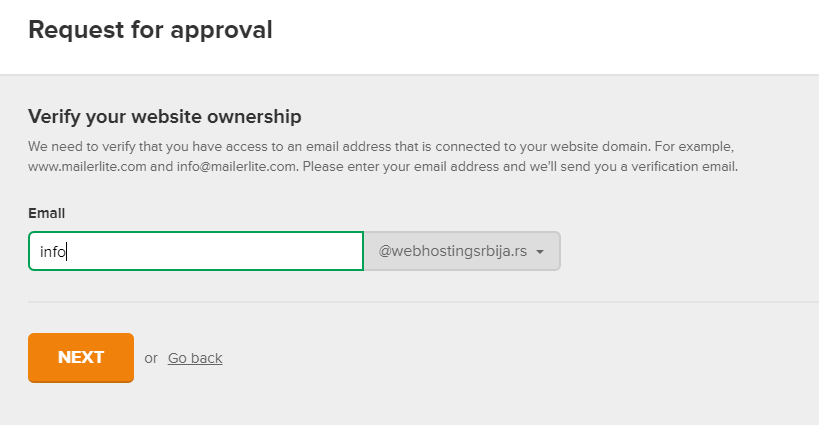
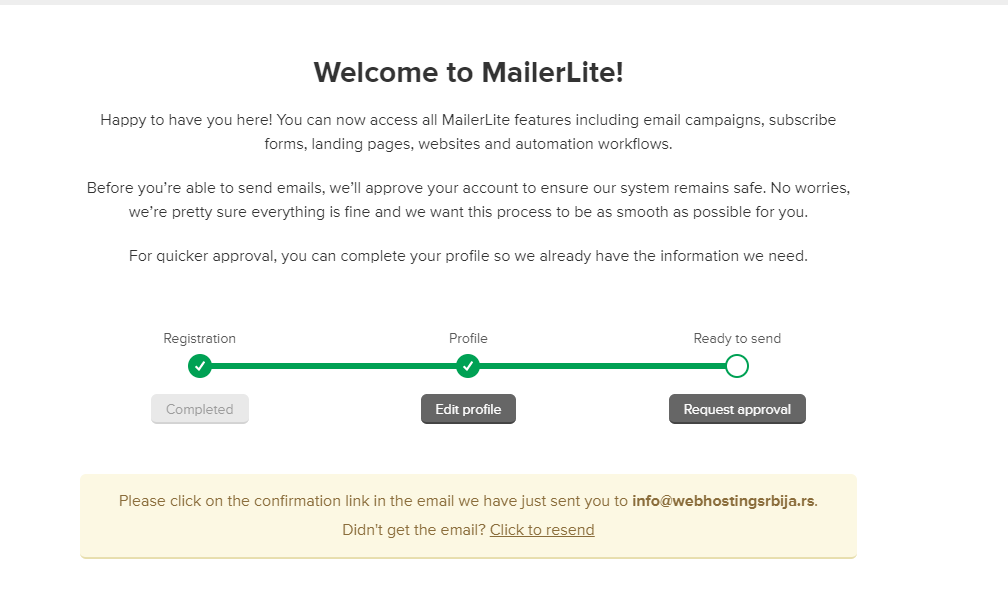
Upon completion, you will receive a page as in the picture where an email has been sent to your email address to confirm your registration. In the email, after you click on the green button and confirm, you can continue working.
How to add email addresses to your list by clicking on the main menu Subscribers
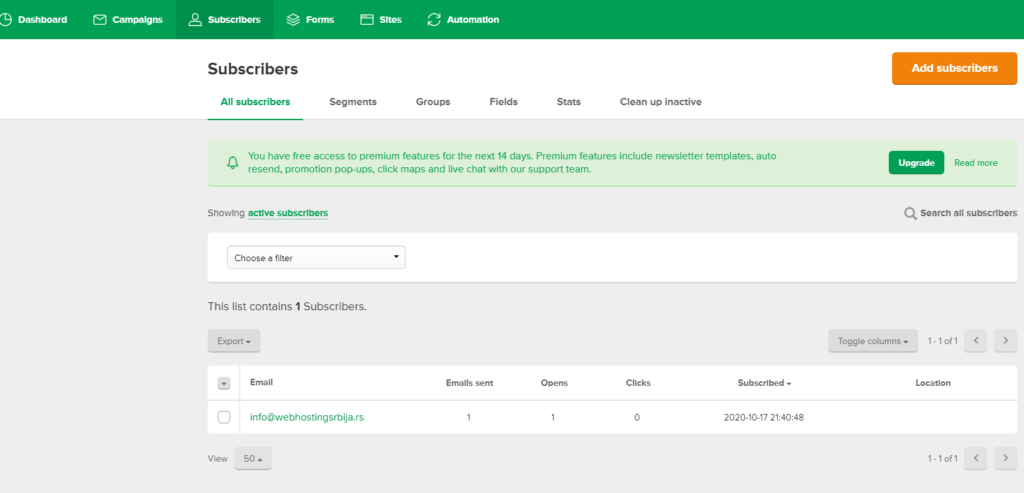
Then click on Add subscribers. In the next step, you simply upload the email address file.
You can find a list of e-mail addresses, for example, from a wordpress site via the plugin https://wordpress.org/plugins/users-customers-import-export-for-wp-woocommerce/ or in any other way you want to save and fertilize.
This site also has its own plugin (most of the bigger ones have their own plugin) that makes it easier to add email addresses:
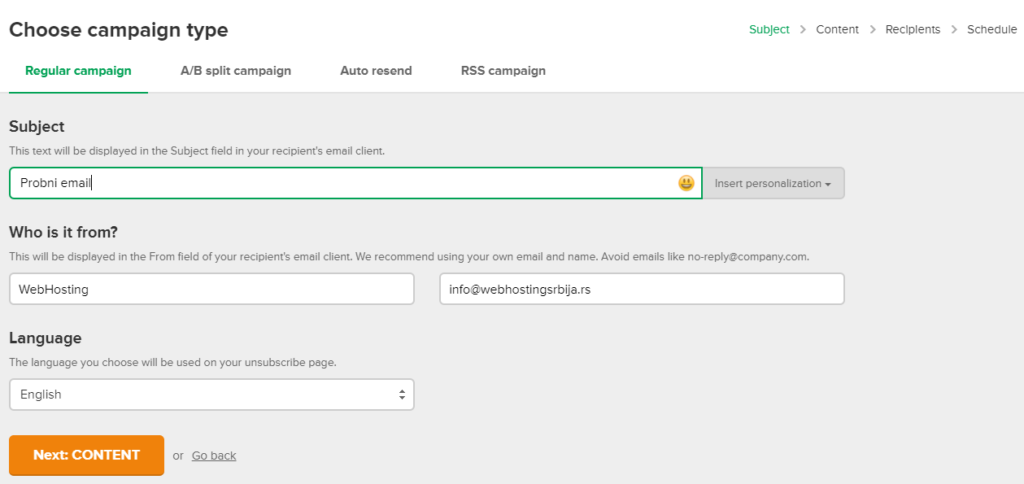
The next step is to create a campaign.
By creating the campaign, we got the first page where we enter the title in the first field, in the second field Who is sending the email and of course your email address. Then we go further by clicking on Content.
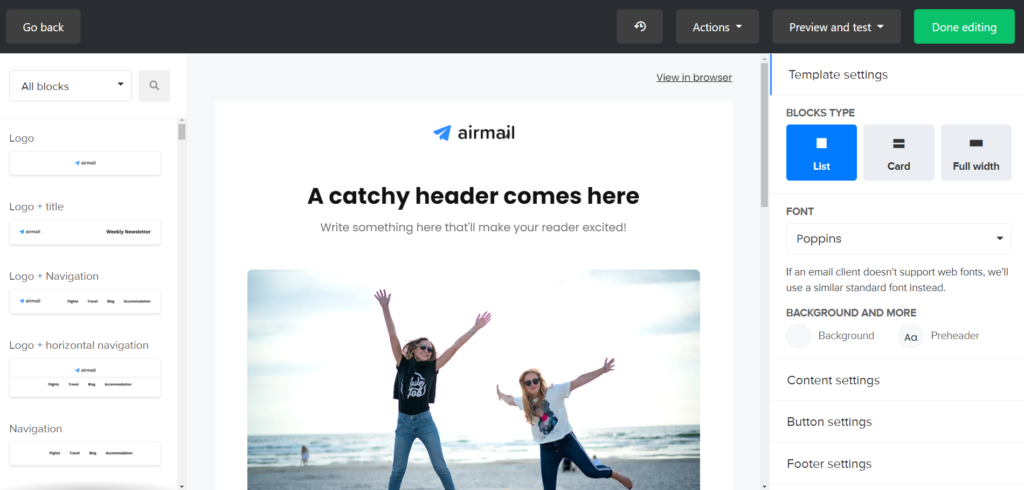
When you clicked on next, you get a page that looks like a puzzle where you create your email, how it will look and what will be written in it. When you're done, click the green Done Editing button.
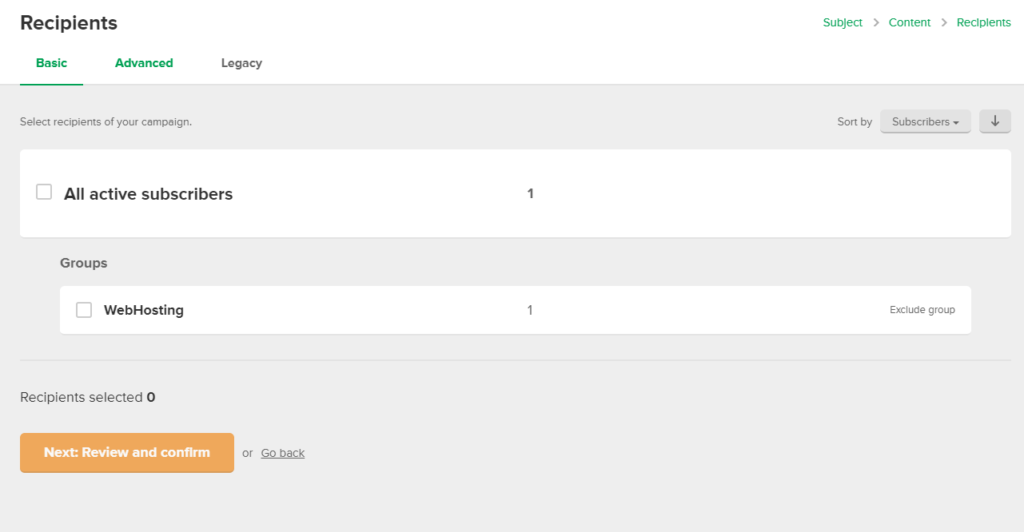
After that, the next step is to tick the list/group and then go next.
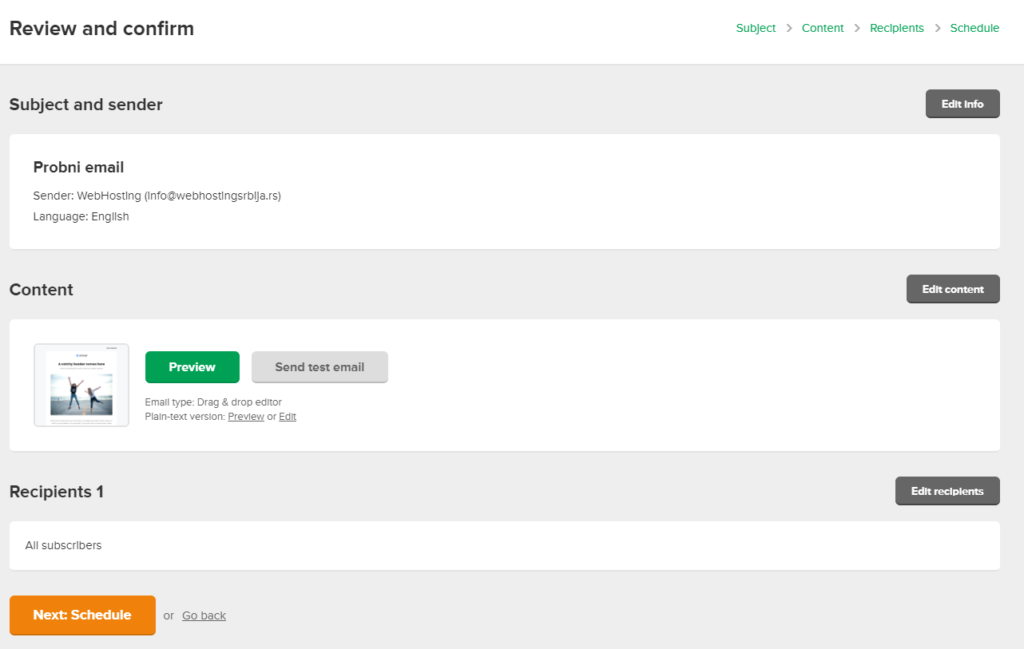
In this step you can click send test email to see how it actually looks and that you haven't missed anything. That's my advice for sure.
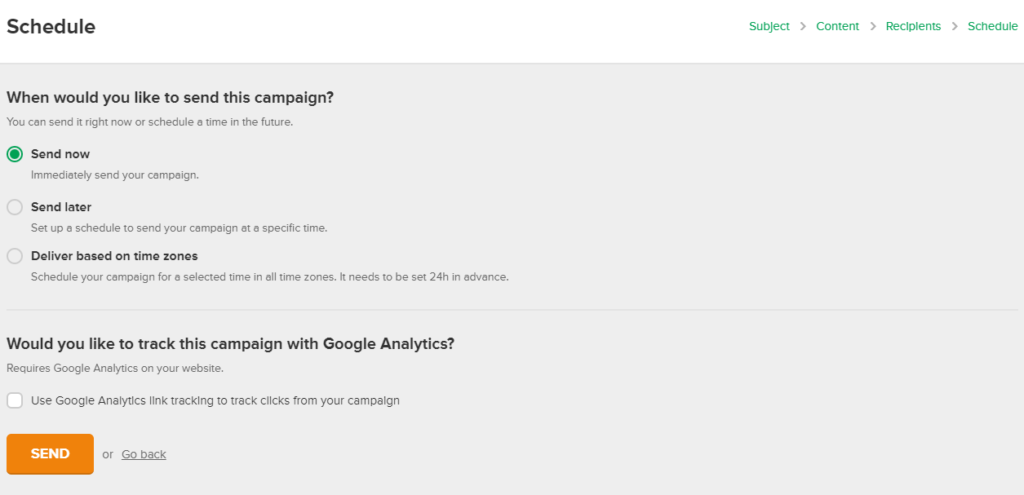
In the last step, click Send and your email will be sent to the list you created. Depending on the number this may take some time.
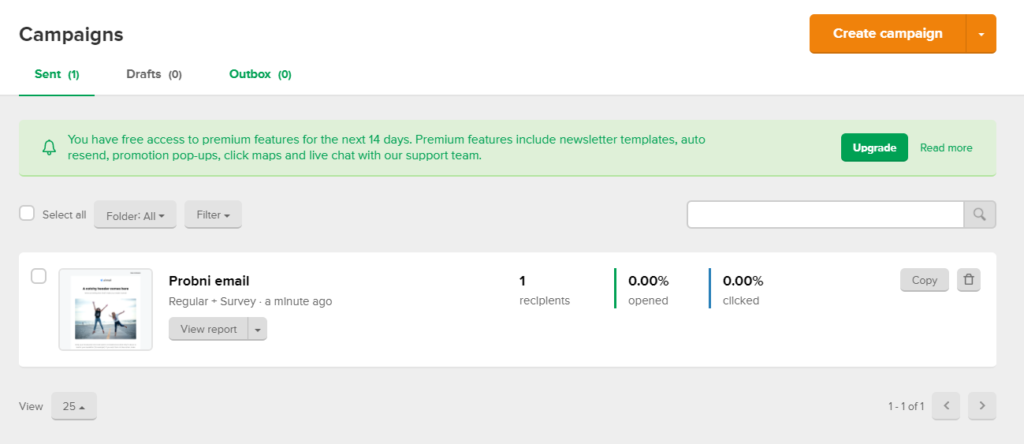
Here you can track statistics about your email, how many clicks there were and how many of them were actually opened and those who unsubscribed from your list.
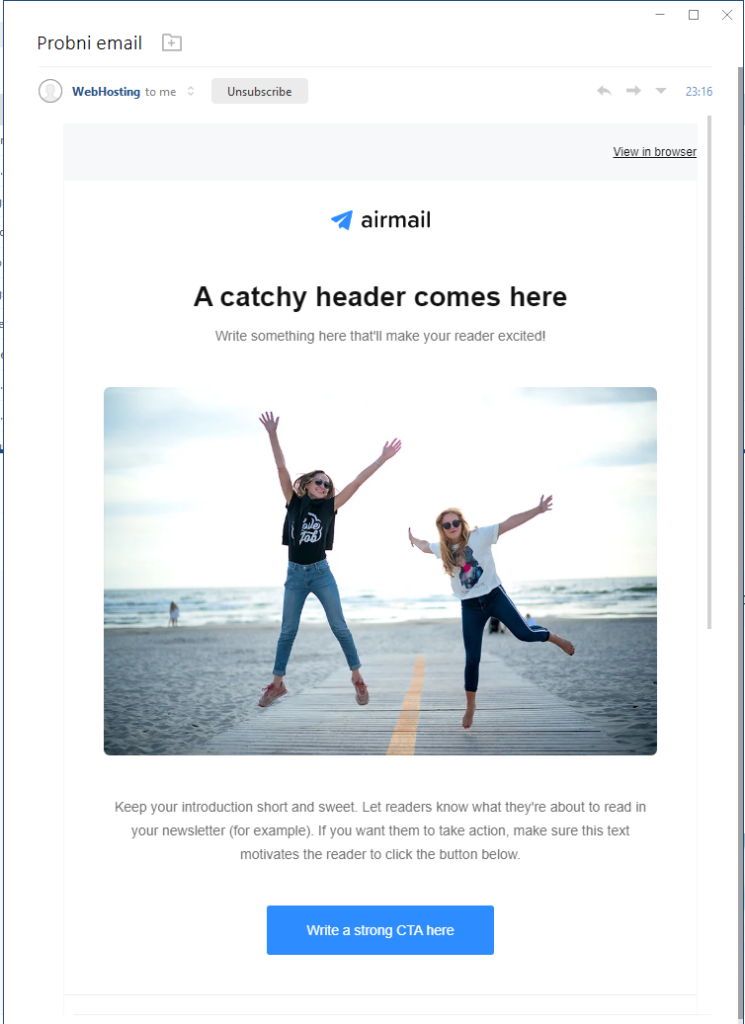
The image above shows how your email looks in the email client.