Redis, unlike memcached, uses RAM and noSQL for caching, which in theory should work faster than just a memcached system. Redis uses the noSQL key-value model to store and manage data.
Redis is an open source project that is constantly evolving. It is followed by the rumor that the bigger and more visited the sites are, the better it contributes to the speed of work and loading of the site.
Setting up Redis in WordPress
If you haven't set the site to PHP version 7.3. If you don't know how to contact support, we are always available!
As with everything in WordPress, you need to include a plugin. Install and activate the plugin as desired, we tested two, Redis Object Cache and W3 Total cache.
In the wp-config.php file, you need to insert two lines of code that will help you with caching.
define( 'WP_CACHE_KEY_SALT', 'salt' ); define( 'WP_CACHE', true );In the salt you can enter one salt that is automatically generated by WP at the link: https://api.wordpress.org/secret-key/1.1/salt/
Redis Object Cache Plugin
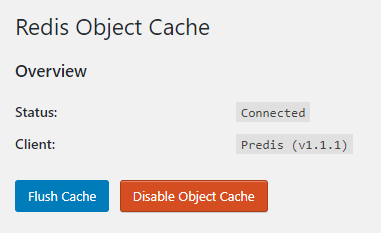
When activating Redis Object Cache, you just need to click enable and that's it. The plugin connects itself and caching has started.
W3 Total Cache plugin
After installation click on General Settings and you will get a list and a longer settings page. Let's go step by step.
Page Cache
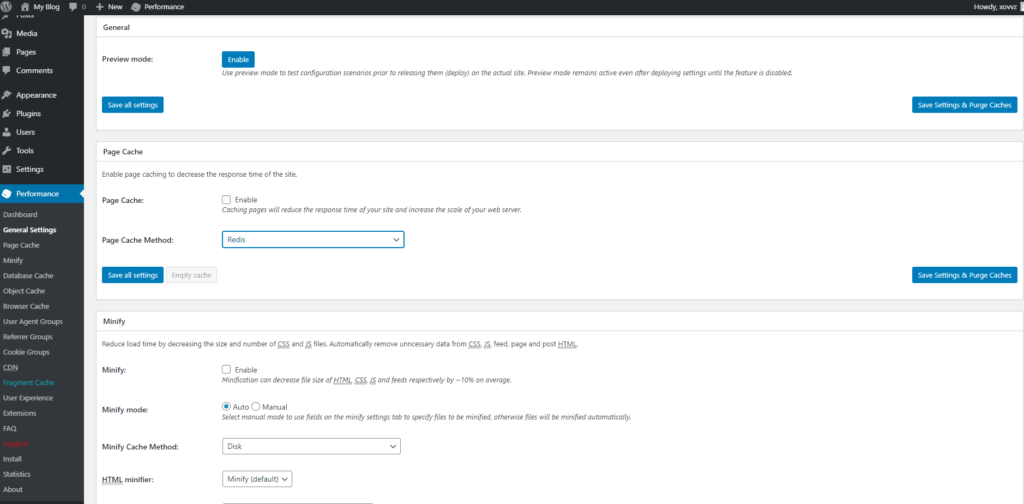
After clicking on General Settings, we go below and look for the Page Cache section, where we tick Enable and select the Redis method. Then just in case we don't miss it, click Save All Settings.
Minify
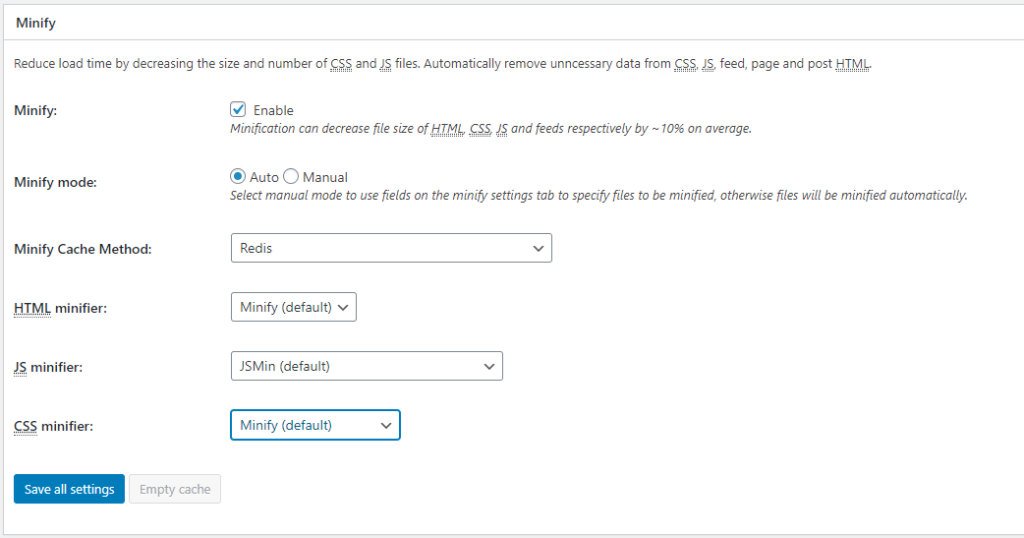
Here we look for the Minify section where we check Enable and select the Memcached caching method. Note that minify changes all the html,js,css code and puts it in one line. I'll show you how it works with the following example:
<html>
<head>
<title>Ovo je primer</title>
</head>
<body>
... . ....
</body>
</html>
Switches to the following code:
<html><head><title>Ovo je primer</title></head><body>.....</body></html>This works with all code so while this is a great idea and should work in most cases it can happen when you turn on minify that your site doesn't work properly or some part breaks.
Database Cache
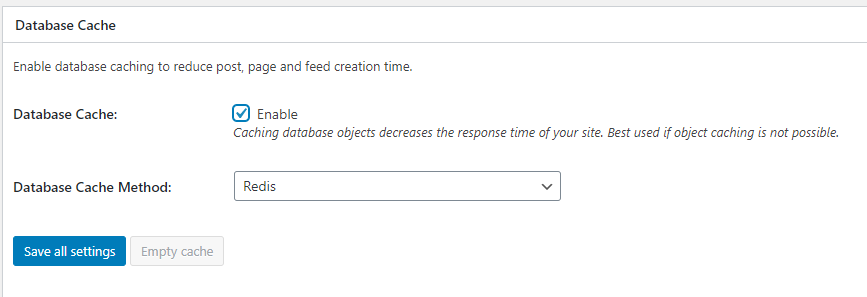
Tick Enable and choose Redis as the caching method. After that, click on Save All Settings again so that we don't accidentally lose the settings for any reason.
Object Cache
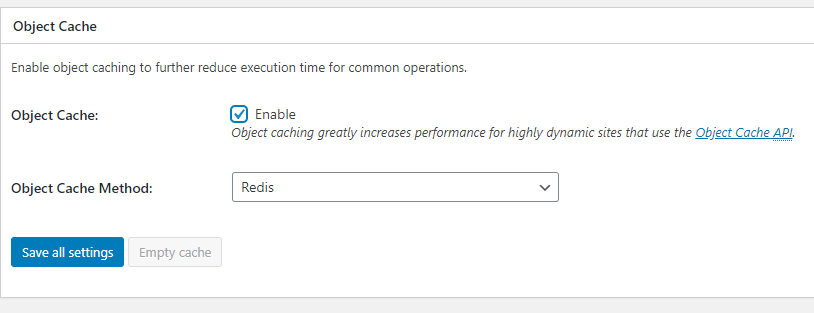
We find the Object Cache option, then click on Enable, then select Redis caching from the drop-down list, and be sure to Save All Settings afterwards.
Fragment Cache
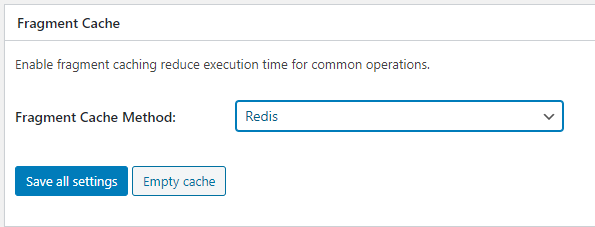
And in this option we can choose Redis. And save on Save All Settings.
Page Cache Advanced
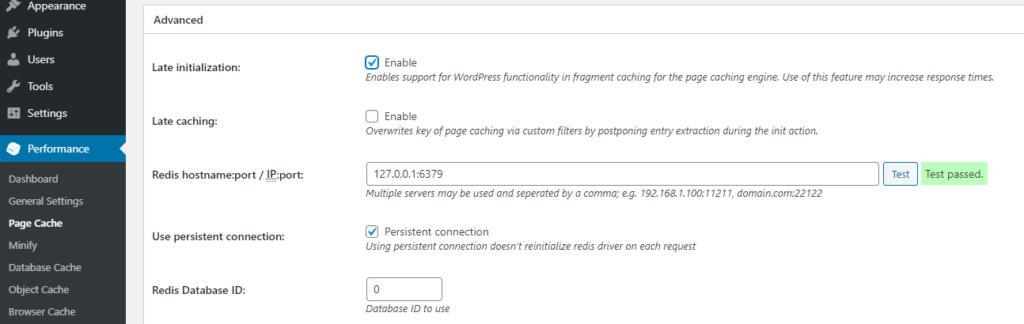
Here you can test if it works and have additional settings for caching itself.
The same applies to each of the options we have chosen. When you click on the left side of the Menu on any of those options you will see additional settings. There are many tutorials on the Internet for each setting, you can test it yourself, but first of all, create a backup so that if something goes wrong, you can restore it and have a functional site.