This is the most important part of any website. Every site, no matter how optimised, and large images contain more than half of its content. Therefore, it is very important that your images are optimized as much as possible and that the images are sized exactly as they are displayed (visible) on the site.
LiteSpeed offers here an automated process where it optimizes your images.
Take a little more time to commit to this because half of your site speed depends on it.
In this case, there is a monthly limit on how many images can be optimized because image processing is the most demanding, and in order to avoid congestion, the limit is set at 10,000 images, which is about 3GB of images per month. Where the limit is reset every first of the month.
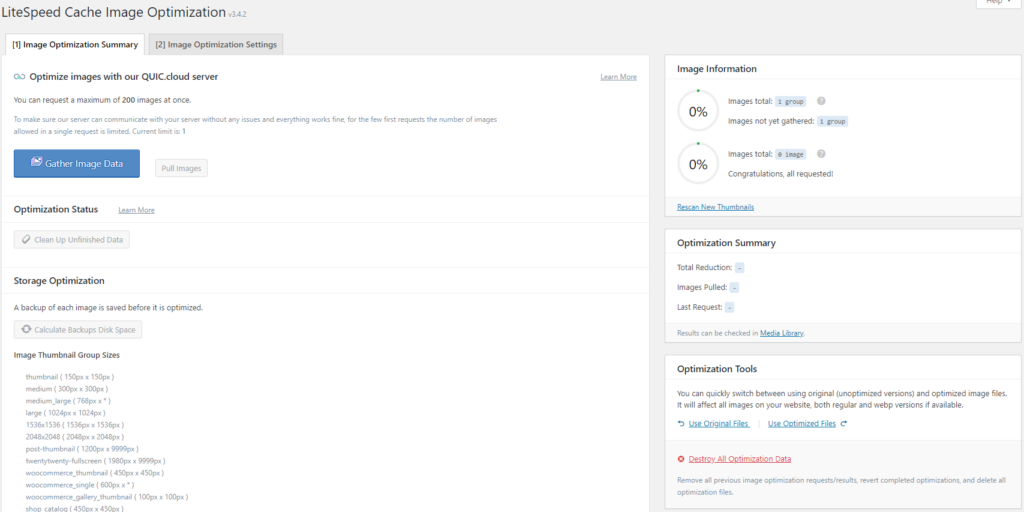
In the first page of the Image Optimzation page, you will get statistics on how many images are optimized and how many are not, so you can delete the original ones and the like. This is a simple statistic. However, we have two options as in the picture below.
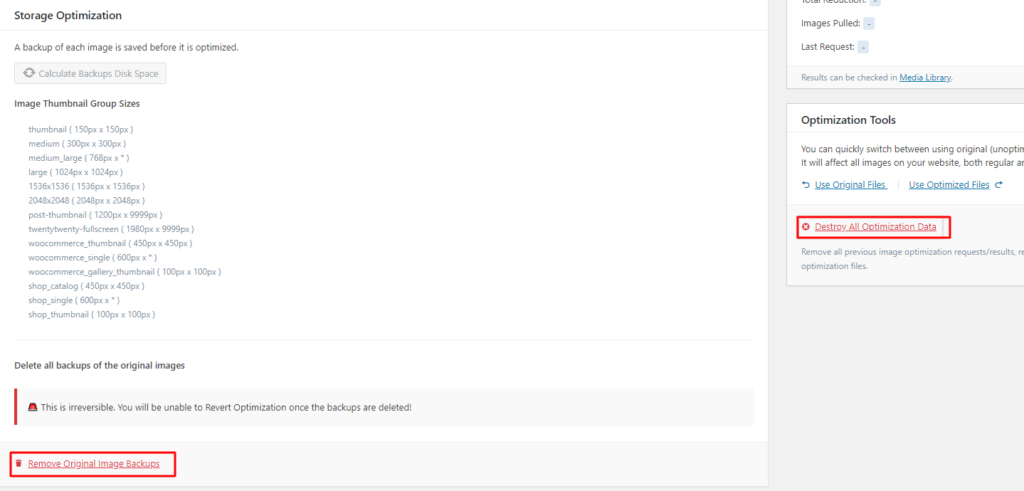
One option is Remove Original Image Backups where you will delete all backup original images that you inserted and thus free up space.
Image optimization works as follows:
The original image is called image1.jpg he changes its name to image1.bk.jpg and optimizes that image and creates a new improved and optimized image and calls it image1.jpg just like the original image.
If you want to restore the way it was then you can delete the optimized images by clicking on the link Destroy All Optimization Data.
If for some reason you decide that you want to use original images and not optimized ones, then you can do so by clicking on the link Use Original Files.
And if you change your mind again and want to upload optimized images, you can do so by clicking on the link Use Optimized Files.
Image optimization Settings
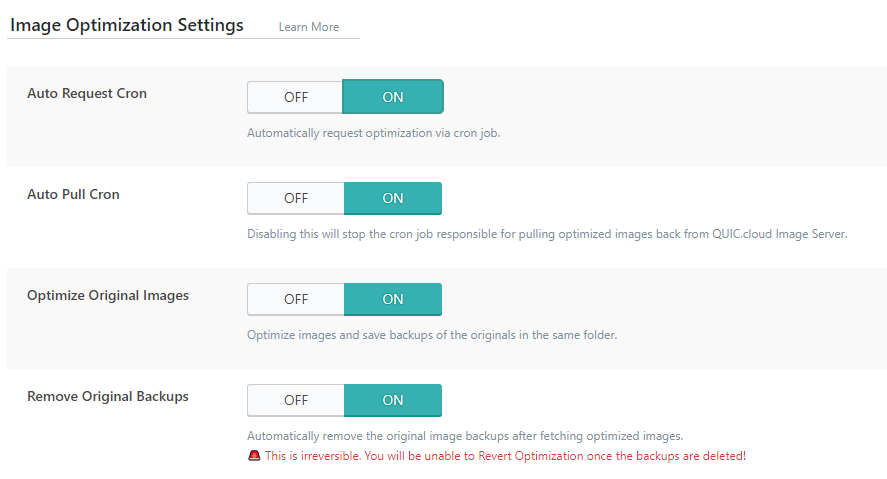
Be careful before setting options especially when you turn on Remove Original Backups.
Here in the image above is recommended how the settings should look like.
Auto Request Cron: is an automated process of image optimizations that are already placed on the site, and with this option you don't need to do anything, the plugin itself will go in order and optimize the images.
Auto Pull Cron: as well as the previous option where optimized images will be placed on the site. Images are optimized on quic.cloud and with this you will automate that optimization and uploading process.
Optimize Original Images: this is classic image optimization and a backup of the original images will be saved in the same folder as the optimized and original image.
Remove Original Backups: a tip is to make a backup of the wp-content folder before starting this to save all the images in case something unexpected happens. Otherwise, this is a very reliable option and so far there has been no change during testing even once. But by deleting the original, you can no longer restore the original image that was before optimization (for example, if you think that the quality of the image is not good, then you would not be able to restore the original image). Turn on this option only when you are sure that the optimized images are of sufficient quality as the original ones.
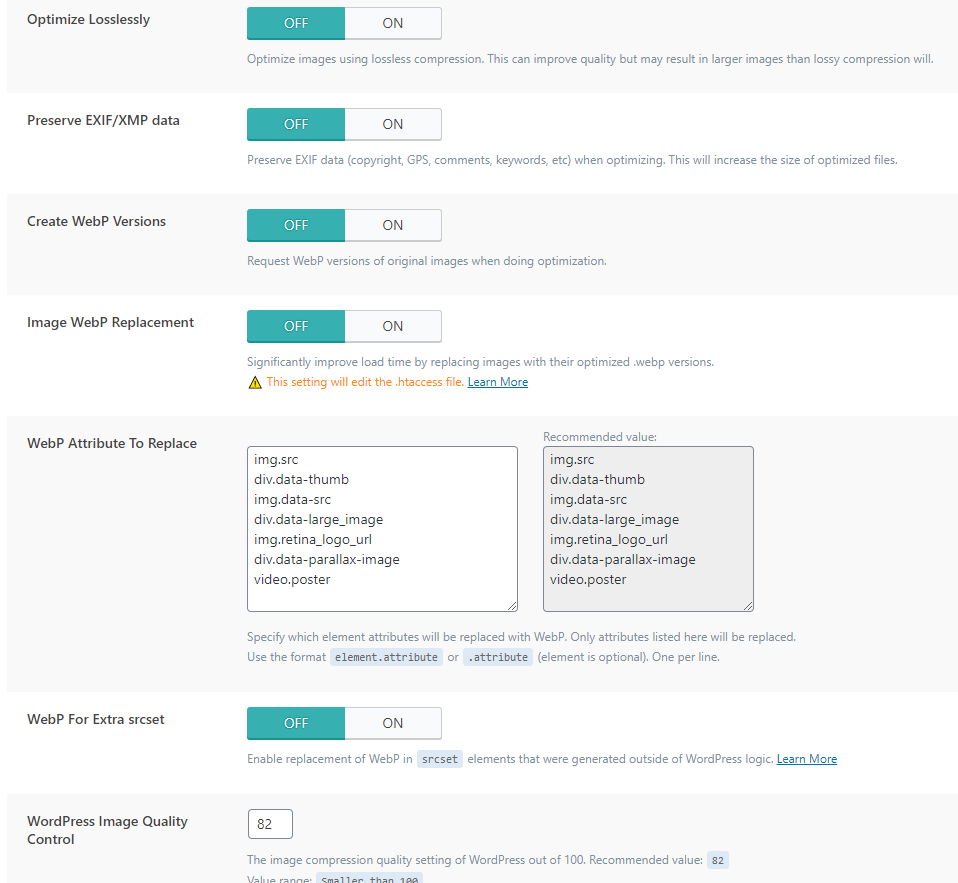
Optimize Losslessly: with this option, you reduce the optimization and make the images more similar to the original. Just keep in mind that you are actually de-optimizing the images then, which undoes the optimization work.
Preserve EXIF/XMP data: with this option, if you turn on the image, it will contain all the data that goes with it, such as who took the image, owner, description, comment, keywords and the like.
Create WebP Versions: this would be best if it could be used. Just as there are .jpg .png, there is also a .webp format that is intended for websites, which is currently the best solution when placing images on a website. They are the fastest loading and most optimized for the web. With this option, you enable the images you have uploaded to be converted to .webp format.
Image WebP Replacement: if you have enabled the previous option, then the images you have placed on the site will be replaced with .webp images and thus you will significantly speed up the site.
WebP Attribute To Replace: we leave this as it is because it is comprehensive.
WebP For Extra srcset: if you have programmed your site and parts of the site, you have inserted srcset with this option, you tell the plugin to inspect the page and replace it.
WordPress Image Quality Control: here you determine the percentage of image quality compared to the original. The original image is 100. When you put the number 82 here (considered ideal optimization) it means that the quality is reduced by 18.
This completes LiteSpeed image optimization.