Contents
Thank you for using this guide as it saves support time so they can help faster where there is no guide.
Site unavailable due to update.
If this message appears on the site as in the picture below

Or in English: Briefly Unavailable for Scheduled Maintenance
This means that the site is in the process of updating the plugin-theme or wordpress itself.
It is automatically installed by wordpress on the site so that there is no interruption during the update and thus disrupting something on the site, and automatically after the update wordpress removes it.
Sometimes it happens that it doesn't delete it and you forget it, for example when you update and you click somewhere on the site and it didn't update, and you somehow predicted an interruption or malfunction and then you have to manually deactivate that part in order to enable re-access.
Do this only if you have waited 5 minutes from the moment of the update, because that is the maximum time required for any update. Usually all this takes a few seconds, but it sometimes happens that it takes a little longer, but not more than 5 minutes.
You do this by in the root folder of your site (most often it is public_html) cPanel > File Manager > then open the main folder of your site and there will be a file .maintenance. Now there are two possibilities:
1 – if you don't see that file in that folder and your site is visible, it means that the update is complete and you don't need to do anything
2 – if you don't see that file in that folder and your site still shows the message above, first you need to show files and folders with a dot, and you do that by clicking the upper right corner on SETTINGS, then tick "show hidden files and folders" and save. Then the .maintenance file will be displayed in that folder of your domain if the update is not finished, simply right-click on that file and delete it.
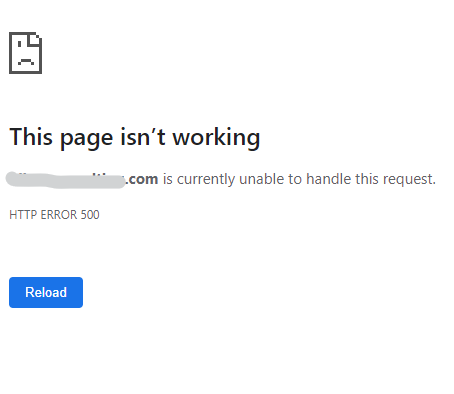
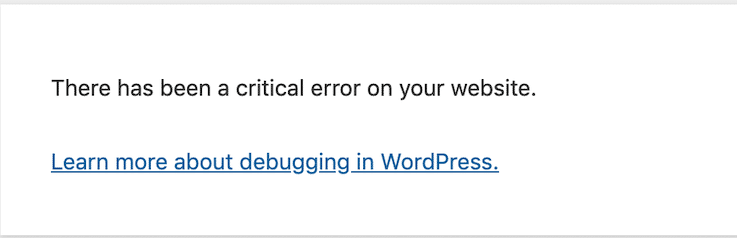
There has been a critical error / 500 error
If it doesn't open the site and it shows as in the picture below (wordpress error), some message in a white square means that the site is working, but the problem is probably due to some update plugin or theme or some other changes.
To solve this problem, use this instruction.
404 error
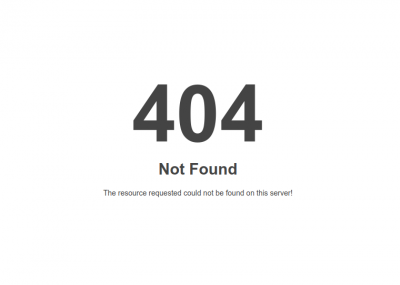
If the error 404 appears as in the picture below. This means that the side simply does not exist. If it is on the domain as soon as you open it, it means that there is some problem with the site.
How can you tell what the problem is?
Elimination system, set the default first .htaccess replace the content with your own in cPanel > File Manager > that site's folder
After that, turn off plugins that are for security cPanel > File Manager > Folder of that site > wp-content > plugins
If none of this helps, contact support so we can check what else could be going on.
Error 403
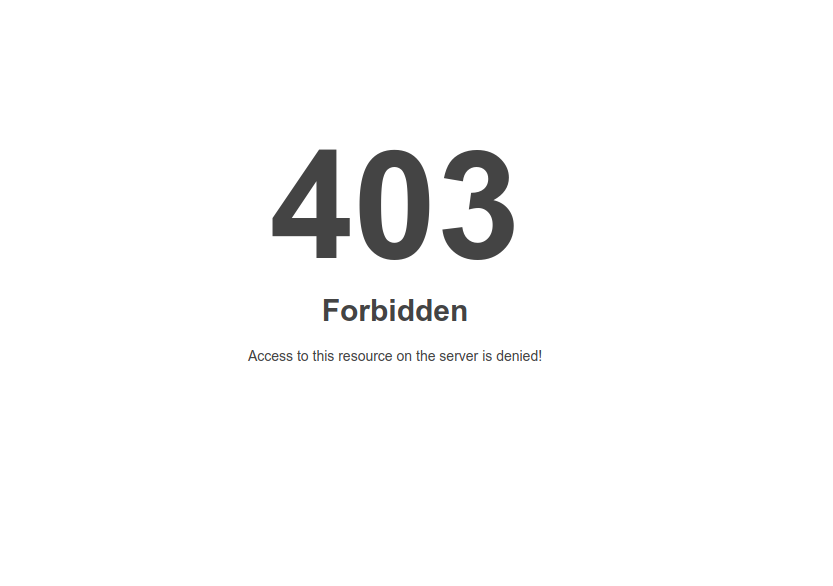
The next common error is 403. This error means that there is no index.php/index.html or any file to initialize the site.
This means if you are setting up a new site that you have not placed the site files in the correct folder. If it is the only site, then in public_html there must be files, and if it is an additional one you added as an addon, then it is the folder you set when adding domains.
This error can also occur because it is blocking Imunify360 or ModSecurity. In cPanel, find the ModSecurity icon and turn it off for your domain. Wait for 3 minutes and then open your site in a new window and the problem will disappear.
Keep in mind that Imunify360 and ModSecurity is a significant level of protection and should preferably be turned on 24/7, but if things like this happen you can turn them off temporarily and turn them back on whenever you want.
This site cannot be reached.
The next error is the most common one, it doesn't open any of these and it doesn't open either cPanel or the domain. This error can appear both when accessing cPanel and when accessing the site.
Errors as in the pictures below:
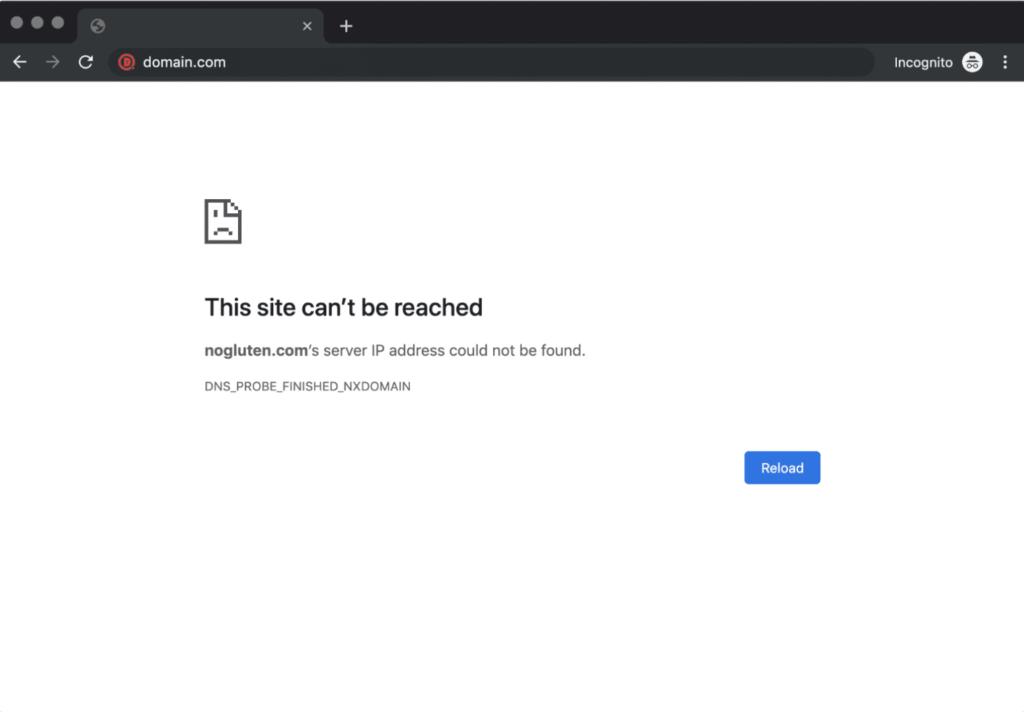
The problem here is DNS (if it is a .rs domain, then the domain is inactive, contact support) from the picture you can see DNS_PROBE_FINISHED_NXDOMAIN, which is an indication that something is wrong with DNS.
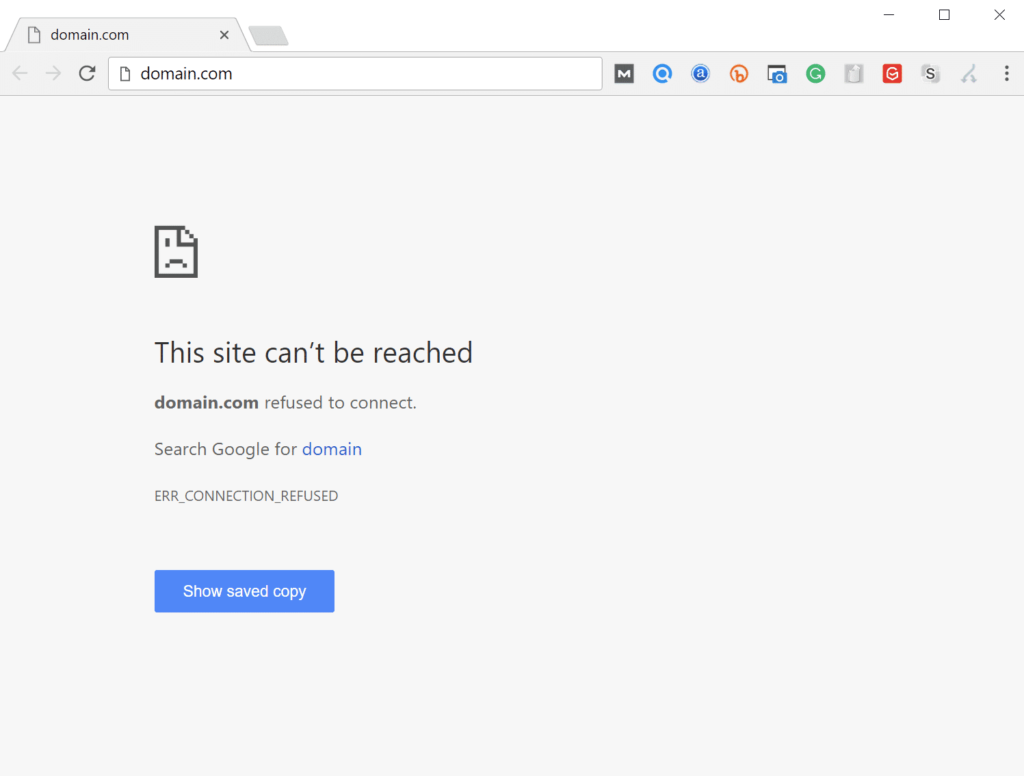
In this situation, it says ERR_CONNECTION_REFUSED, which means that the problem with the connection is most likely a BAN problem (see below for the solution to the BAN problem).
Testing the problem simply try to open your site through another internet like mobile data or via TOR browser and if it opens, then the problem is DNS or a ban.
The connection has timed out.
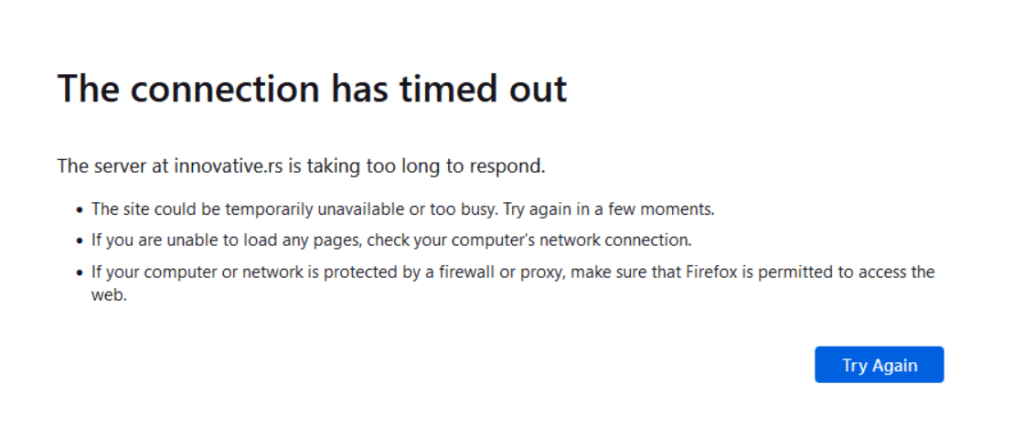
If you have this problem it is a BAN problem and follow the Ban solution below.
Ban problem solution:
For this type of problem, the first thing we do is to click on the link at the bottom of this site Unblock which removes the ban from the server because you were probably banned because of a wrong password or because of some browser caching when logging in to cPanel.
If the Unblock option fixes the problem (even if it says that there is no ban for the given IP) then that is the problem and typing the correct password will not happen again. A wrong password means that the password is not wrong either in cPanel, FTP or Email. Wherever the password is wrong more than 3 times a ban will happen and it will show as in the picture above.
If you did not make a mistake in your password and you were working on the site, then Mod_Security detected some part of the work on the site as a hacking attempt and banned you. Mod_Security provides quite a bit of protection on the site, but sometimes it misdetects and you can turn it off in cPanel > Mod_Security.
DNS problem solution:
This is the most difficult problem to explain and solve because it requires patience.
This problem applies to you while everyone else sees your site normally.
The first question is what is the DNS. DNS problem can be due to dns propagation (if you changed NameServers for example) any DNS change can cause this problem and you have to wait up to 48h (average is 24h).
Another question, if it's not a DNS change, then if it's a new account, did you open it right away and not wait at least 5 minutes after activation? Then the problem is DNS and you have to wait 48 hours again (the average is 24 hours).
Third thing if none of these is is the domain active? If you did not verify the data when registering the domain or did not renew the domain, then the domain has expired and one of those two is the problem. Contact support for a solution to that part.
Fourth thing if none of these is the case then the problem is on the internet service provider side. It's just that the DNS has stopped somewhere and you can try the solution of restarting the Modem/Router and the computer. The modem/router should be switched off for at least 10 minutes in order to download the fresh settings, and the computer should be turned off before turning on the router again (this applies to telecom and sbb and probably others as well).
If that doesn't help, you can set up PublicDNS from google or cloudflare and thus bypass your internet provider's DNS and then it will work, or temporarily use the TOR browser. And this problem lasts up to 48 hours (the average is 24 hours).
If you are not good with waiting, install TOR browser and work until 48 hours have passed and then you can continue normally in your favorite browser, another alternative is to set publicDNS.