You can download the Mozilla Thunderbird email client from this link:
https://www.mozilla.org/en-US/thunderbird/
After installation, you need to open Account Settings, which you can find on the three dashes just below the x where you close the program.
Three dashes > options > Account Settings
When the window opens, click on Account Actions in the lower left corner of that window and select Add Email Account
A window like the image below will open.
You fill it in like this:
Your name: Your name if it is a personal email or company name if it is a company email.
Email Address: The email address for which you are setting up the client that you previously created in cPanel. In our case it is test@webhostingsrbija.net
Password: The password you entered when creating the Email address in cPanel.
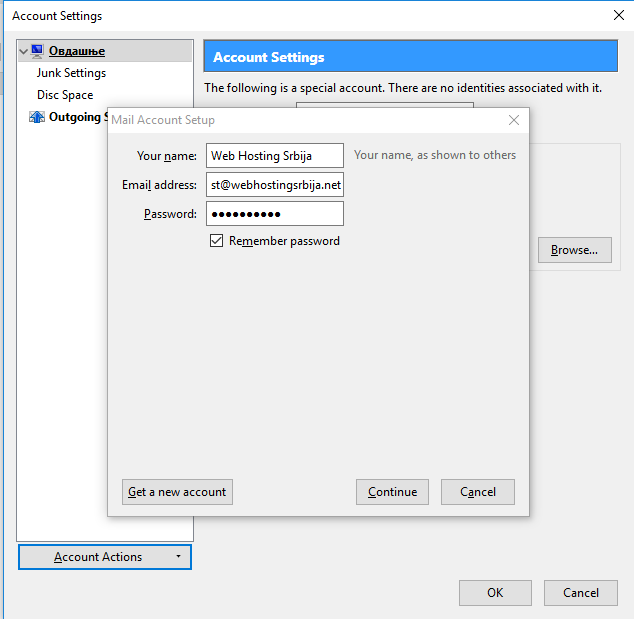
Then click Continue.
When the next step appears, click on Manual config and a window like the one in the picture below will appear
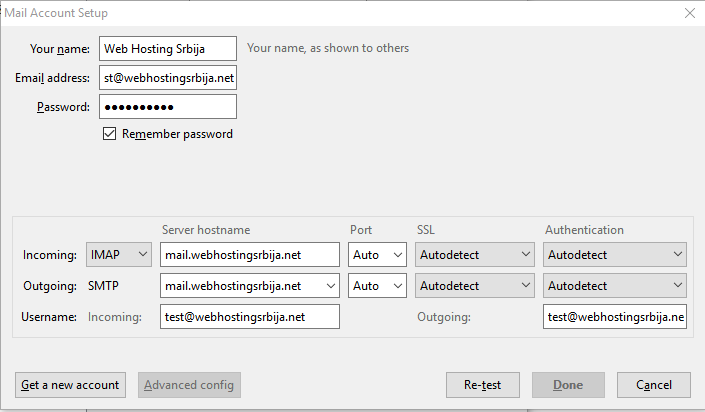
As you can see in the picture, you need to add mail to Server hostname, because you probably have a dot and your domain without this mail.
You add mail.yourdomain.com to be in that format.
Only the first part of your username is entered without @vasdomen.com, enter the entire email address as in the example. Then click Re-test.
After the program tests it's setup is complete.
In the image below you will also see the SMTP settings
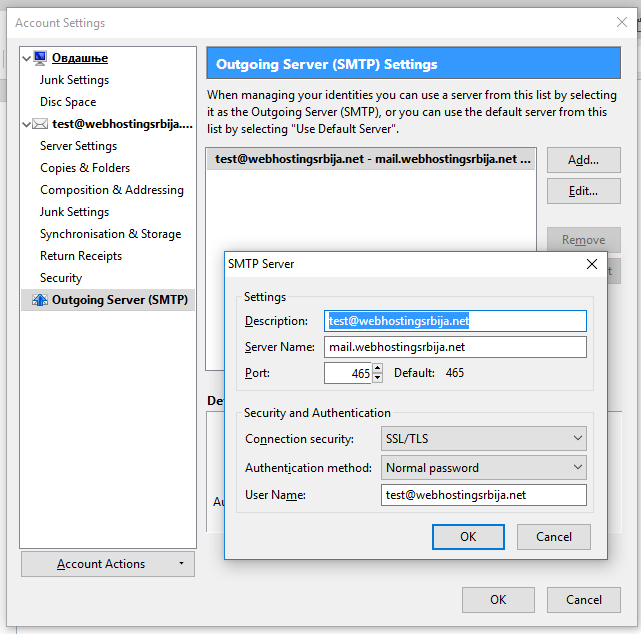
As you can see here, the Server name is mail.vasdomen.com PORT, you don't touch it, it goes automatically.
Connection security here is SSL/TLS which is automatic because every site on our hosting has free SSL.
If for some reason it won't, try to change the values there and then send an email to yourself at gmail, hotmail, yahoo or whatever other email you are using. Authentication method is Normal password and username is the ENTIRE email address again.
That's all!