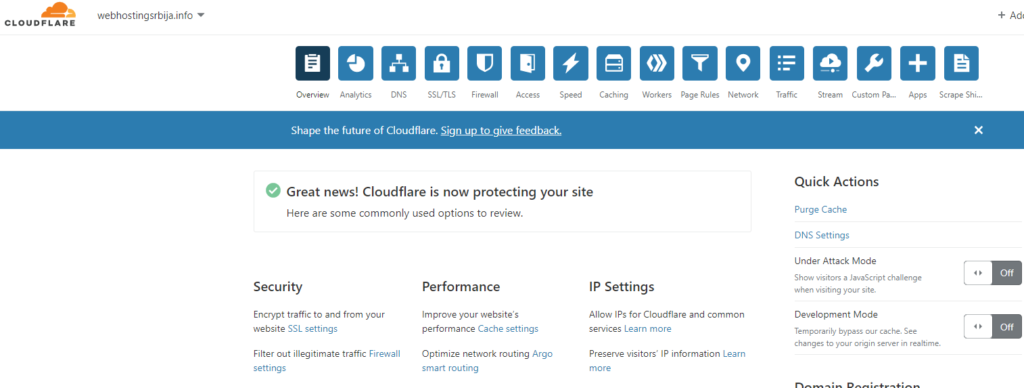
CloudFlare is a CDN (CDN is a global network of servers that delivers data quickly, using cache servers as well as PoP "access points" that are geographically closest to the user. Your static site content is stored on each of the servers on the network.). It allows your site to load faster. It can also be used as a free and reliable DNS management domain.
First of all, you need to go to the site cloudflare.com
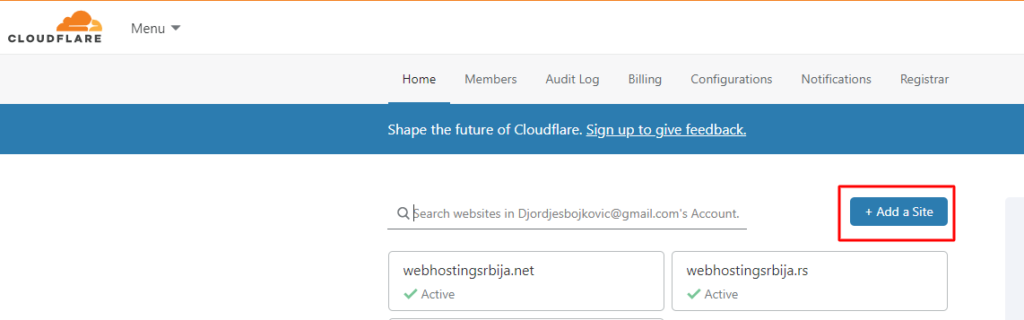
Click Add a Site to add your domain.
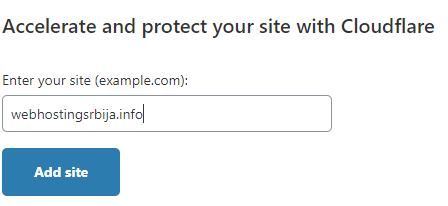
Enter your domain and click the Add Site button.
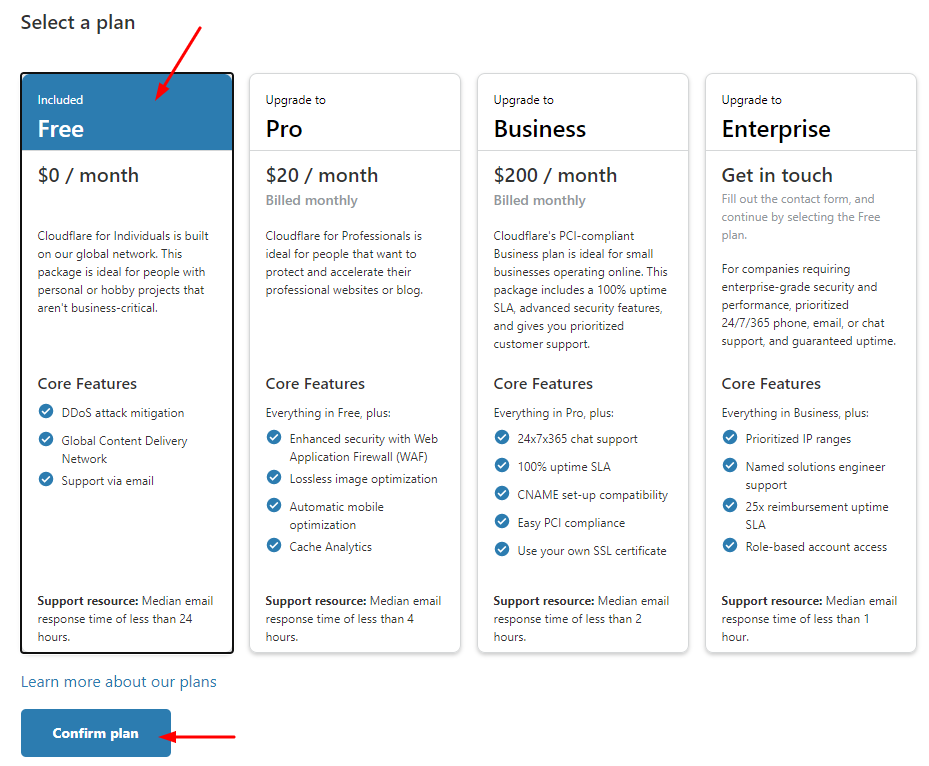
Click Free to select the free version of CloudFlare and then Confirm plan. After which you will see a picture like below where CloudFlare is trying to scan your dns records to copy them to its system. Wait a bit and it will just take you to the next page.
When it is finished, it will appear similar to the following image.
Note: If you don't get anything like the picture below with the orange bubbles below it means it didn't read the DNS settings correctly and contact support with a screenshot of what you got so they can help you continue.
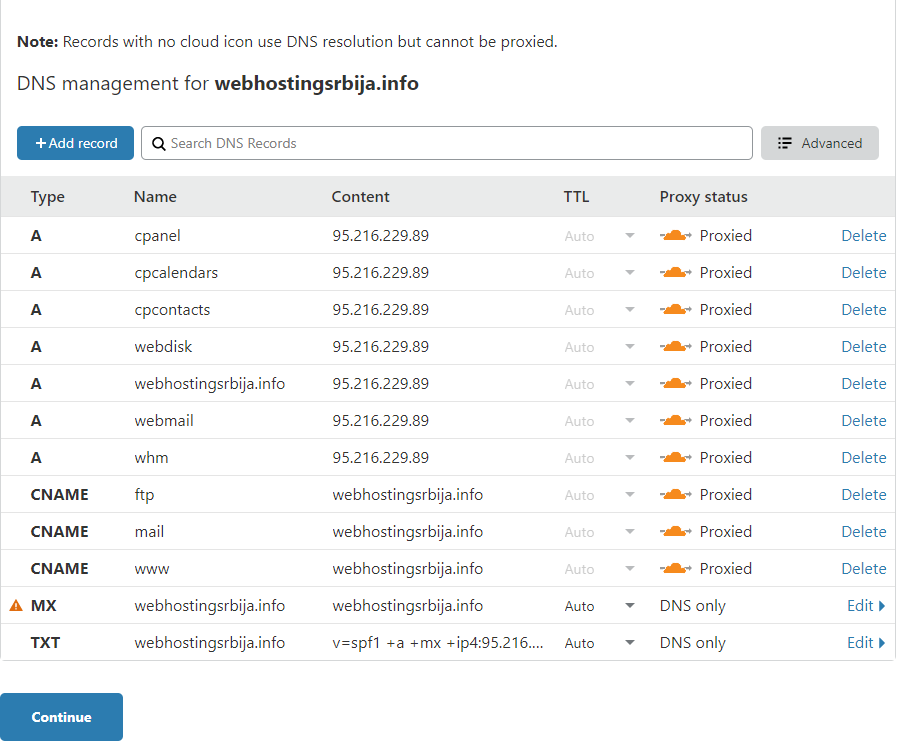
Now if everything is fine just click on Continue.
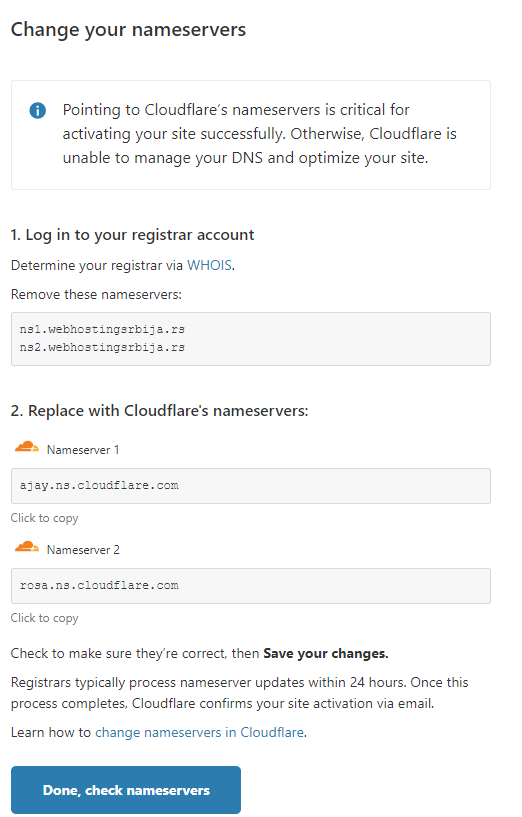
Now you just need to change the nameservers on the domain. Nameservers are changed where the domain was purchased. For a domain purchased from us, you can change it in the following instructions:
After that you go further and you will get:
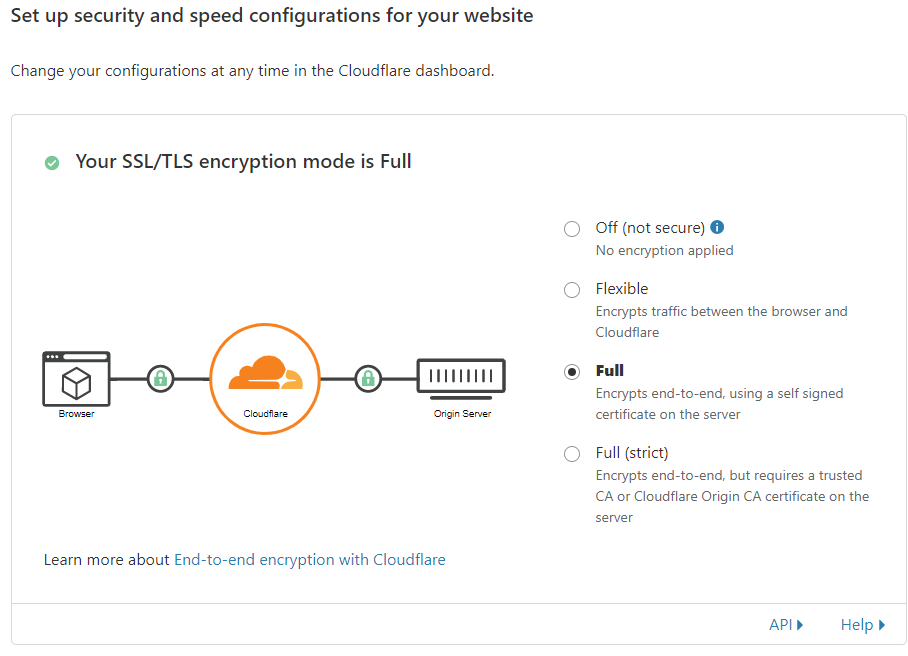
Leave it here as it is at Full.
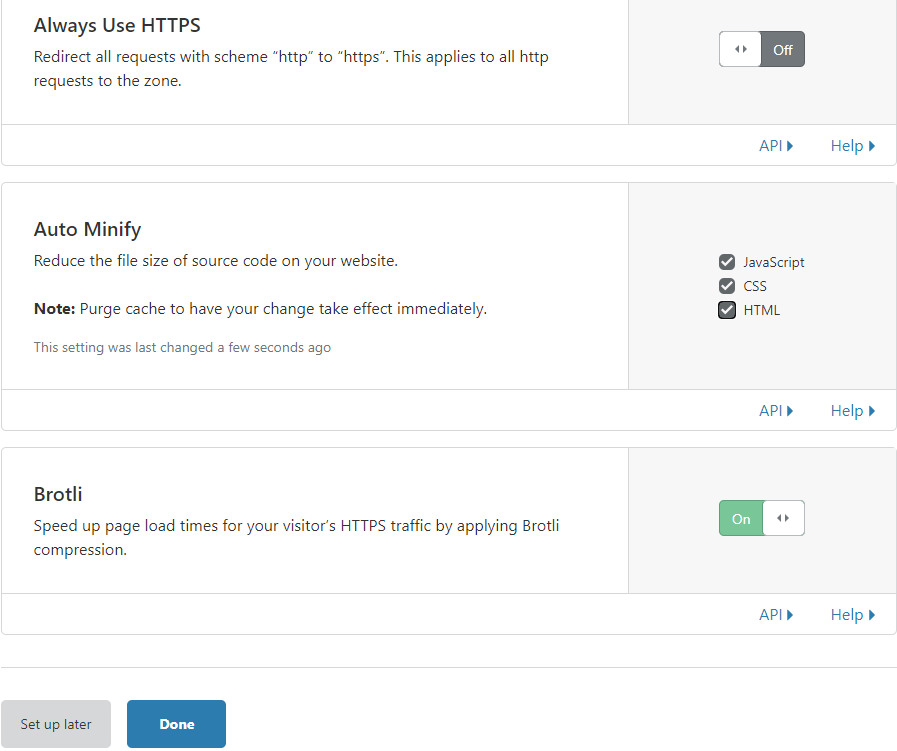
If you check AutoMinify javascript, css, html here, then you should not set the same option on the caching plugins. Only leave it on in one place, either cloudflare or plugin.
When CloudFlare checks the nameservers, you will receive an email that everything is set and you have completed the CloudFlare setup.