Contents
Manual backup and restore of accounts in cPanel.
Restore is limited to 4 times in 30 days. If you want to restore files and there are more than 3 of them, you need to download your account backup by clicking on "generate download" and upload the files manually through the File Manager, otherwise you will hit the limit.
Automatic account restore
First of all let's access cPanel. If you have problems and don't know how.
You can find instructions for accessing cPanel at this guide:
https://www.webhostingsrbija.rs/reset-cpanel-lozinke-ili-auto-login-na-cpanel/
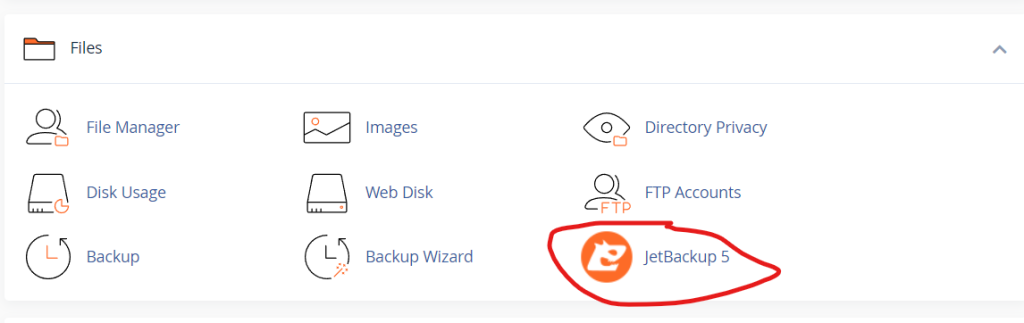
Then we find the Jetbackup5 icon
Now that we have opened, we have options to restore the entire account but also specific parts of the account depending on what we need.
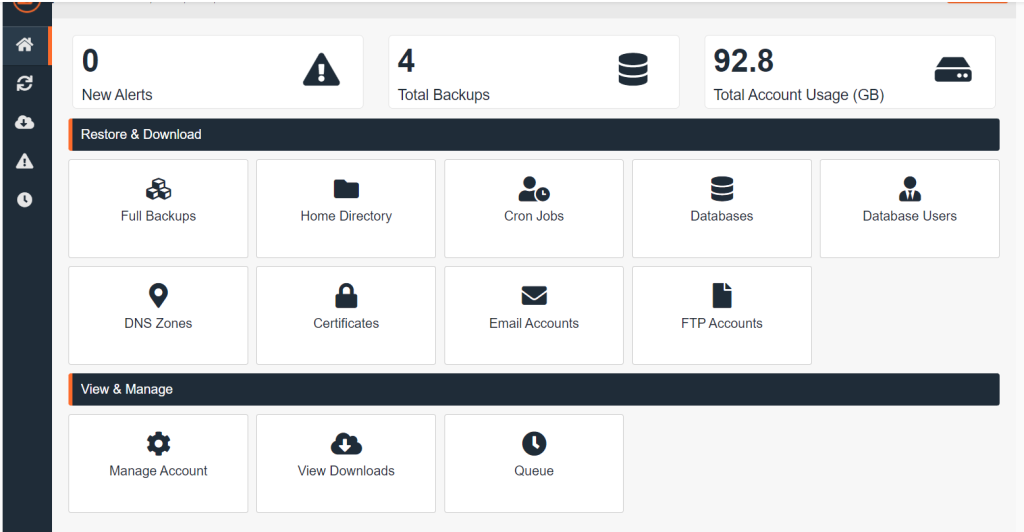
Restore entire account
To restore the entire account, go to Full Backups
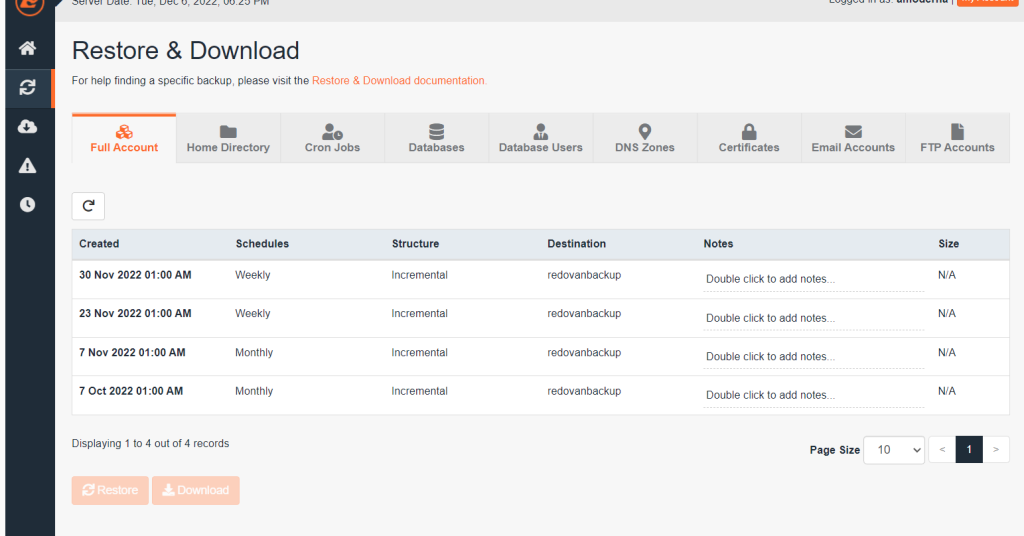
Here we select the option which date we want to return.
It is very important for you to know that restoring the entire account will restore the site, email as well as the site itself.
When we have selected the date, we go to the Restore button and we will get something like below.
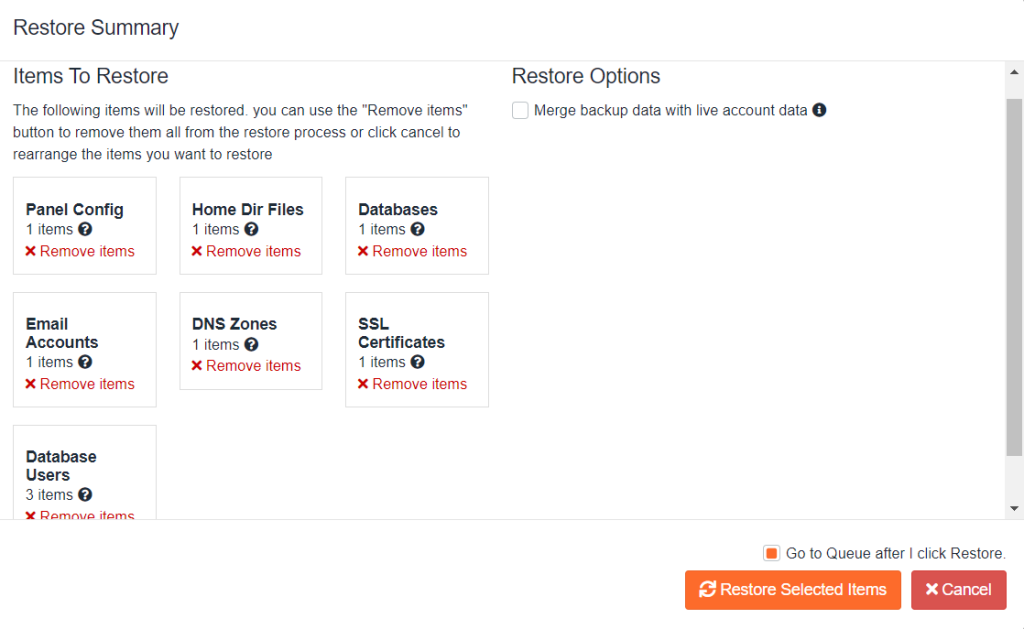
Here, it offers us everything that is possible to restore, and even though we have selected Full Backup, we can turn off certain things by clicking on Remove Items. This means that if you have, for example, problems with files (viruses or some backup went bad or the home directory is damaged), you can only leave the Home Dir Files and delete everything else, the same applies to the other options.
Restore Options
This option in the image above gives you only one option "Marge backup data…." which actually means that it will merge the existing files with the ones from the backup. If you do not check this option, your account will be completely deleted and will be recreated and the data from the backup file will be uploaded. (Do not use this option if you have viruses on your account).
Restore Files
When we go to restore files, we go to the Home Directory and we will get a list of available backup dates like this. We click on the desired date on which we want to restore the files and then on Change Files Selection, a popup window will open where we can choose the file or folder we want to restore, after selecting and checking we go to the Restore button.
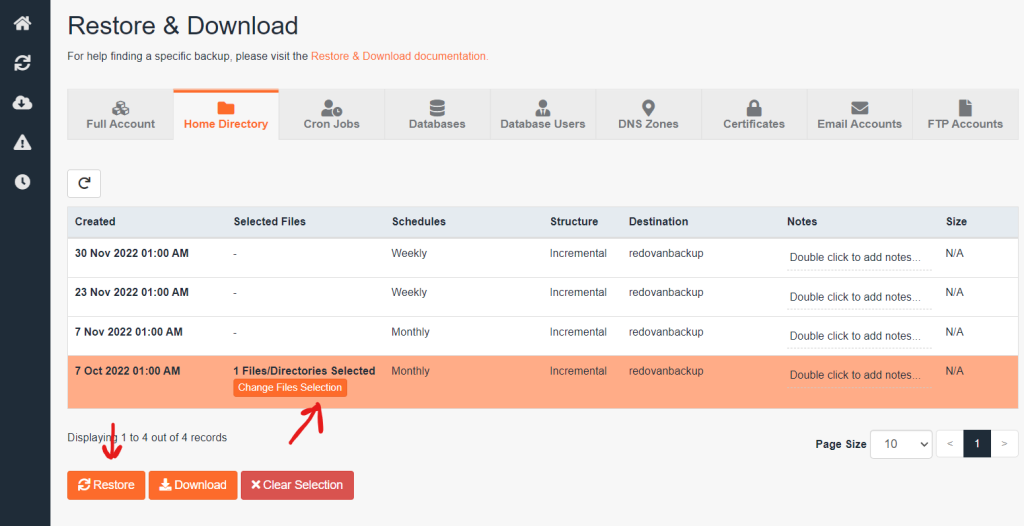
We will have offered again as with pictures 3 where we have the restore option again and to confirm our option.
Restore Cron/Database/DNS/Email
To restore cronjob, database, DNS or email account or accounts, the options are the same. We select the option we want to return, say the base as in this example.
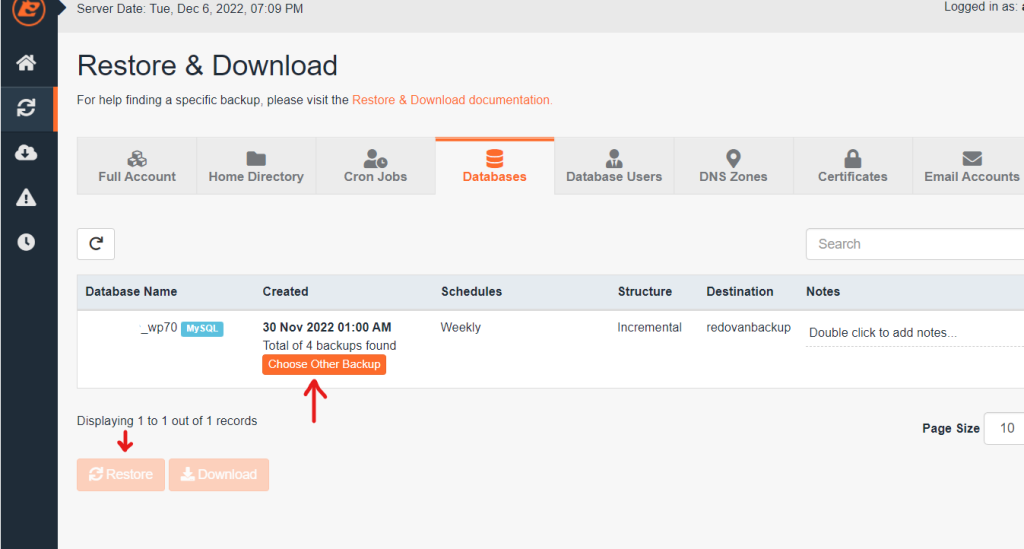
We choose the date by clicking on Choose Other Backup and mark the date to which we want to restore and then click on the date above that orange button so that the whole row becomes orange and then the Restore option will become available. By clicking on the Restore button, a popup window will appear again as with pictures 3 where we confirm.
This procedure applies to all options and is exactly the same procedure for the others.
How long will the restoration take?
Restore depends on the size of the account, the selected option and the busyness of the server itself. It can last from 10 minutes to a couple of hours.
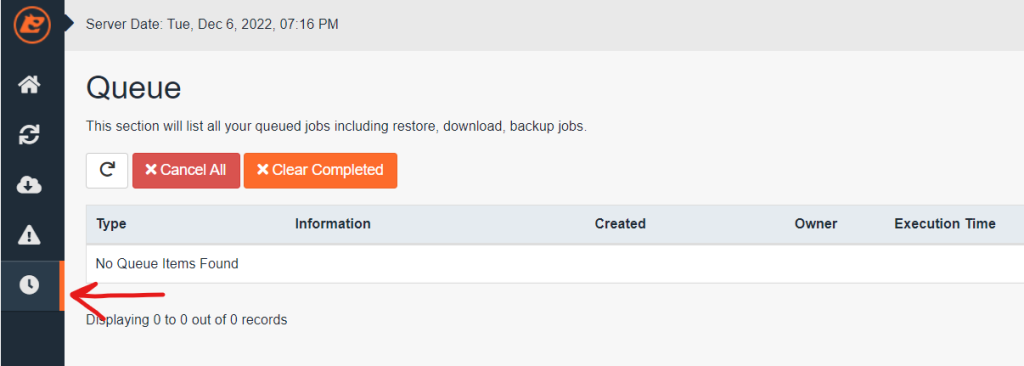
In this option you can monitor the restore progress and you can refresh and thus monitor the progress. You can also turn off cPanel restore will continue and is not connected to your computer.
There is no date I need?
The restore dates are those that are available to you, you cannot restore outside of those dates. Only if you manually made a backup, then you can manually restore. As for the offer, that's the only thing you have in the jetbackup 5 application itself. Daily backup is an additional option that you can purchase and you have 15 days on a daily basis plus 2 monthly and 2 weekly backups that are already included in the price.