Cron jobs automatically run commands on a schedule, such as sending daily reports, clearing caches, or database maintenance scripts. Each job uses a five-pole cron expression: minute, hour, day of the month, month, and day of the week.
1. Overview
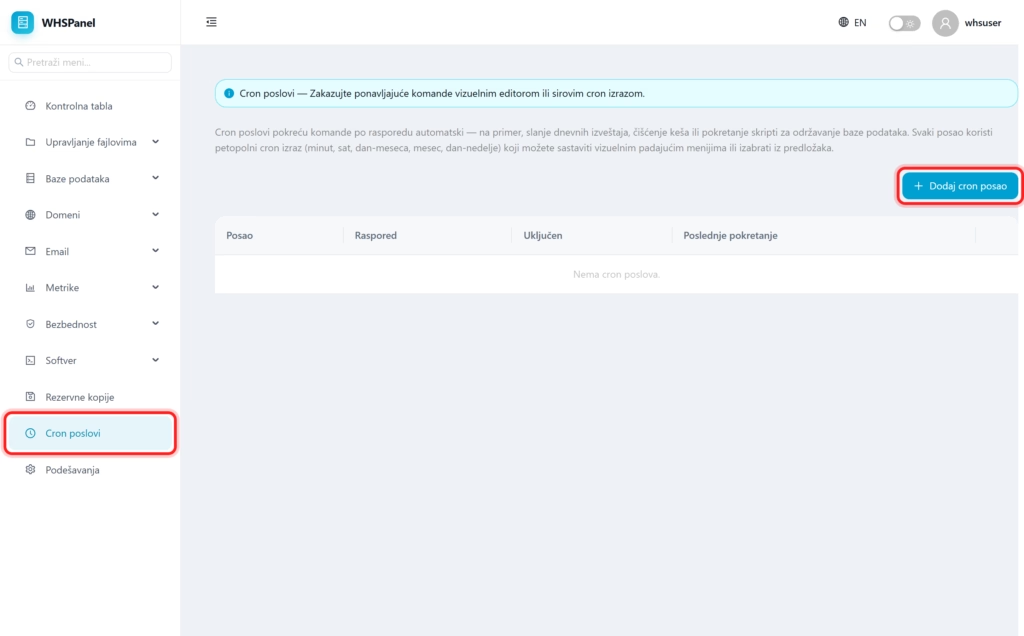
Open in the menu Cron jobs. The table shows each job with its schedule, status (on or off) and last run time.
2. How to add a cron job
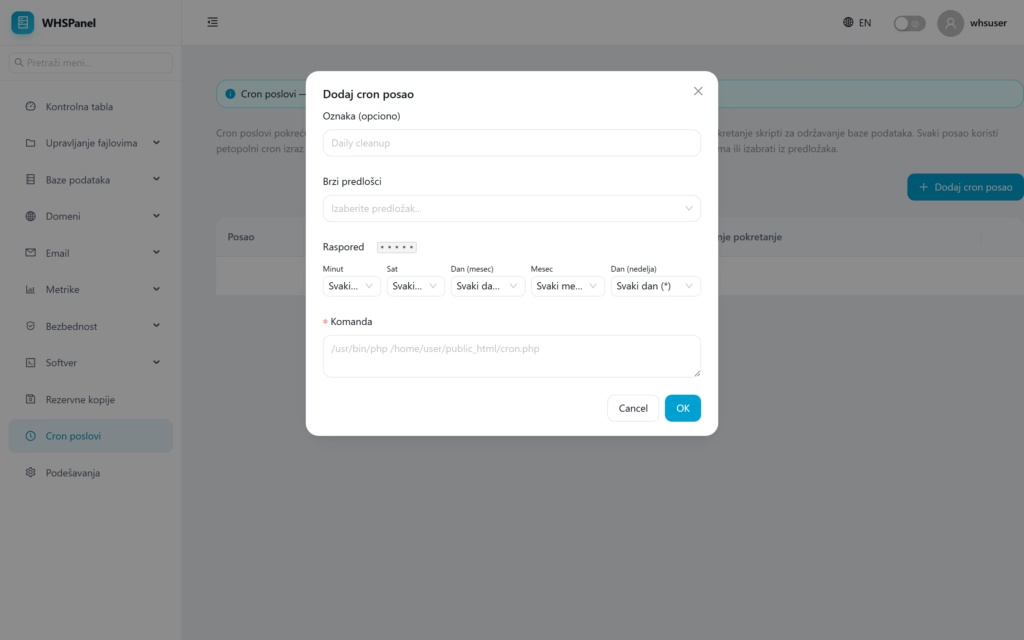
- Click Add cron job.
- Label (optional): name to make it easier to recognize the job (for example Daily cleaning).
- Quick templates: choose a ready-made schedule, or put it together manually.
- Schedule: via five drop-down menus (minute, hour, day of the month, month, day of the week) you set when the command is executed.
- Command: type what is running, with the full path (eg
/usr/bin/php /home/user/public_html/cron.php). - Click OK.
WordPress tip: for more reliable WordPress scheduled tasks, turn off the built-in wp-cron and instead create a real cron job that calls WordPress every few minutes.
Note: if you are not sure about layout syntax, use Quick templates. Always specify the full path to the program (for example to PHP) and to the script, because cron does not know your shortcuts from the terminal.