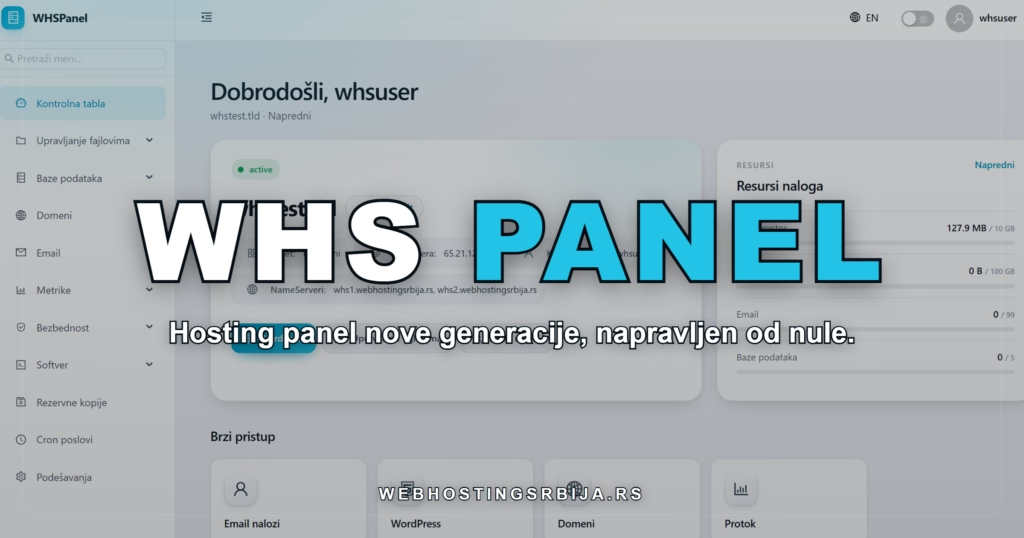
In the Settings section, you manage your entire account through tabs: password, contact email, two-factor protection, notifications, webmail, language and region, team access and active sessions. Each card is explained below. In each picture, the card in question is circled in red, and you can click on the picture to enlarge it.
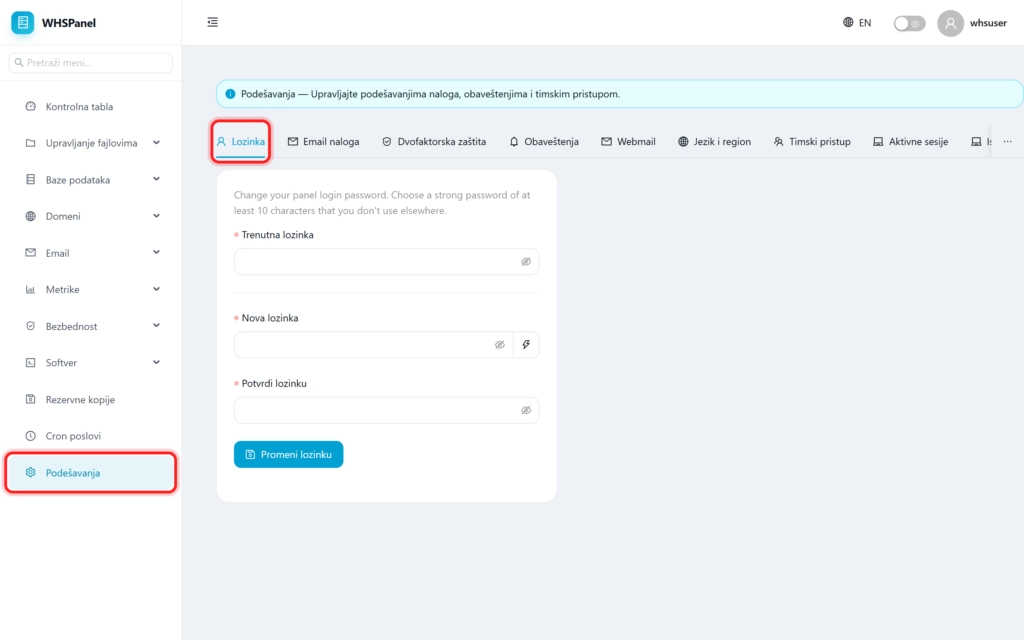
1. Password
You change the password you use to log in to the panel. Enter current password, so new (strong, at least 10 characters that you don't use anywhere else), confirm it and click Change password.
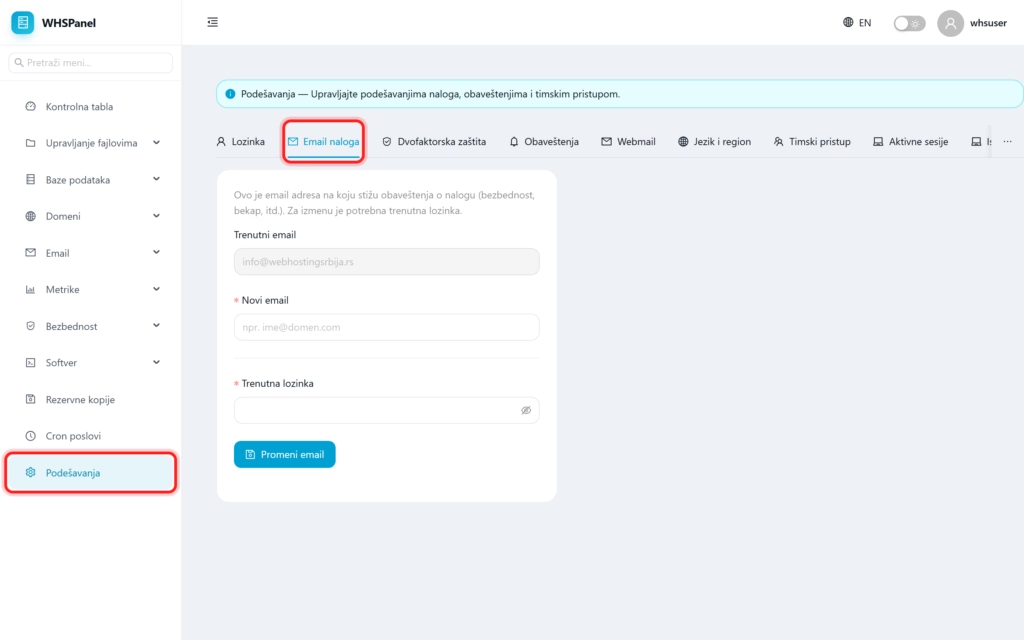
2. Account email
This is the contact email address to which the panel sends notifications about the account (security, backups, etc.). Current password is required for modification: enter New email and current password, then you click Change email.
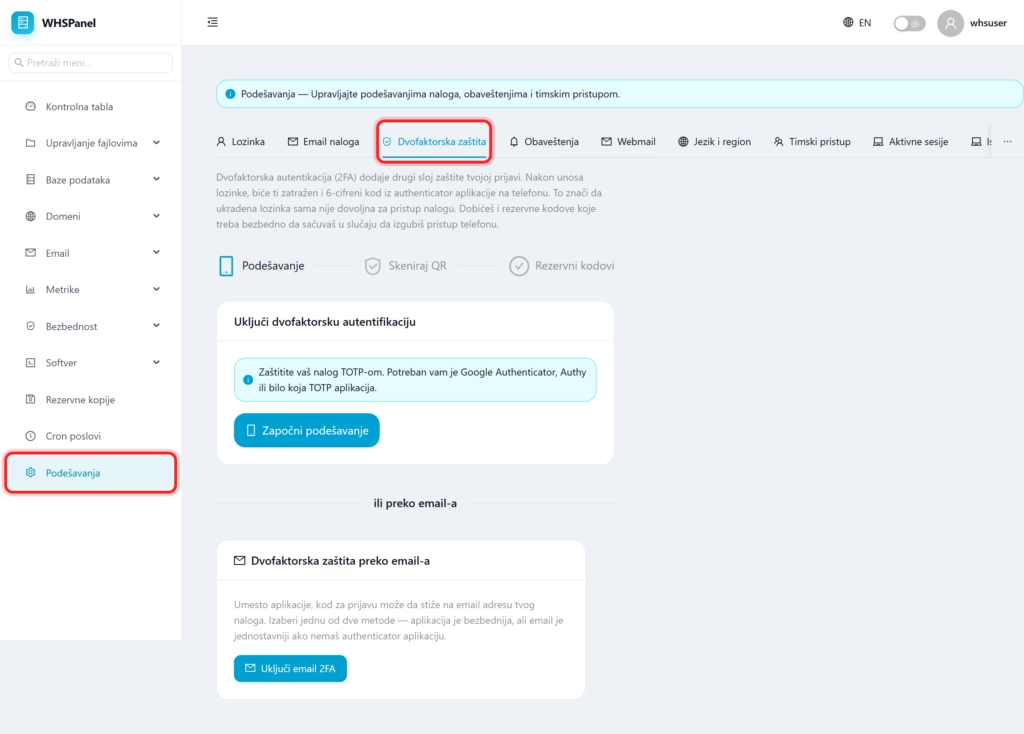
3. Two-factor protection
You enable two-factor authentication (2FA) so that the application asks for a one-time code in addition to the password. You can use the application (Google Authenticator, Authy) or an email code. This is the same tool as in the Security section, where it is described step by step.
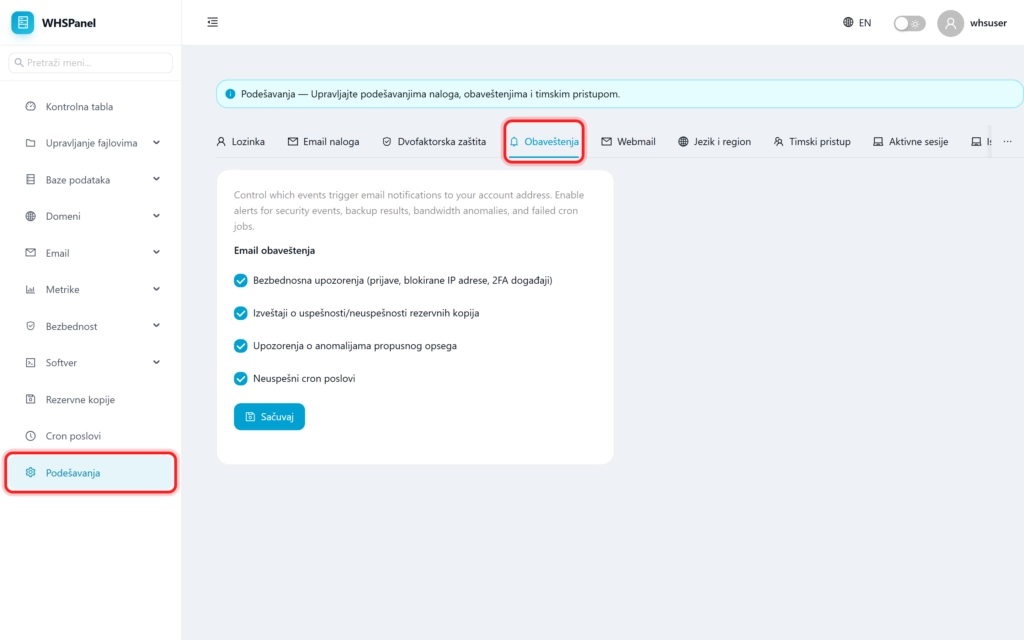
4. Notifications
You choose which events are sent to your email. You check the ones you want and click Save:
- Safety warnings (logins, blocked IP addresses, 2FA events),
- Backup success reports,
- Bandwidth Anomaly Alerts,
- Failed cron jobs.
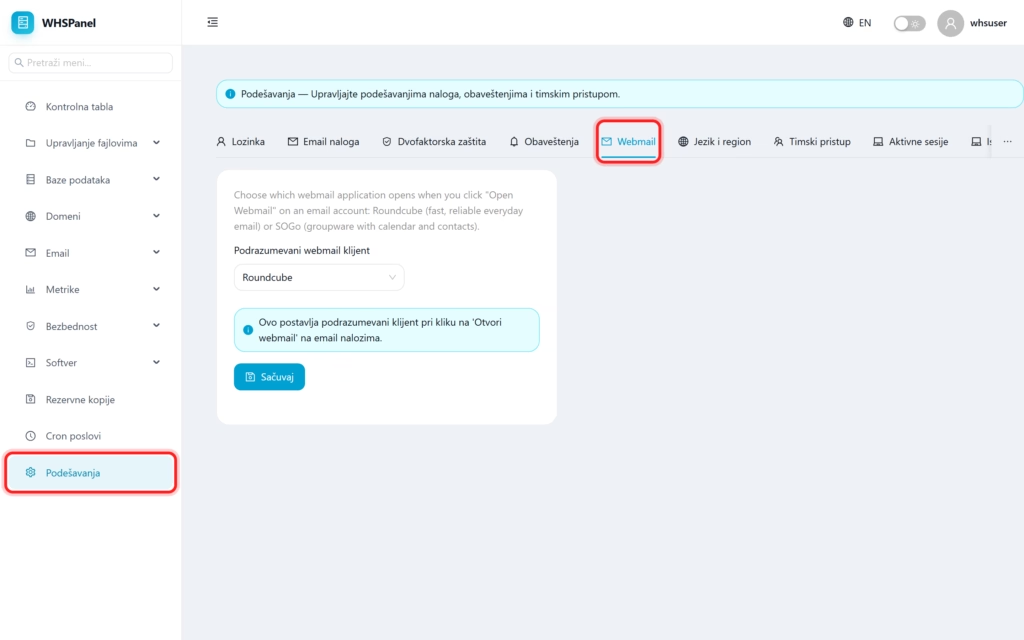
5. Webmail
You choose the default webmail client that opens when you click "Open webmail" on your email account: Roundcube (fast everyday mail) or SOGo (groupware with calendar and contacts). You choose and click Save.
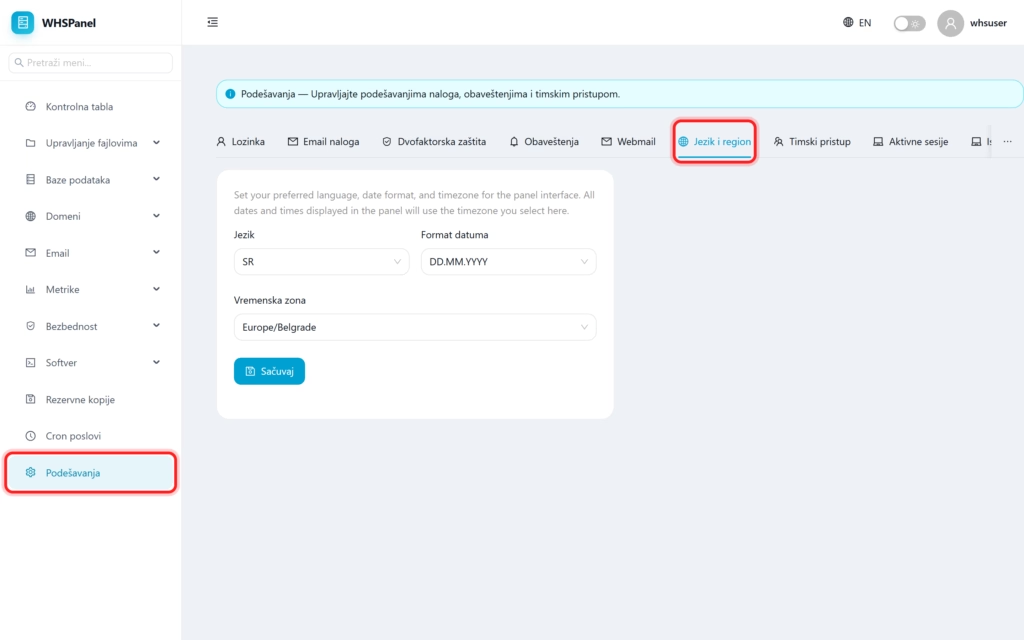
6. Language and region
You are setting language panel, date format and time zone. All dates and times in the panel use the zone you choose here (eg Europe/Belgrade). Click Save.
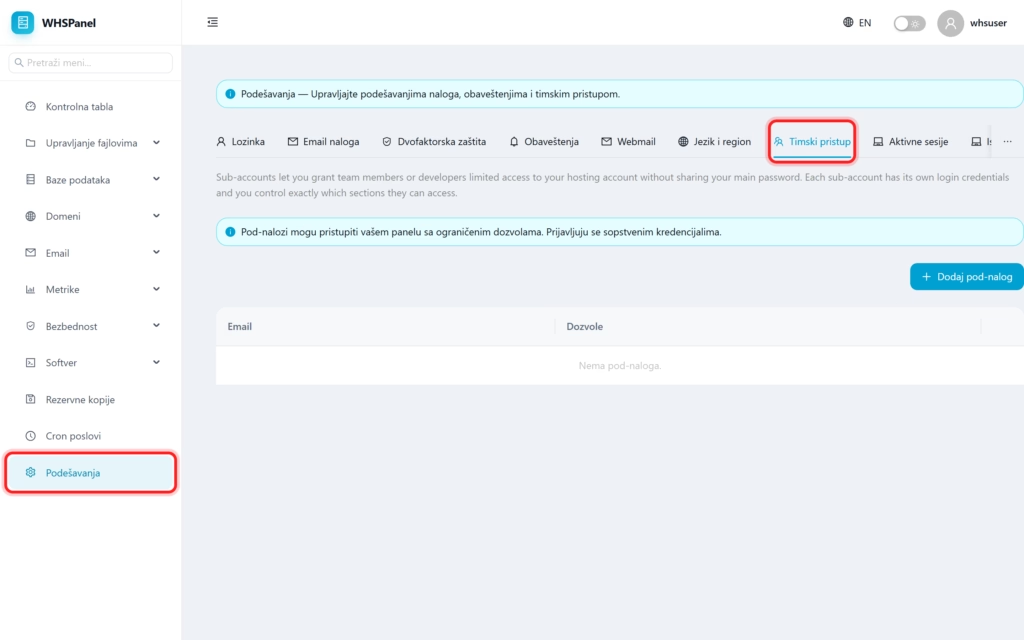
7. Team approach (sub-accounts)
You give collaborators or developers limited access to the account without sharing the master password. Each sub-account has its own login information, and you choose exactly which parts of the panel it can access. Click Add sub-account, enter your email and select permissions.
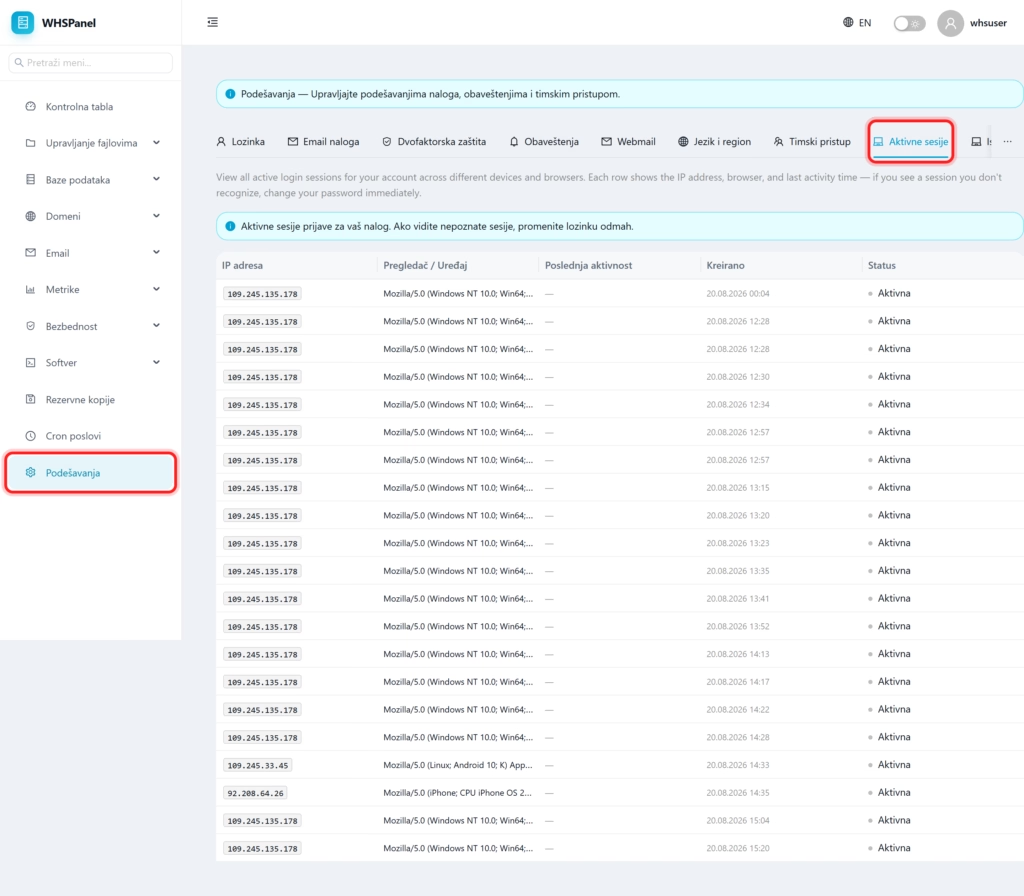
8. Active sessions
You can see all active logins to your account, from various devices and browsers. Each row shows the IP address, browser and time of last activity. If you see a session you don't recognize, change your password immediately.
Security: never share the account's master password. Create a separate sub-account for collaborators with exactly the permissions they need and remove it when collaboration ends. Check your Active Sessions from time to time and log out anything you don't recognize.