As one of the popular Email clients, eM client is also easy to set up like the others (except outlook which is full of bugs).
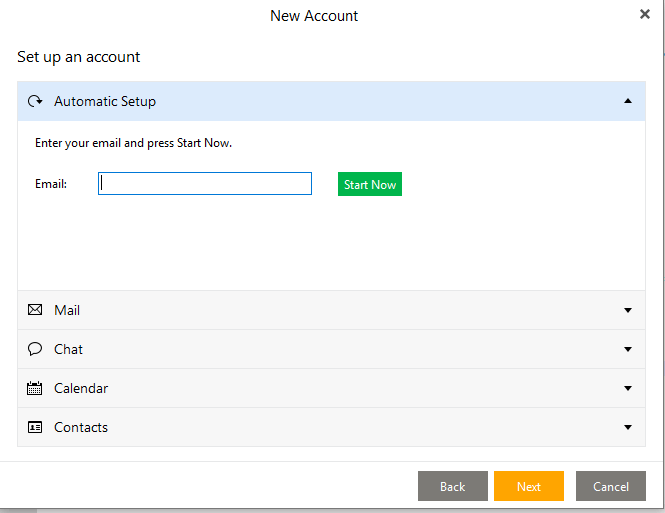
Well, to begin with, first of all, as soon as you are here, it means that you have downloaded and installed it. At the beginning, after installation, you get the following image, but at this moment you don't need to go next, but click on "Mail" below.
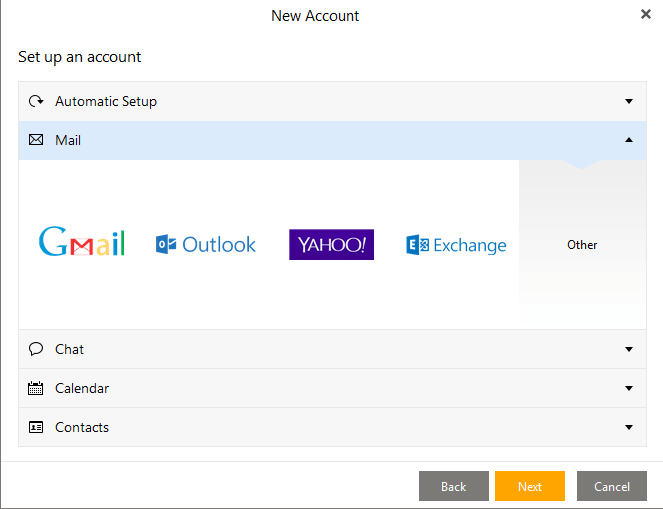
The most popular mail servers gmail, outlook, yahoo, exchange and others are offered here. You choose Other, nothing special will happen, it will just turn slightly gray and then we go next.
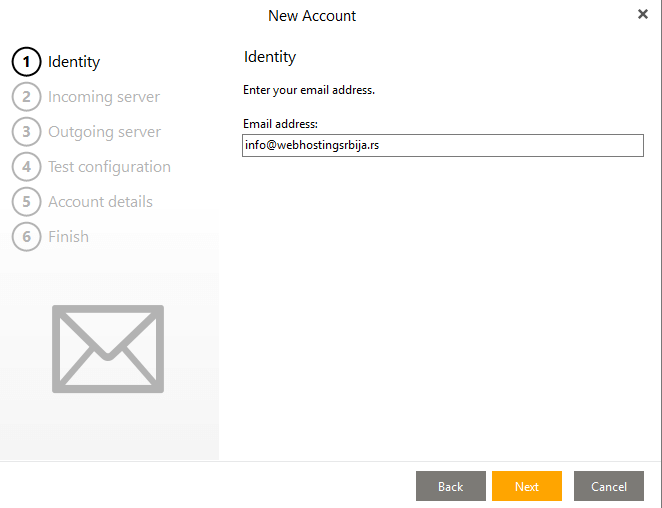
When you selected Other in the previous step, in this step you enter your email address, as in the example, we have of course put ours.
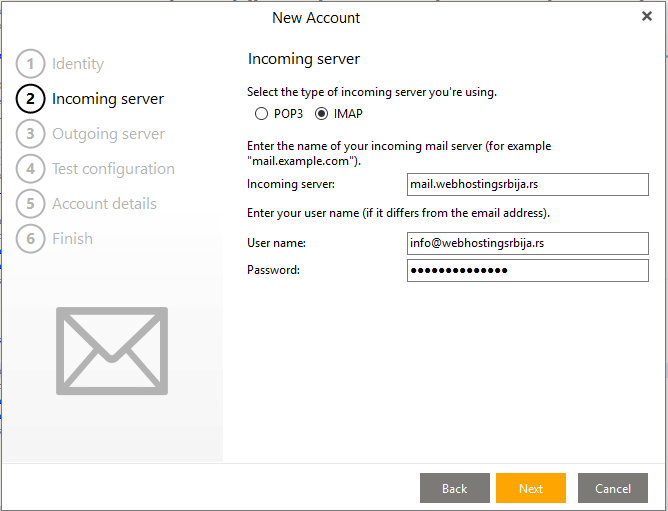
This step is important because you are deciding whether to download emails to your computer or to keep them on the server.
POP3 - If you download e-mails to your computer, it means that there will be no danger of your hosting account being filled with e-mails and being blocked, thereby suspending the site.
IMAP - If you keep your e-mails on the server, you can set up an e-mail client both on your phone and on another computer and then synchronize via IMAP and thus see e-mails everywhere, unlike the first POP3 option, where e-mails are only in your computer and that's all.
In addition, there is another important item, which is the email server, enter mail.vasdomen.nesto, not as in the example where we entered our domain mail.webhostingsrbija.rs. So use your domain. If you are not sure, contact support.
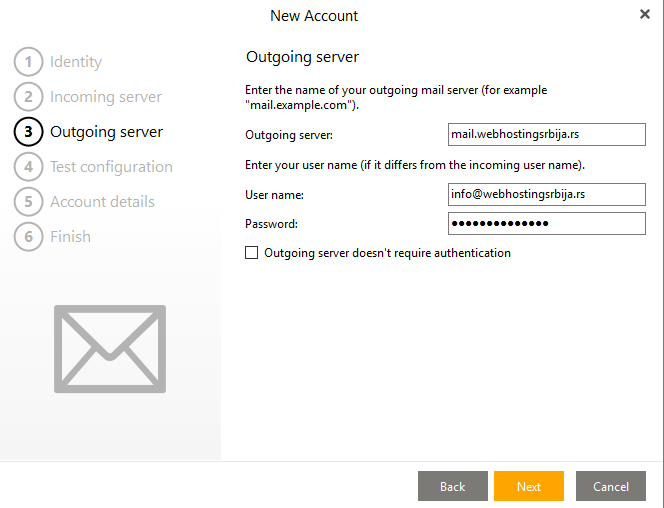
In this step, the setting is the same as in the previous one, except that here the outgoing email is concerned, but the setting is identical to the previous one.
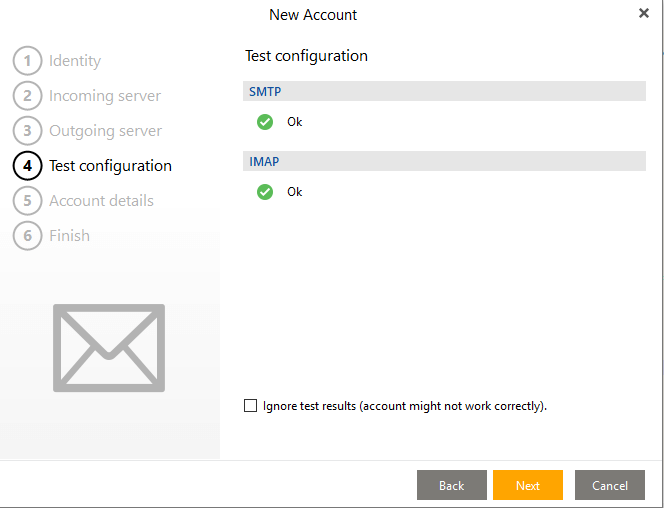
Here, a check is made to see if everything is in order, as it will be in 99% cases, they will report to you as well as to us that everything is in order. If not, the "Fix" button will appear where it will try to solve the problem, if even then it doesn't work, contact us on livechat so that we can try to solve the problem.
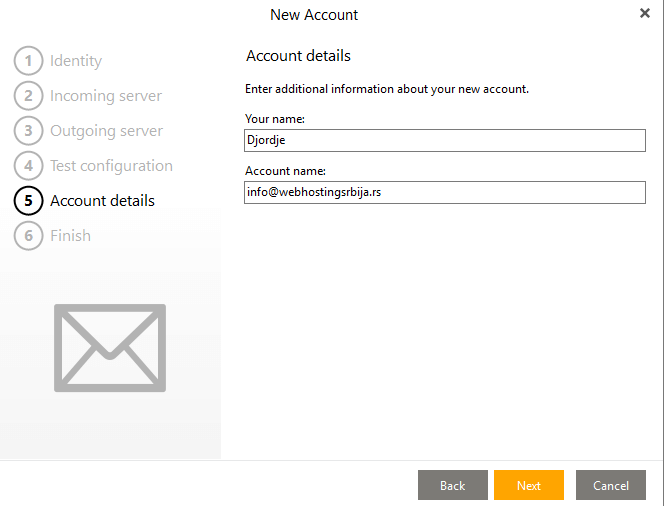
The last step in terms of settings is your name and account. Your name is important because it will appear in Email when you send emails. And the account name is not important, it is only for you to distinguish you if you have more email accounts.
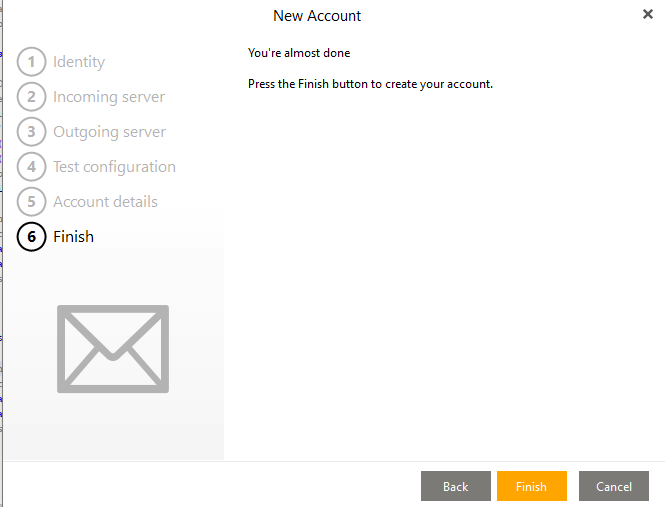
Here it's just a simple confirmation click finish and that's it.
Pretty simple, right?
For all questions and concerns, contact liveChat.