Contents
You can add a new domain (in addition to the main domain) to cPanel depending on the package you have.
What is the difference between Main, Aliases and Addon domains
The difference is only in the path to their main folder, ie where the site for that domain is located. There are no other differences otherwise each domain is valued separately and there is no interference for visitors or ranking on google or any other search engine.
What is a main domain?
The main domain is the one you entered when ordering and with which you most often log in to your cpanel yourdomain/cpanel. The files for the main domain site are ALWAYS in the public_html folder.
(you can change it so that it is not the public_html folder but another one using .htaccess but this only if you are 100% sure and know exactly what you are doing)
What is an Aliases domain?
Aliases domain can be said to be synonymous with main domain. Let's say you have a domain that you bought in order to reserve it so that no one else could buy it and later you want to create a website, you can set it as Aliases.
When you add it and open that domain it will actually open your main domain.
Can Aliases be used as a backlink for the main domain?
No. Aliases have no impact on ranking and help or detract from anything.
What is an Addon domain?
If you have a package where it is possible to set up several sites and you want to have another site and domain in addition to the main domain, then you can do it through the Domains option in cPanel.
The addon domain is intended exclusively for creating an additional site on the hosting account. A site that is set up as an addon domain as far as browsers are concerned is completely unique and separate from all other sites as if it had its own hosting account.
Creating Subdomains/Subdomains in cPanel
First of all, you need to log in to cPanel and have an Advanced or higher package because they have the ability to create subdomains.
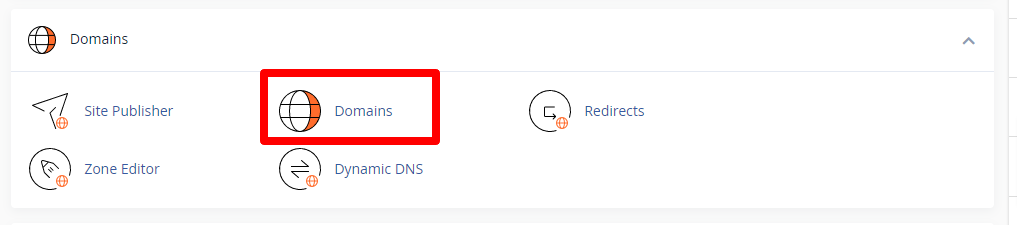
After this we add the sudomen we want.
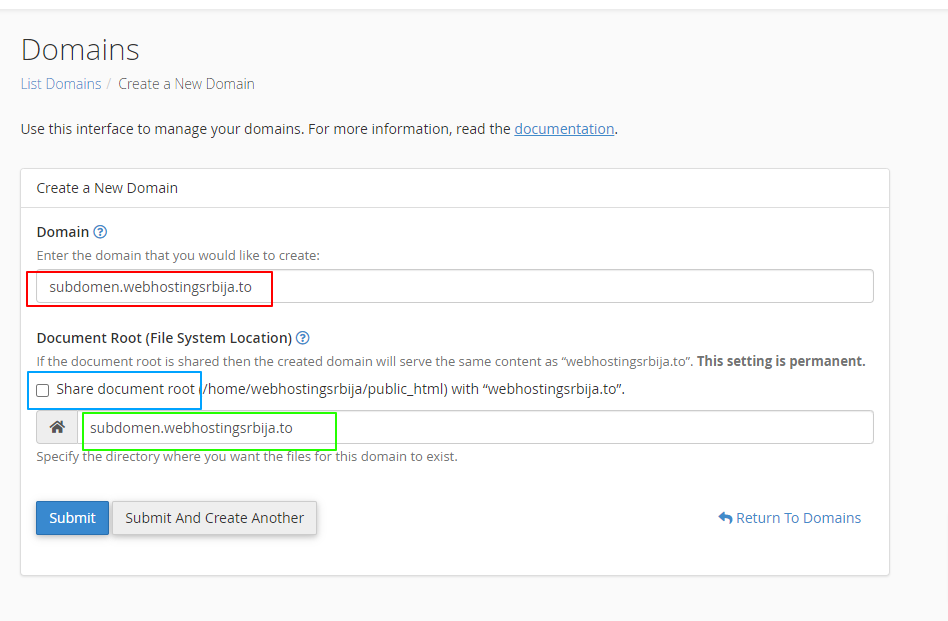
RED SQUARE - this is where we create our subdomain together with the domain. If means, it needs to contain that field and the domain for which the subdomain is created. If our domain is webhostingsrbija.to and the subdomain is "proba", then in the first field we enter "proba.webhostingsrbija.to" and not just "proba".
BLUE SQUARE - if we want a separate site or a separate folder for our subdomain, then we uncheck this option.
GREEN SQUARE - here we enter the folder that will be the link for our subdomain
Adding a domain to cPanel
First of all you need to login to cPanel.
On this guide you can find instructions for cPanel access
After we open the Domains option, we will get options as in the picture below. Where we go on the button Create a new domain
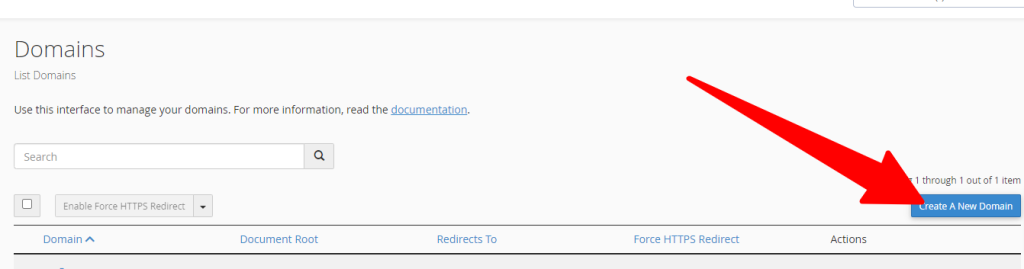
After that, we go into the process of adding a domain.
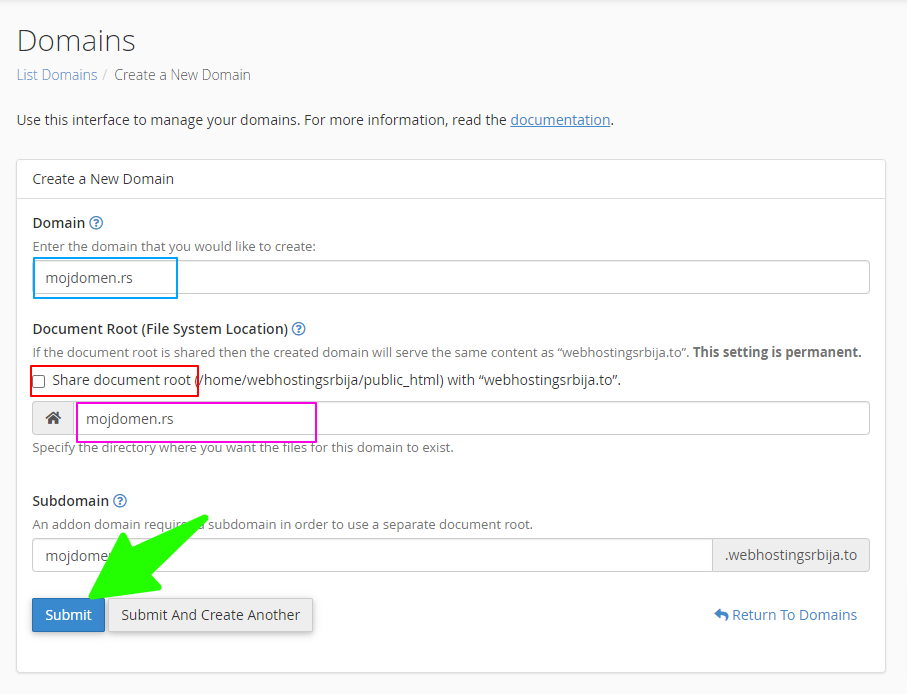
BLUE SQUARE - enter the domain you want to add
RED SQUARE – leave this ticked if we want to add the domain as Aliases or uncheck it if we want to add it as an Addon (see above for an explanation of what aliases are and what is an addon)
ROZE KVADRAT - here we enter the path to the folder of our new domain, we leave it as is the domain. This option is invisible to you if you have not previously unchecked the red square.
Then we click on Submit and we have successfully added the domain.
When creating a domain, it also asks for a subdomain and it can be accessed through it, how can I avoid that?
You can't. cPanel is simply designed to automatically create a subdomain for a new Addon domain and that's it. NOBODY can know about that subdomain unless you link it somewhere, nor can it in any way affect the site itself or the ranking in general.
Error adding:
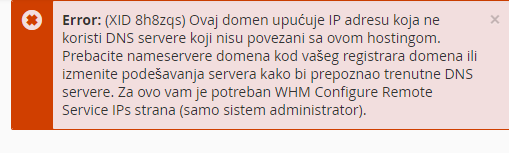
This domain points to an IP address that does not use the DNS servers associated with this server. Transfer the domain to this server's nameservers at the domain's registrar or update your system to recognize the current DNS servers. To do this, use WHM's Configure Remote Service IPs interface.
If you get this error, you need to change the nameservers to match your hosting account. Nameservers are changed where the domain was purchased.
If the domain was purchased from us, send the instructions for Changing nameservers
If the domain was purchased elsewhere, you can see the nameservers for your hosting account in the client panel by clicking on the domain of your hosting account at THIS link.