Contents
In this article, I will write how to create the simplest website that looks professional and contains everything that actually costs 150 euros if a professional company would do it for you.
Introduction
How is it possible that you can do it yourself without any knowledge, if it's so simple then why do they charge so much and you can do the same for absolutely free?
The answer is quite simple, you have to do this yourself. There are limitations here that you can't do exactly as you have seen somewhere because this program that we are going to show you has defined things that can be adjusted but not completely. In order to change something exactly as desired, it requires programming and knowledge.
What do you need to make your site visible to everyone?
You need hosting, which for a site of this type that you create using this program (HTML sites) costs 1200+ dinars for a year.
Next, you need a domain (such as webhostingsrbija.rs), the price of the domain ranges from 250 dinars for a year and more. .RS costs 1850 dinars for a year, .com is around 1000 dinars (sometimes there are promotions so it costs much less).
How do I create a site for free?
Mobile
Of course https://mobirise.com you can download the program for free and use it for free. Download link.
There is a purchased version where you have even more plugins and even more layouts that you can use to build this site but you don't need it at this time.
Website creator
The site builder is an option that you can check out by clicking on Website Creator. It is a special type of software that allows you to create a website directly in the browser without the need for any software or installation.
WordPress site
There is an offer where with the purchase of hosting you get a free site made in WordPress with the help of the Elementor plugin. See the offer free site.
Creating a website with Mobirise
Now that we have equipped ourselves with all the necessary information, it is time to create your first professional website. You downloaded and installed the program and launched it.
First step: create a site (click on plus Create new site)
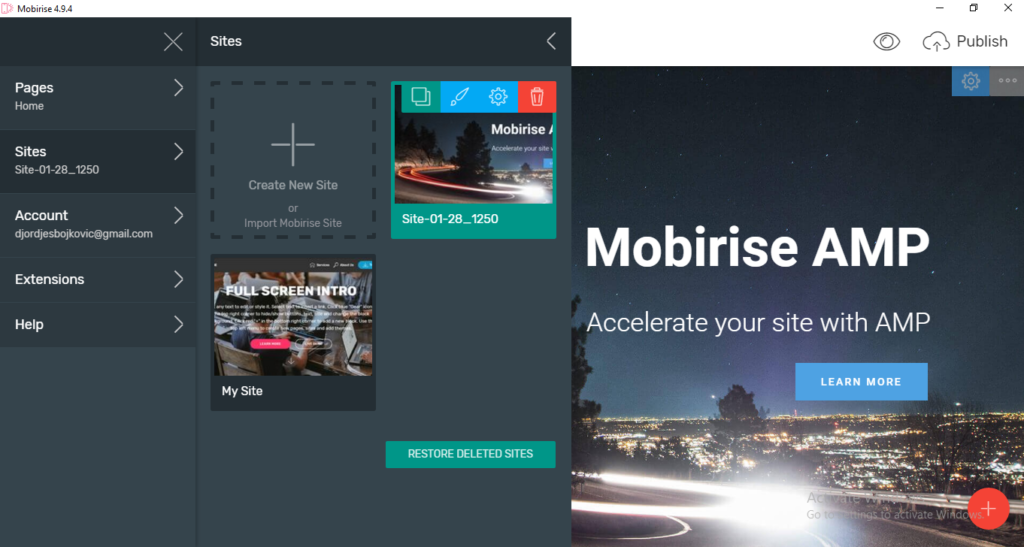
After this, a window will appear below where you enter the name of your site
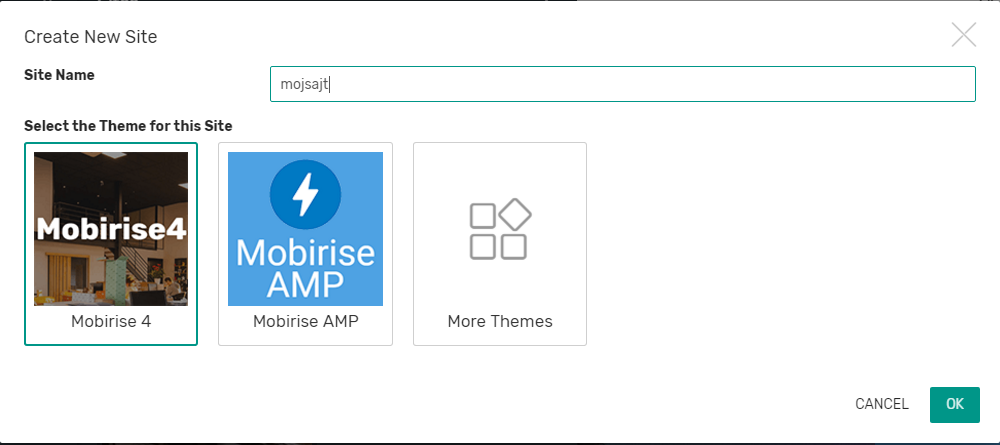
Select moberise4 and enter your site name then click ok. After that, the following window will appear
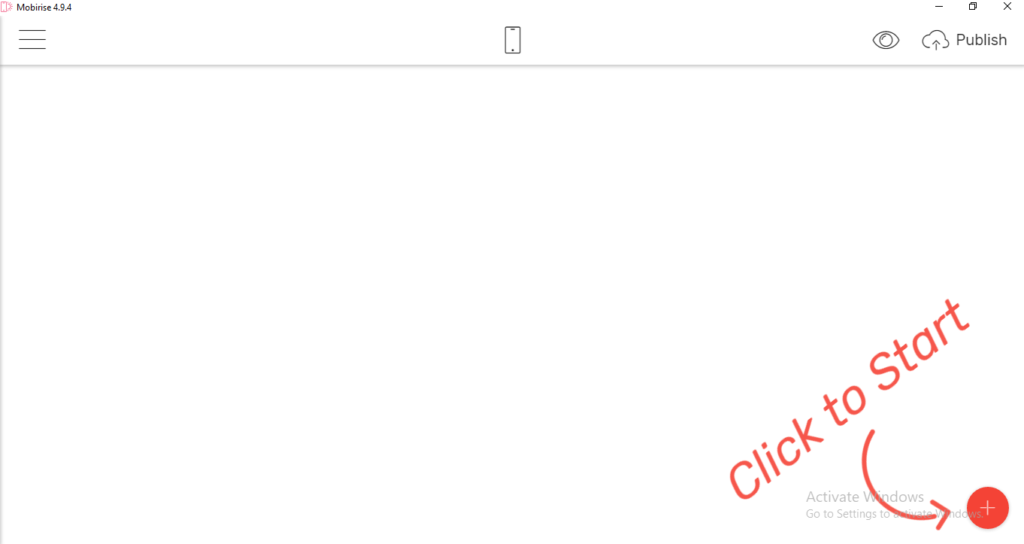
As you can conclude, you need to click on this red circle. After that, place the elements you want by simply dragging from right to left. Play around there and insert delete without worrying you can't break anything.
When they finish placing the elements, you can change that element and the arrangement by clicking on the options of that element as in the picture below
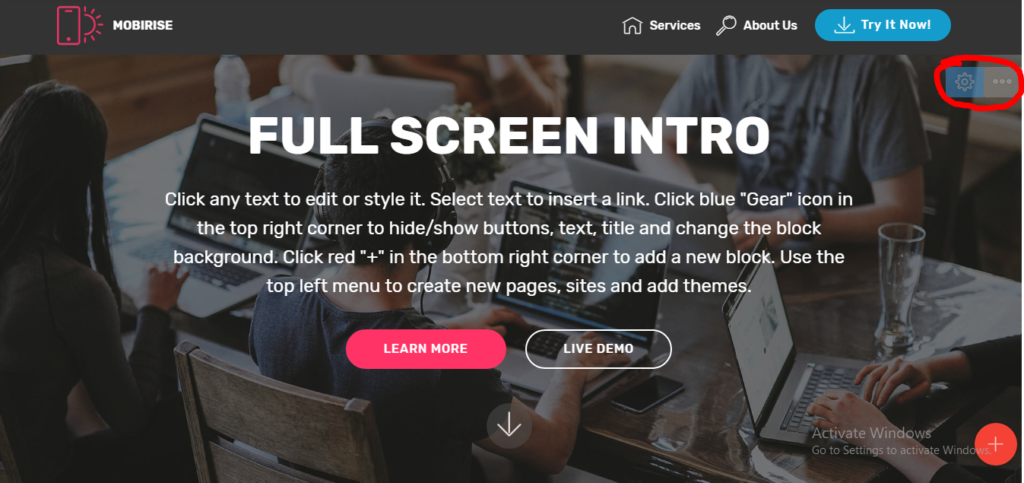
There, play with those options to see which ones work for what and to get the look you want.
Keep in mind that you can have multiple sides and not just one. If you want more pages, you need to create a new page by clicking on the three lines in the upper left corner and you have Pages, then create a new page as in the picture below.
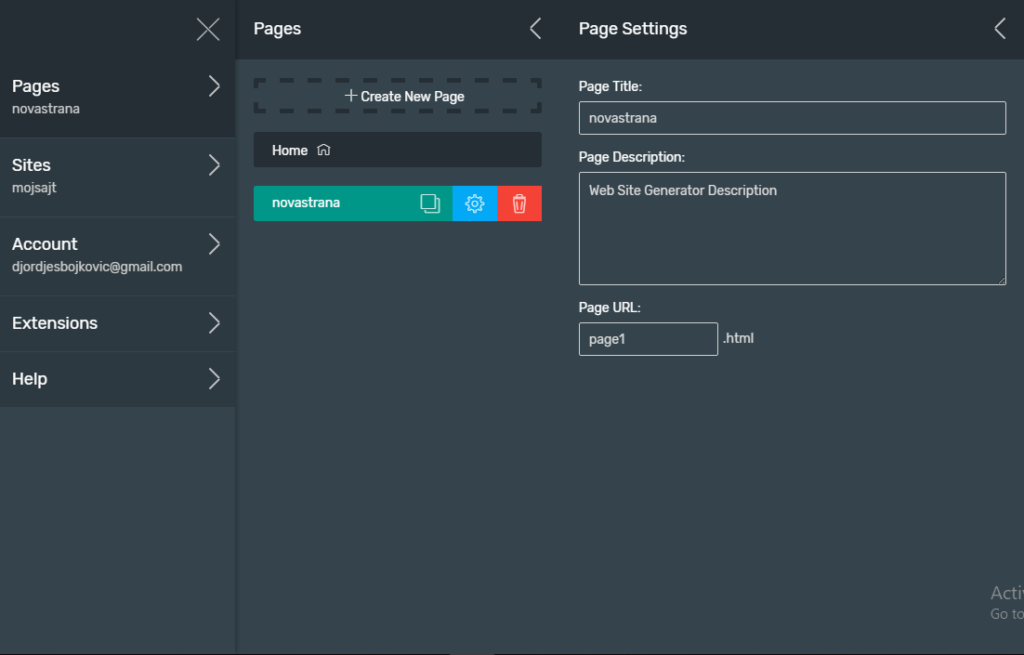
In the first field there is the title of the page, it can be spaces and small and capital letters, whatever you want, as well as in the second large field.
In the third field, where it says "page URL", there can be only Latin characters without Cyrillic and our letters, without spaces and special characters. Only letters and numbers.
OK, now we have created a new page and when you click on the menu you will see some small options, explore what they mean and the first one is the key that helps us connect the menu option to our newly created page. And that is by clicking on the page and selecting our page from the drop-down menu and clicking insert.
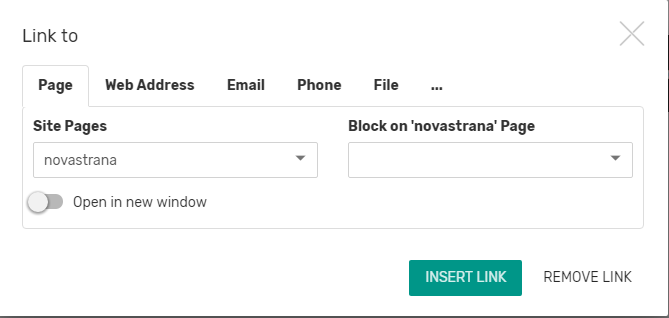
When we finished the complete site. All that remains is to save it and put it on hosting.
We can save the site by clicking on "Publish" in the upper right corner, where we select local and choose the folder where our site will be.
Transferring a site to hosting
When it's done you'll get something like the picture below
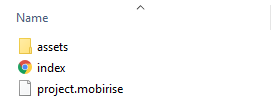
Select all this and pack it in ZIP (it is very important that it be .zip because .rar is not supported on hosting).
Now all that's left is to add that site to your hosting account.
Log in to cPanel, then click on File Manager, a window similar to the image below will open
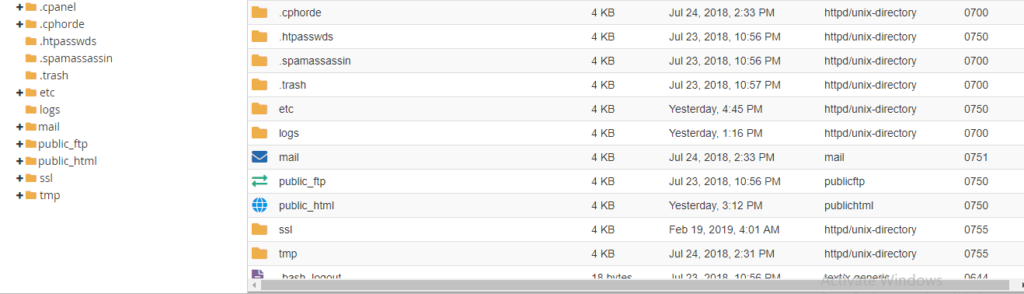
After which you need to click one click on the left side on the folder called "public_html" where a window will open on the right side (similarly as in every operating system, windows, linux...) you will have one folder inside it cgi-bin ignore it.
Then find the "Upload" option above, a new tab will open where you select the file (.zip file that you created and packaged your site) and after the upload is finished and this becomes 100% green, you can close that tab.
Click "reload" where your file will appear on the right side under the cgi-bin folder.
Click on your file and then "extract" and when a small window opens just click on the "extract files" button.
You have now unzipped your zipped file and successfully placed your site on a hosting account.
Now when you type in the name of your site, the site will open exactly as you created it with the program.
When you are done with this read the next article which is also important for those who want to get a better position on google.
HTML SEO optimization