Contents
First of all you need to set the default version of your site to only open via https.
You can do this using another instruction on this site of ours. But I guess you already did that and got gray https and not green as you expected.
First of all, let's first check the 3 options that are possible:
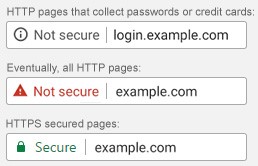
- first means that your site has an active SSL but that the content is not loaded completely with HTTPS and then you need to follow the instructions below and correct it so that it becomes like the third example, that is, it says Secure.
- Second means you don't have active SSL and contact hosting support to activate SSL for you (nowadays everyone has free SSL if your hosting provider says you have to pay something to have SSL change it immediately).
- The third option is also the best, and that is to have an active SSL and that on that page everything is loaded via HTTPS and you don't need to touch anything.
First, why is it not green (secure)?
The reason is quite simple, as it says in the notification if you clicked on https, and that is that some part of the site is loaded from http and you opened the site from https. Which immediately says the solution EVERYTHING the site must be https and what is loaded on the site (such as images, css, js…) must be loaded and linked from https. Only then will it be secure!
Since we got the answer how and why, how to correct it now without knowledge of programming language or html/css.
First of all, how do we determine what is being loaded from http?
Simply press F12 (chrome) and an add-on will appear in the lower corner as shown in the picture:
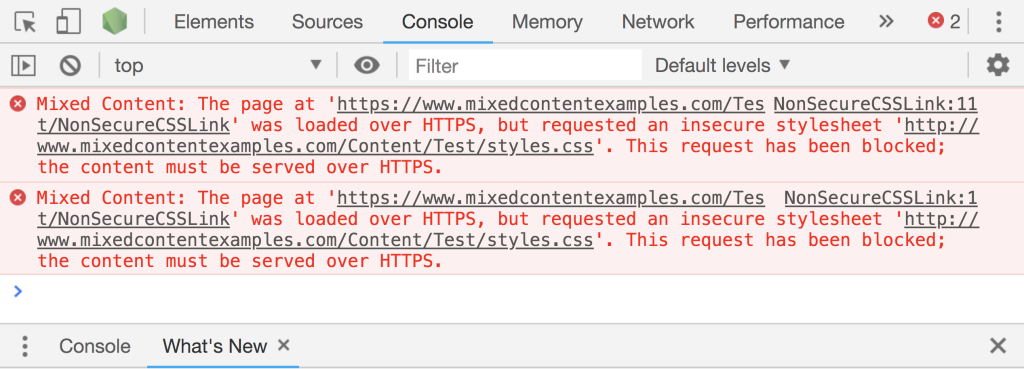
After which you need to click in the upper right corner of that new window next to the x you have some numbers in red and yellow as indicated by a red square, click there.
In the lower part, you will receive errors and warnings as shown in the picture:
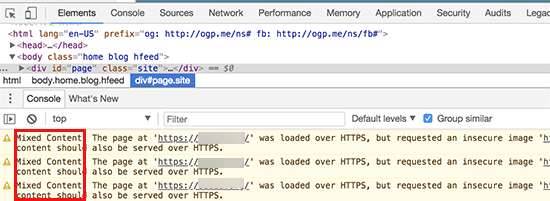
as you can see, it says exactly what is not being loaded, which image, or something else via https. By simply changing that link on the website in the address bar, "secure" will appear if you have done everything well. You need to do this for every page on your site.
If it is a part, i.e. an image that is written in the site code, i.e. in some php/html/css file, you need to manually open that file and edit it.
If it is written in the database, as is the case when you write a post or it is a pagebuilder, you can change it using the "search and replace" plugin. There are many plugins on that topic, so choose one you want, make sure that the update of that plugin is recent (less than 6 months).
The search link is: https://www.google.rs/q=search+and+replace+wordpress+plugin
- I didn't leave a link to any plugin because after a few months when someone comes across this text, they can download that plugin by recommendation, and in the meantime the author of that plugin has stopped updating and it can cause more harm than good, so you need to look at which plugin is better in terms of the number of ratings and regular updates.