What is Staging?
What is Staging? Site staging is when you clone your existing site and work on it independently of the main functional site, say changing the theme or adding new functionality without wanting to think about whether it will break the site. In the Staging version of the site, you can change everything in the same way as on the classic site. That's it It's actually site cloning. This allows you to make changes and not worry about whether something works or the site doesn't open at the moment and the like, and risk visitors seeing these irregularities.
How does it work?
Staging is built into our autoinstaller and you can use it for any scripts you install with it. When you have wordpress installed using the auto installer on the page where all the installations are you will get something similar to this:
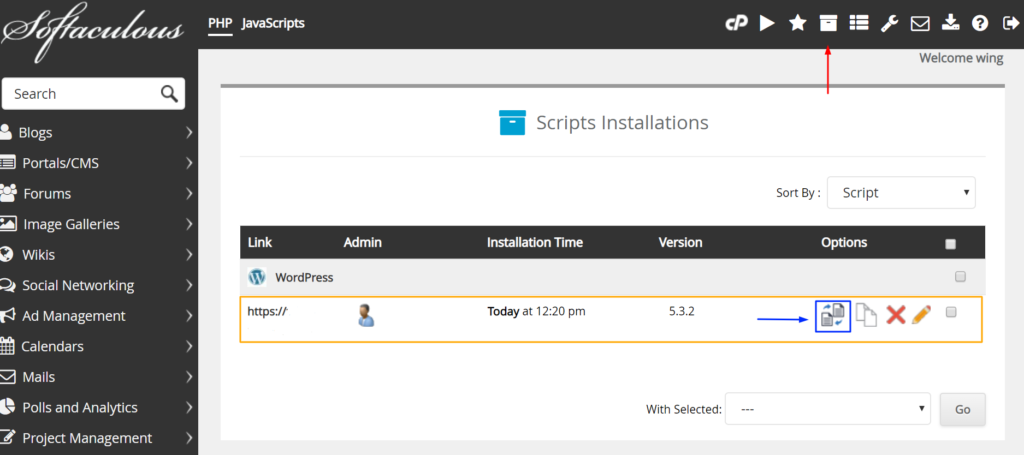
The red arrow tells you where to click to get to the page where all the installations you installed using the auto installer are, the orange box is our example installation for the purposes of this tutorial.
The blue arrow and blue box is the option we are looking for and that is Staging. When you place the mouse there, it will say "Create Staging". By clicking on that button, you get a new window like the picture below.
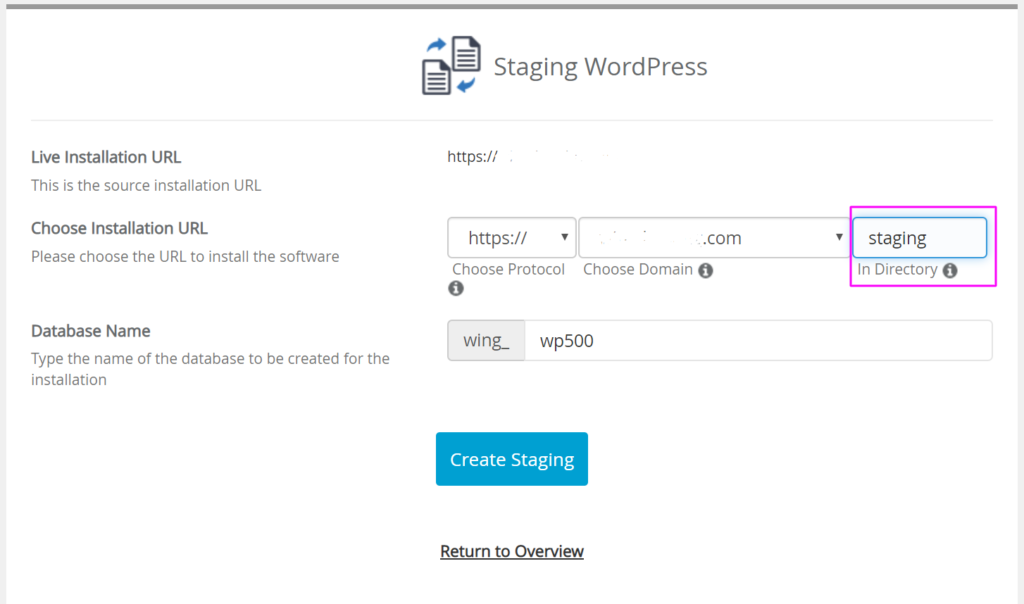
Here, framed in purple, we enter the folder in which our Staging installation will be located, i.e. the cloned site.
Note that it is possible to set up a staging site on a subdomain as well. Before this, create a subdomain and then in the "Choose domain" option, select the subdomain and leave blank what we have framed.
Now we click Create Staging.
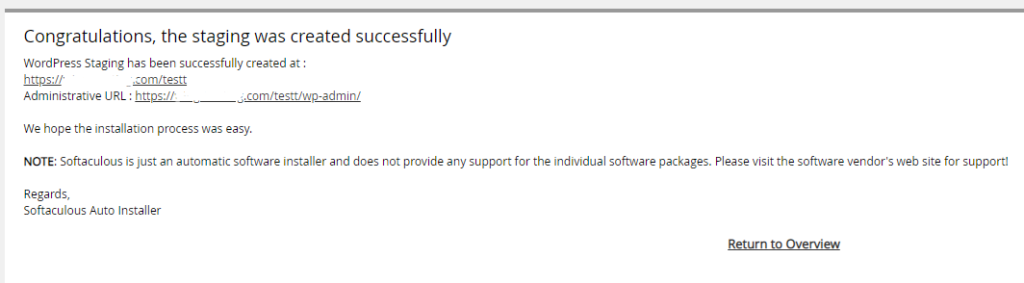
As you can see you got an admin link and a site link that looks exactly the same as the original site.
Now you can make changes to that Staging site and when you're done let's go back to the auto installer of all installations (first image).
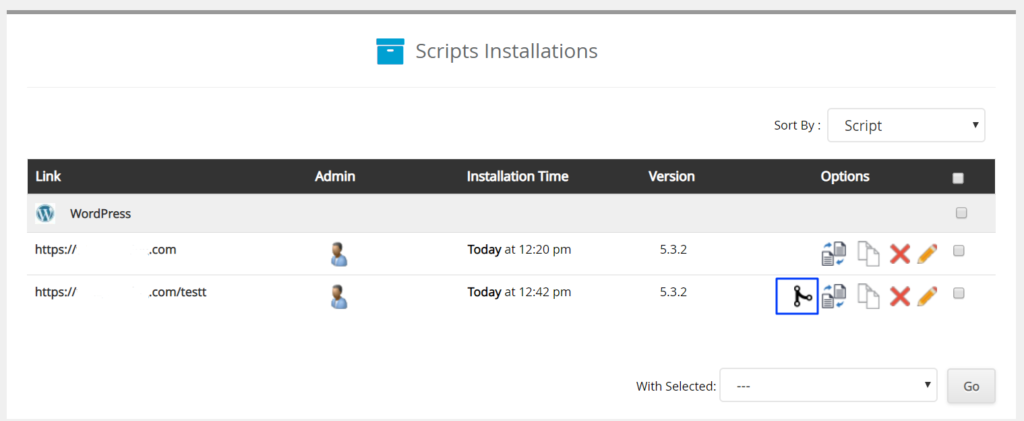
Now you see two installations first, which is the main one and the second one which is the staging and which has the excess icon as marked in the picture. That icon allows us to put everything we've done on the site on the main site.
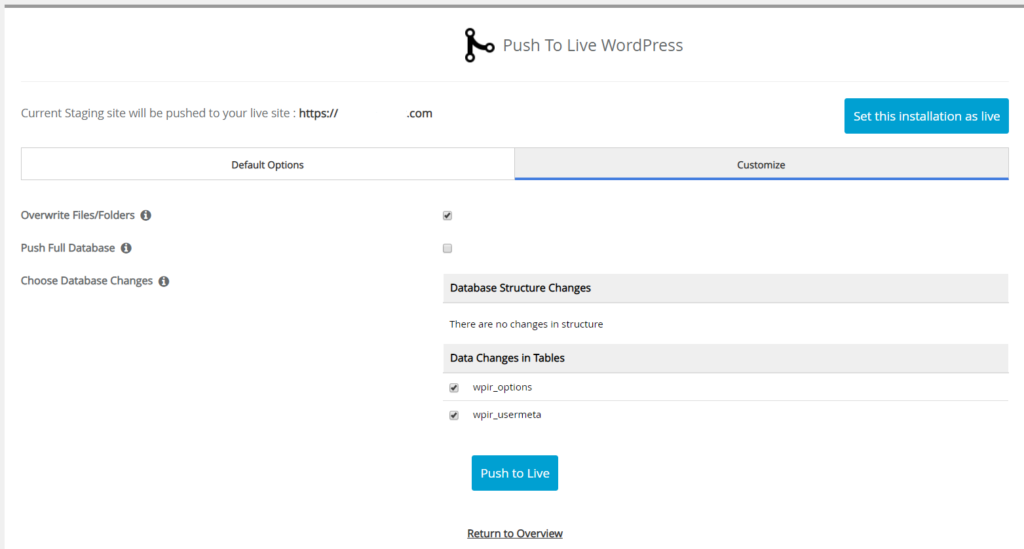
We click on "Customize" and we will see more options where we have the option to set the whole base or the parts that have been modified. Here you can see that the data in the table has been changed because we have added a plugin that is not in the main version in order to test this change.
When we click on Push to Live, we will get a window that looks like the installation.
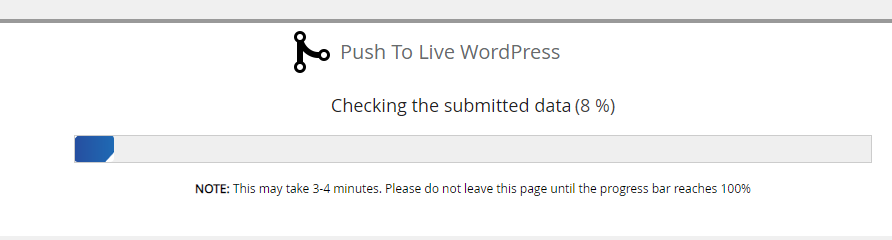
After it is done, a successful installation message will be displayed.
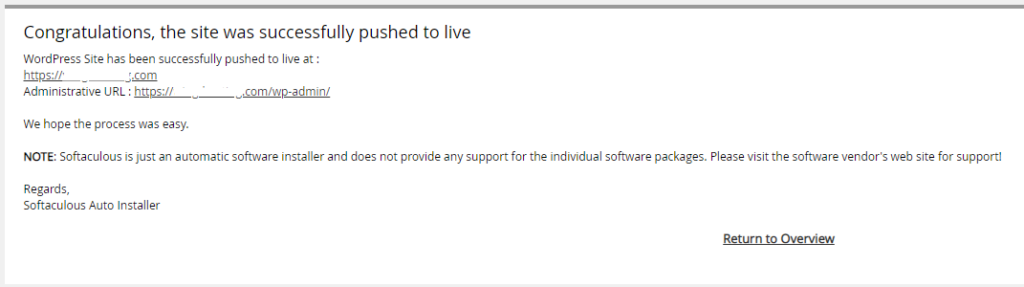
That's all over.
Staging can also be done using a plugin or by manually copying all the files to a new folder and duplicating the database, and after the replacement is completed on the main site, that's all.