You can download MailBird at this link:
MailBird Email client
After installation, a window like the one below will appear
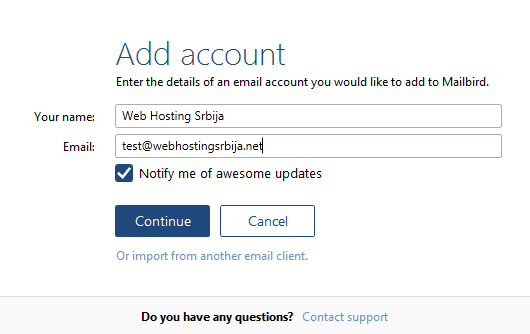
In the first field, Your name, enter your name if it is a personal email or the name of your company if it is a company email.
In the second Email field, enter your email address that you previously created in cPanel and click Continue.
After that, a new window will appear as in the picture below
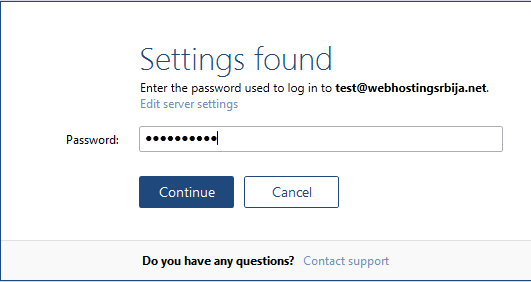
In this step, enter the password you set when creating the email address in cPanel.
After entering click on Continue you have successfully completed the setup.
There is nothing more you need to do.
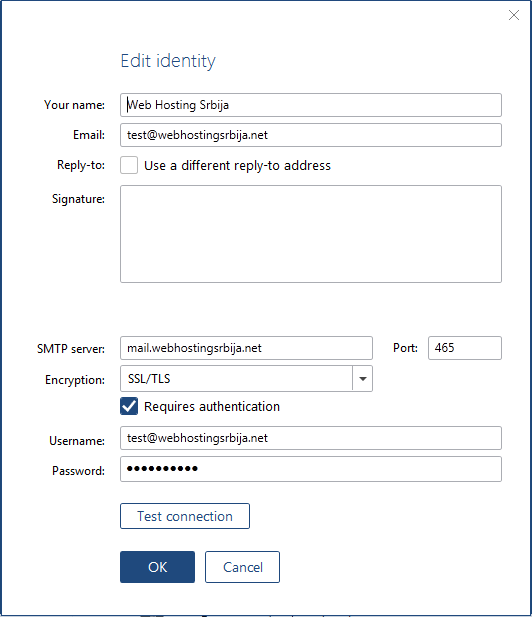
The most common problems are a wrong password or a typo when entering an email. So, in the images below, we've laid out what the account change settings look like in case you need it. Compare the settings and adjust as in the picture.
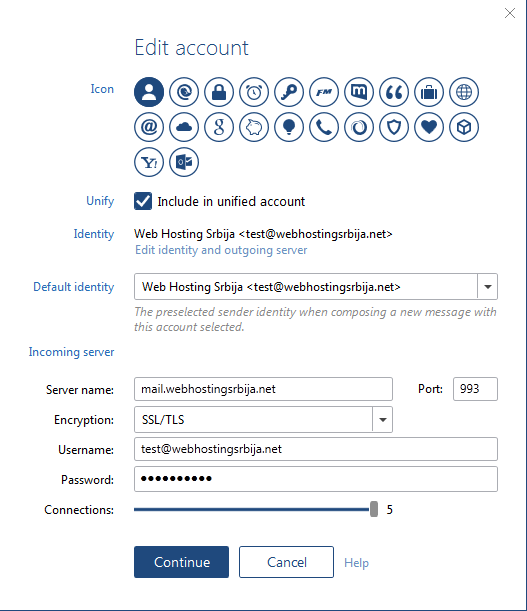
You will get the window below by clicking on "Edit identity and outgoing server" where it says Identity.
That's all.