Two-factor authentication (2FA) adds another layer of protection to your login. After the password, the panel asks for a six-digit code, so a stolen password alone is not enough to access the account. With 2FA, you also get backup codes in case you lose access to the phone.
1. Where is it located?
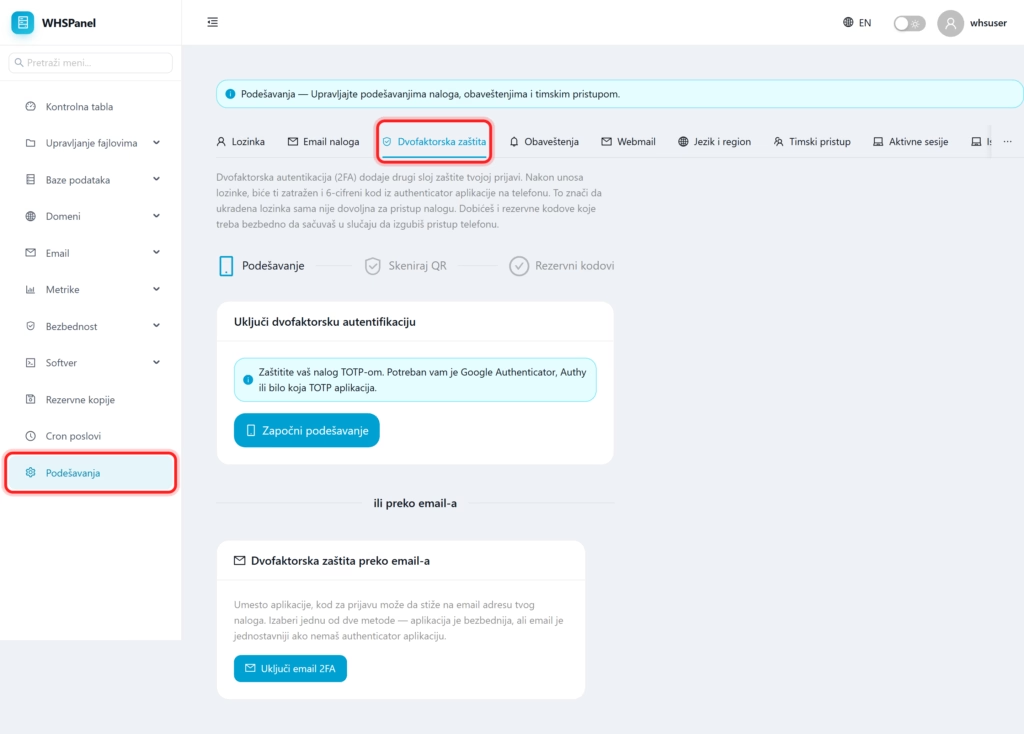
Double check is in Settings. In the left menu, open Settings, then select a card Two-factor protection. The process has three steps shown at the top: Setting, Scan QR and Backup codes.
2. Application (TOTP, recommended)
In the work Turn on two-factor authentication you protect your account with a TOTP code. You need an authenticator application on your phone (Google Authenticator, Authy or similar).
- Click Start setup.
- Scan QR code with the application and enter the code that the application displays.
- Save backup codes to a safe place.
3. Via email
If you don't have an authenticator application, in part Two-factor protection via email click Enable email 2FA, and the login code will be sent to the email address of your account. The app is more secure, but email is simpler.
Note: save the backup codes somewhere separate from the phone (for example, print them or write them in the password manager). Without them, if you lose your phone, you can't log in. This protection applies to logging into the panel itself; email accounts have their own protection.