WordPress Manager allows you to install, manage, protect and update WordPress sites without the command line. Each site gets a full control panel covering plugins, themes, staging environment, security hardening and core updates. Automatic updates are turned on by default for new installations.
1. Overview
Open in the menu Software well WordPress. The tabs at the top show the number of production and staging sites, how many have auto-update turned on, and how many are in maintenance mode. The table shows each site with version, auto-update status, status and actions.
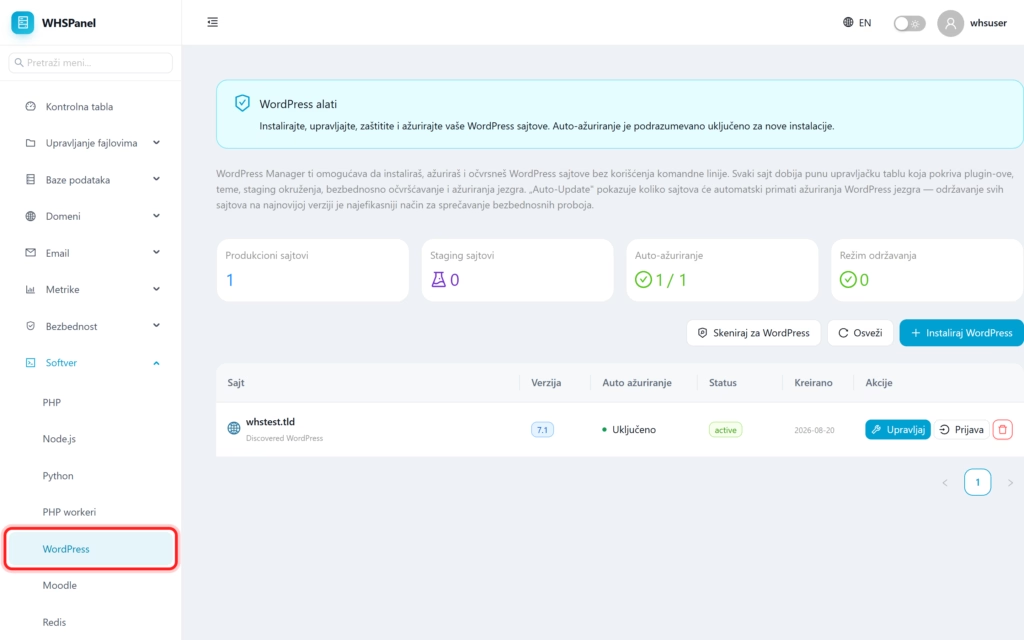
Two buttons above the list:
- Install WordPress makes a new installation.
- Scan for WordPress finds existing WordPress installations on the account and adds them to the Manager (they are displayed as "Discovered WordPress" in the table).
2. How to install WordPress
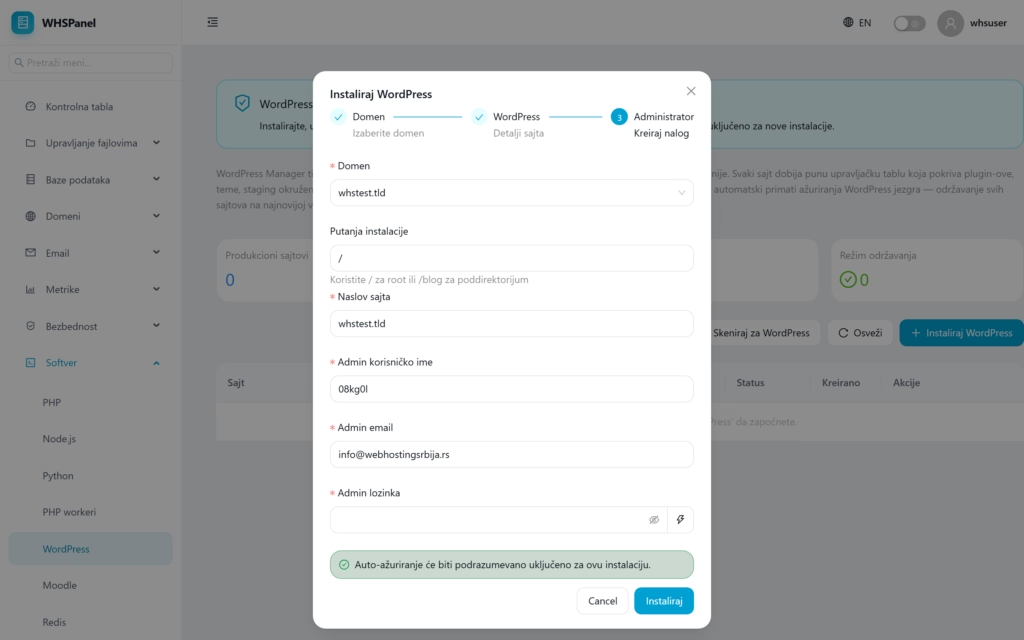
- Click Install WordPress.
- Domain and Installation path (
/for the main domain or for example/blog). - Site title, so Admin username, email and password.
- Click Install. Auto-update is turned on by default.
3. Site actions
| Button | What does it do? |
|---|---|
| Manage | Opens the site control panel (plugins, themes, security, staging, settings). |
| Login | One-click login to wp-admin, without entering a password. |
| Delete | Removes the site from the Manager. |
4. Site control panel
By clicking on Manage a panel with tabs and a button opens WP Admin (opens classic wp-admin).
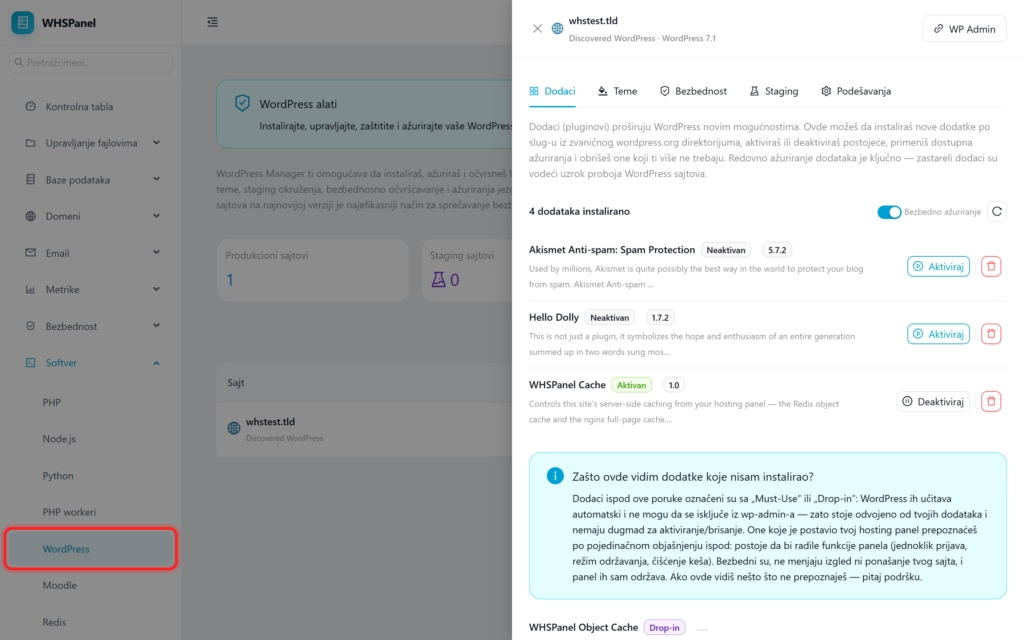
| Card | What does it do? |
|---|---|
| Accessories | Install new plugins per slug from wordpress.org, activate or deactivate existing ones, apply updates and delete unnecessary ones. Switch Secure update automatically updates plugins. |
| Topics | Install the theme by entering its wordpress.org slug (eg aster), activate it to apply immediately or delete themes you don't use. Only one topic can be active. |
| Security | Security hardening of the site (locking sensitive files and settings that reduce the chance of a breach). |
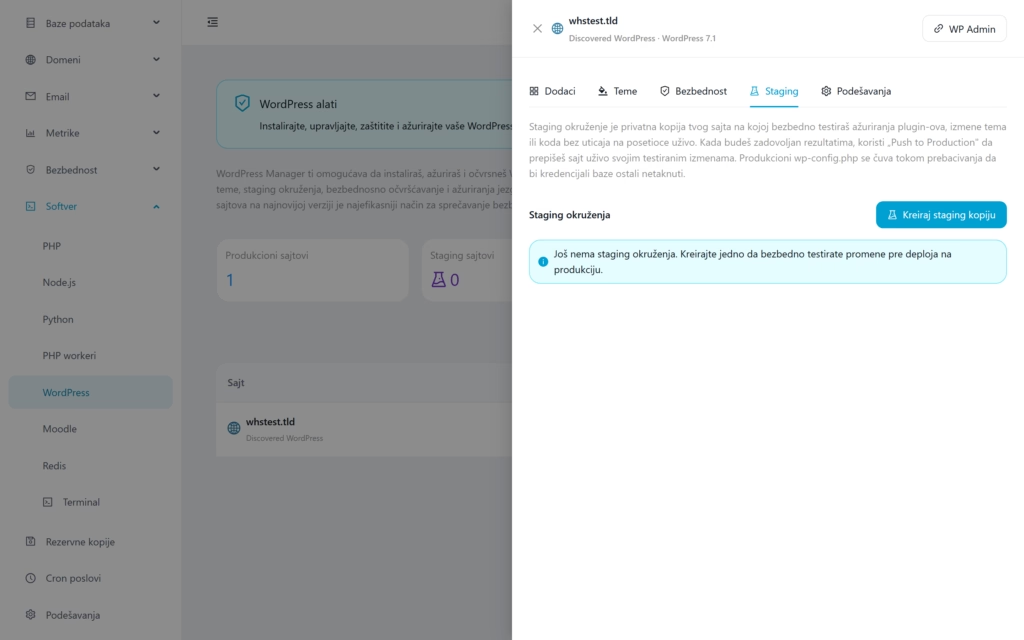
| Staging | Making a private copy of the site for safe testing (explained below). |
| Settings | Core auto-update, maintenance mode and other site settings. |
5. Staging (proof copy)
A staging environment is a private copy of your site where you can safely test plugin updates, theme changes, or code without affecting live visitors. Click Create a staging copy, try the changes, and when you are satisfied use them Push to Production to rewrite the live site with tested changes. Production wp-config.php is saved on transfer, so database credentials remain intact.
Note: keeping your core, themes, and plugins on the latest version is the most effective way to prevent security breaches, so leave auto-update turned on. Before major changes (new theme, major addition), make a staging copy and test there first.