Email filters apply automatic actions to incoming messages that match the rules you set. You use them to sort mail into folders, mark or move messages from specific senders, or automatically process messages by title and content.
1. Overview
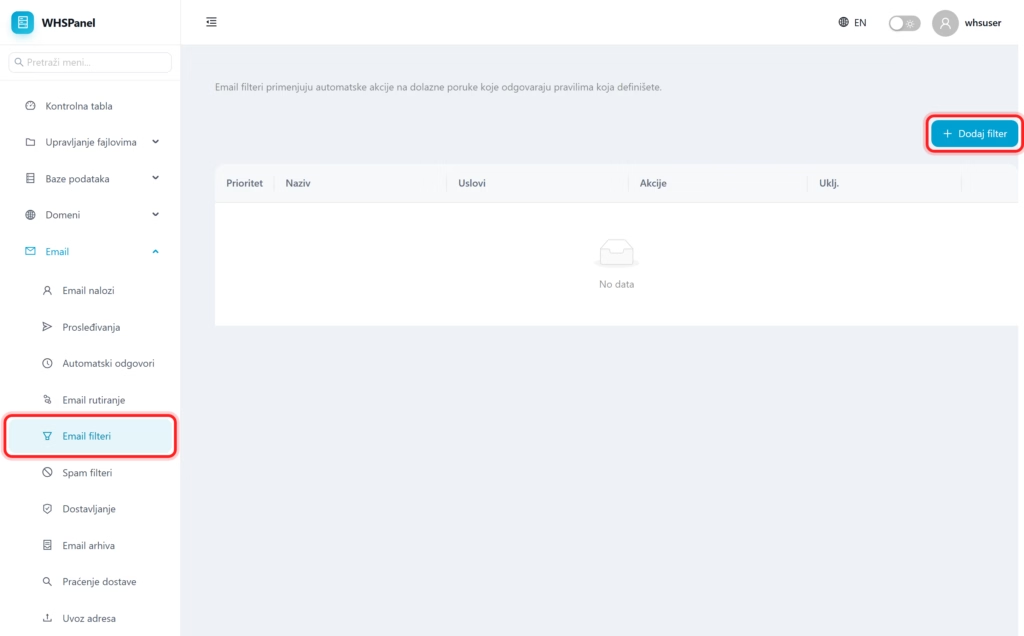
Open in the menu Email well Email filters. In the table you can see the rules by priority, their conditions, actions and whether they are included.
2. How to make a filter
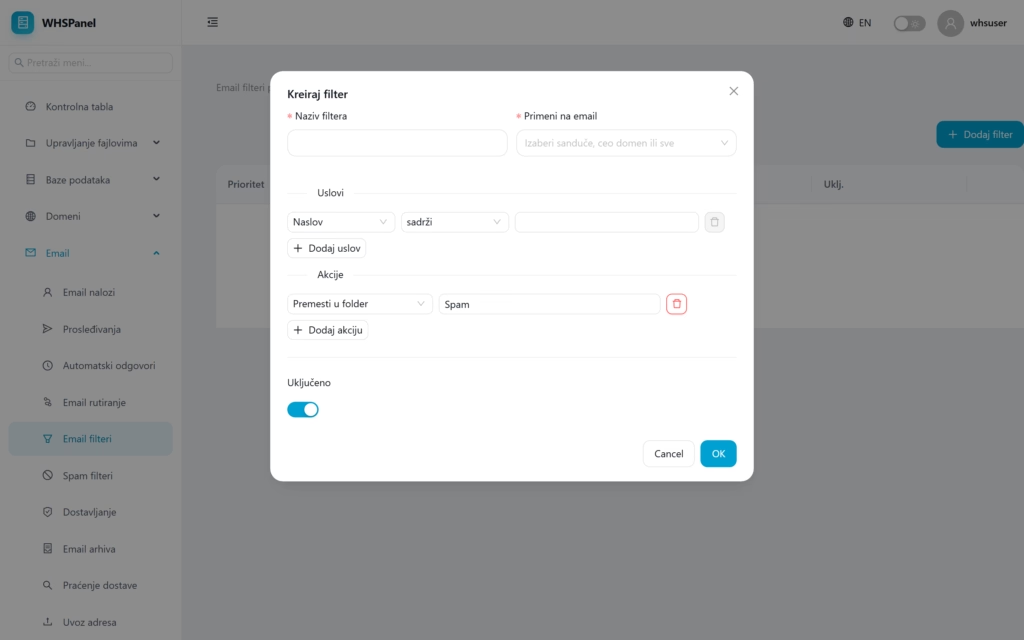
- Click Add filter.
- Filter name: a recognizable rule name.
- Apply to: select a single mailbox, the entire domain, or all accounts.
- Conditions: set a rule, for example Title contains a word. Click Add condition for multiple conditions.
- Actions: choose what to do with the masked message, for example Move to folder
Spam. Click Add action for more actions. - Leave it On and click OK.
3. Conditions and actions
Conditions are usually set by message field (for example subject or sender) and operator (for example contains). Typical actions are moving to a folder, bookmarking or further processing. Filters are applied by priority, so the order of rules determines the order of execution.
Note: start with a simple rule (for example, everything from a certain sender to a separate folder), then build on it. It also uses a dedicated section to combat spam Spam filters.