Spam filtering in WHSPanel is powered by SpamAssassin, which evaluates each incoming email based on hundreds of rules (header analysis, keyword patterns, DNS blacklists, and more). Messages that exceed a given rating threshold are considered spam and are moved to a separate folder or deleted.
1. Filter settings
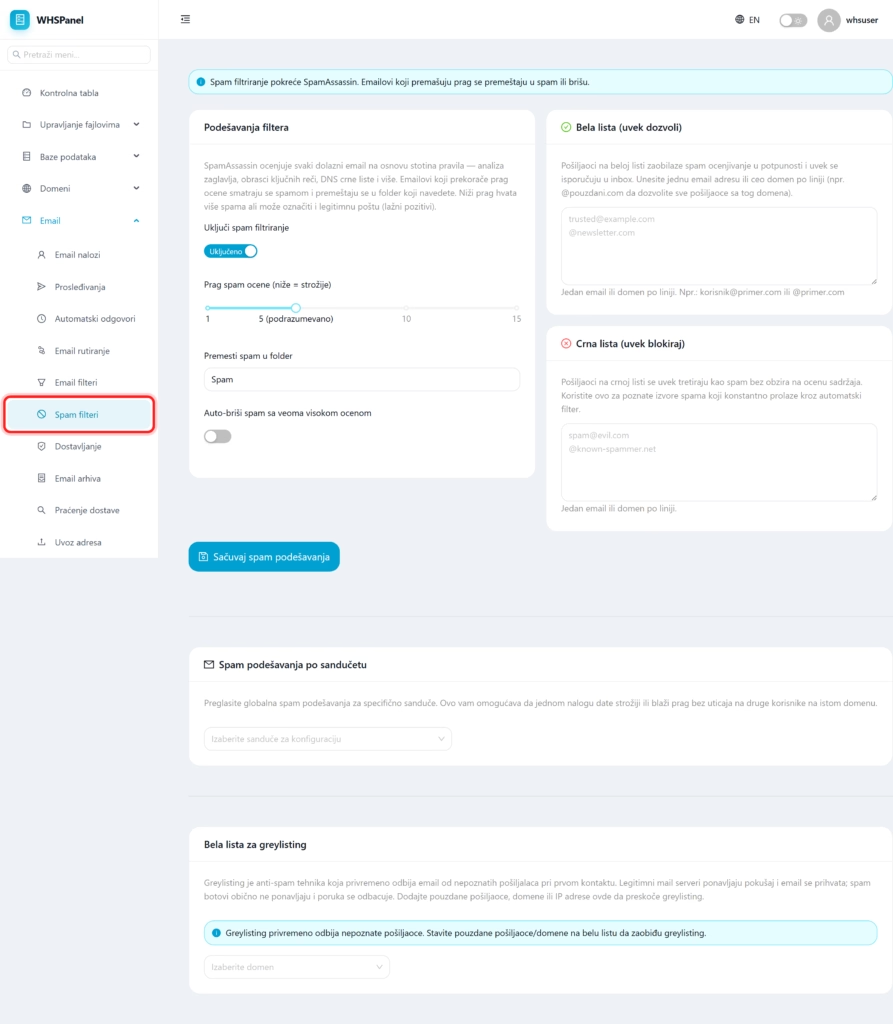
Open in the menu Email well Spam filters. The main settings are:
- Enable spam filtering: main switch.
- Spam rating threshold: from 1 to 15 (default 5). A lower threshold catches more spam, but can also flag legitimate mail (false positives).
- Move spam to folder: the name of the folder where spam goes (default
Spam). - Auto-delete very high rated spam: immediately deletes messages that are clearly spam.
Click Save spam settings.
2. White and black list
| List | What does it do? |
|---|---|
| Whitelist (always allow) | Senders from this list bypass the rating and always arrive in the inbox. You enter one email address or the entire domain per line (for example @reliable.com). |
| Blacklist (always block) | Senders from this list are always treated as spam, regardless of rating. |
3. By inbox and greylisting
Spam per mailbox: you can give one account a stricter or softer threshold without affecting other users on the same domain.
Greylisting: a technique that temporarily rejects email from unknown senders upon first contact. Legitimate servers retry and the message is accepted, while spambots usually do not retry. You add trusted senders, domains or IP addresses that should skip this check to the greylisting whitelist.
Note: if your legitimate mail ends up in spam, add the sender to the white list or raise the threshold a little. If you are overwhelmed by spam, lower the threshold or add known sources to the blacklist.