In the Email accounts section, you create and manage email addresses on your domains. Each account has its own mailbox, password and storage quota. You access it via webmail from your browser or via email programs on your computer and phone (IMAP and SMTP).
1. Overview
Open in the menu Email well Email accounts. The tabs show the number of accounts and how many are active. In the table, each account has columns: Email, Warehouse (quota also used, with tape), Limitations, Status and Created, and on the right are the control buttons.
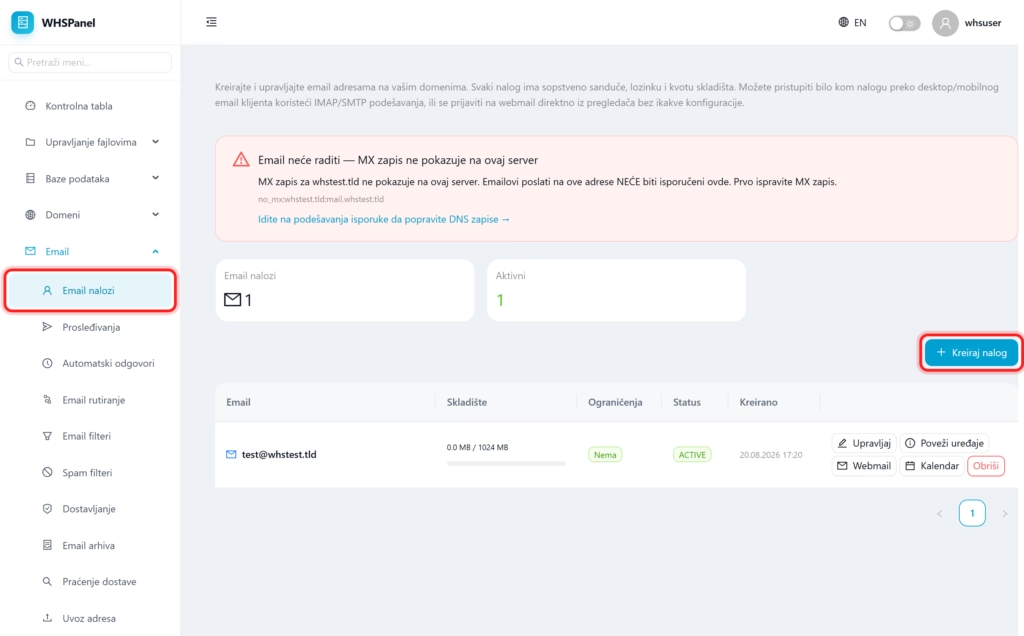
Important: in order for the email to arrive at all, the MX record of the domain must point to our server. If the panel displays a red warning that MX is not showing here, correct it in the part first Delivery.
2. How to create an email account
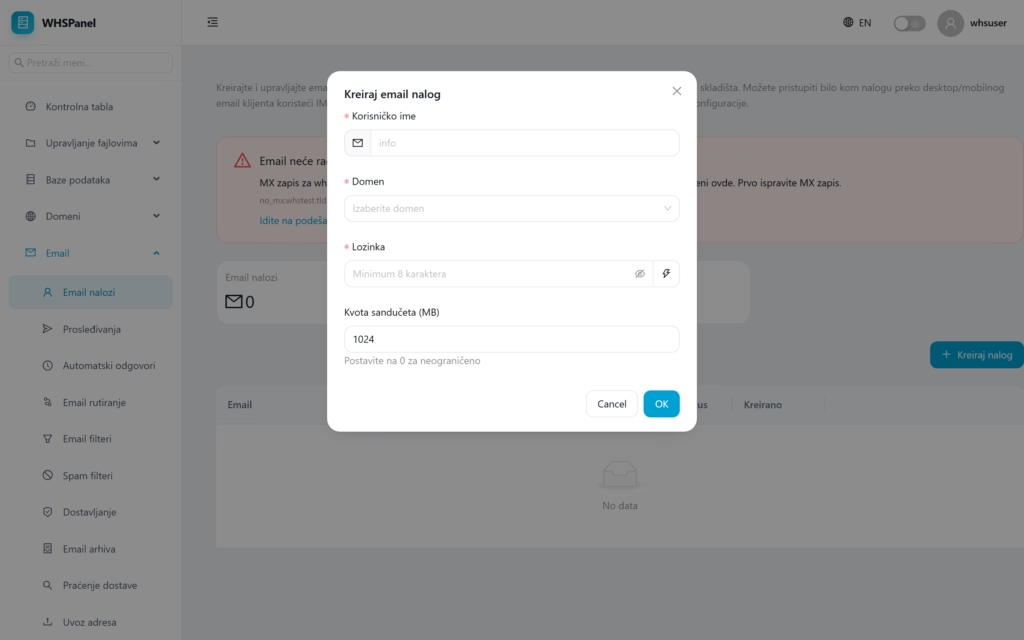
- Click Create an account.
- Username (part before @), Domain, Password (at least 8 characters, can be auto generated) i Mailbox quota (0 = unlimited).
- Click OK.
3. Account actions
| Button | What does it do? |
|---|---|
| Manage | Changes password, inbox quota, enables or disables receiving and sending mail, and changes account status (active or temporarily suspended). |
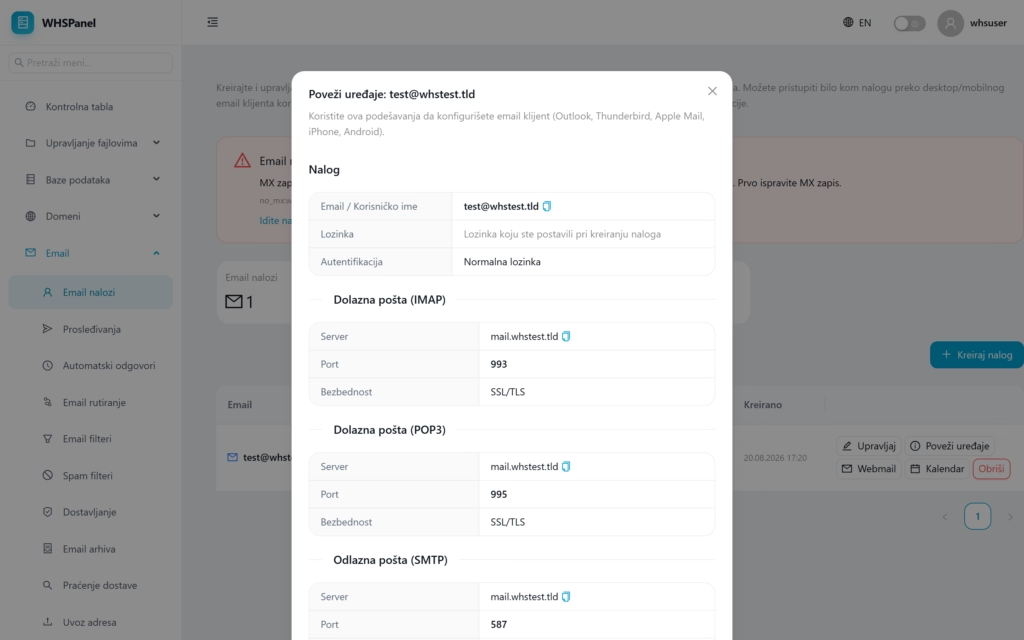
| Connect devices | It shows the exact settings (server and ports) for the email program on the computer or phone. |
| Webmail | Opens the mail in the browser, without settings. |
| Calendar | Opens Calendar and Contacts (SOGo) for that account. |
| Delete | Permanently deletes account and inbox. |
4. Account management
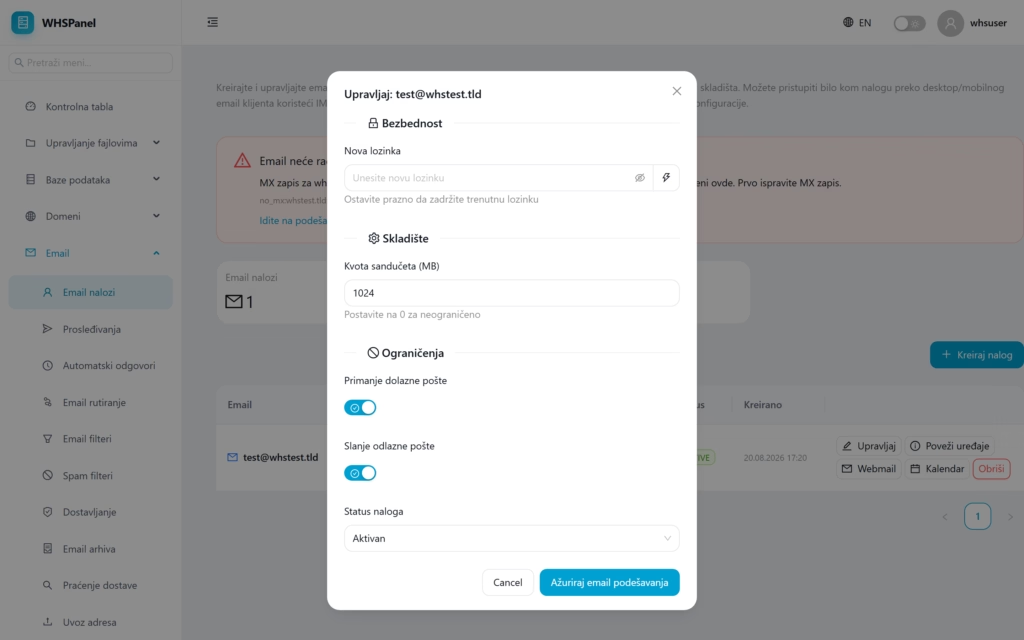
Button Manage opens that account's settings:
- New password (leave blank to keep existing).
- Mailbox quota (MB), 0 for unlimited.
- Receiving incoming mail and Sending outgoing mail (switches).
- Order status (Active or suspended).
5. Connecting email programs
Button Connect devices provides ready-made settings for Outlook, Thunderbird, Apple Mail, iPhone or Android. The username is the full email address, the password is the one you set, and the servers and ports are:
| Type | Server | Port | Security |
|---|---|---|---|
| Incoming (IMAP) | mail.your-domain | 993 | SSL/TLS |
| Incoming (POP3) | mail.your-domain | 995 | SSL/TLS |
| Outgoing (SMTP) | mail.your-domain | 587 | SSL/TLS |
For most programs use IMAP (mail remains on the server and is synchronized on all devices). POP3 downloads mail to one device.
Note: use a strong password and do not share it. If you suspect that the address has been hacked, immediately through Manage change your password, or temporarily set your status to suspended.