The Disk Usage tool shows which directories are consuming the most space on your hosting account and allows you to quickly free up space by emptying the Recycle Bin, temporary files, and log files.
1. Where is it located?
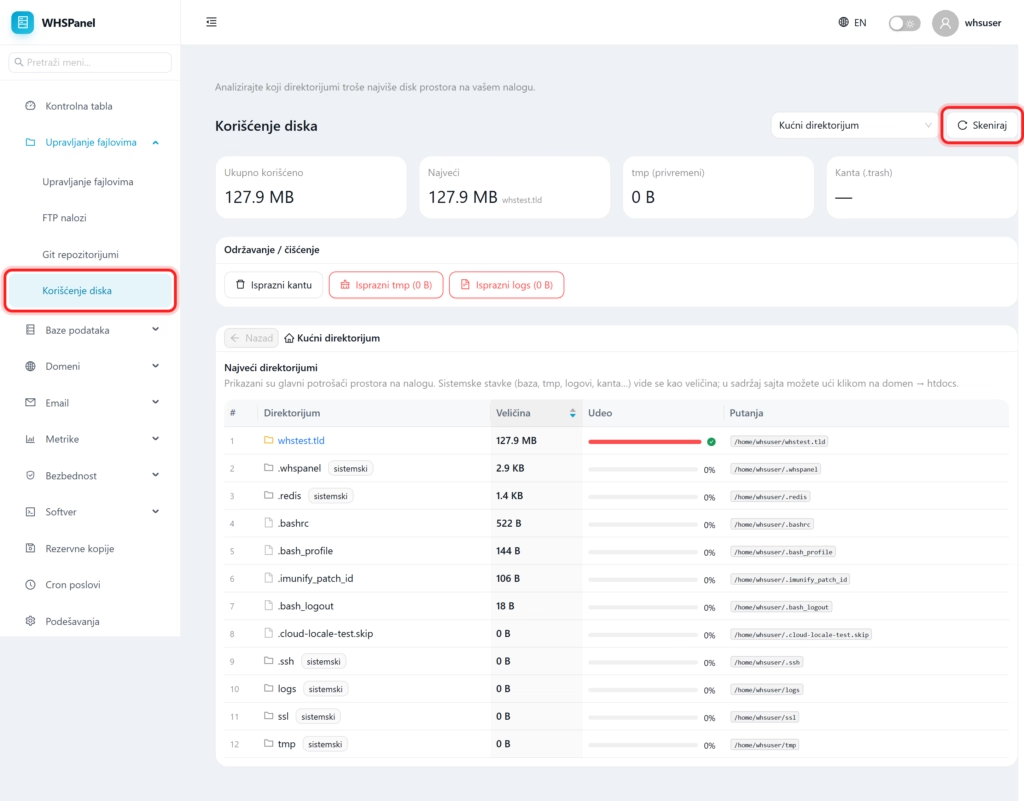
In the left menu, open File management well Using the disk. At the top are four quick view tabs: Total used, The biggest (which domain consumes the most), tmp (temporary files) and Bucket (deleted files in the recycle bin).
2. How to scan consumption
- At the top right, select a range from the drop-down menu (eg Home directory or a specific domain).
- Click Scan.
- In the table Largest directories you see the ranking list of consumers: sequence number, directory name, size, share of total space and full path.
The content of the site itself is seen as the size of the domain. You enter it by clicking on the domain htdocs. Items marked as systemic (for example .whspanel, .redis, logs, SSL, tmp) are normal and should not be touched.
3. How to free up space
In the work Maintenance / cleaning are three buttons:
| Button | What does it do? |
|---|---|
| Empty the bin. | Permanently deletes files that are in the Recycle Bin. I can't go back after this. |
| Empty tmp | Deletes temporary files. Safely, the system recreates them as needed. |
| Empty logs | It deletes old log files and frees up the space they occupy. |
Note: if your space suddenly increases, first scan and see which domain or folder is the largest. The most common causes are accumulated backups, cache files and logs, or large images and videos within the site.
Watch out: „"Empty Bin" deletes permanently. Before you empty it, check that you don't need something from the basket.