Node.js App Manager allows you to run Node applications (Express, Next.js, NestJS and others) directly on your hosting account via Nginx Unit, a fast application server with WebSocket support and no startup delays. Each application runs as an isolated process bound to a single domain.
1. Overview
Open in the menu Software well Node.js. The table shows your applications with columns Application name (and domain), Node version, Entry file, Status (stopped or running) and Actions.
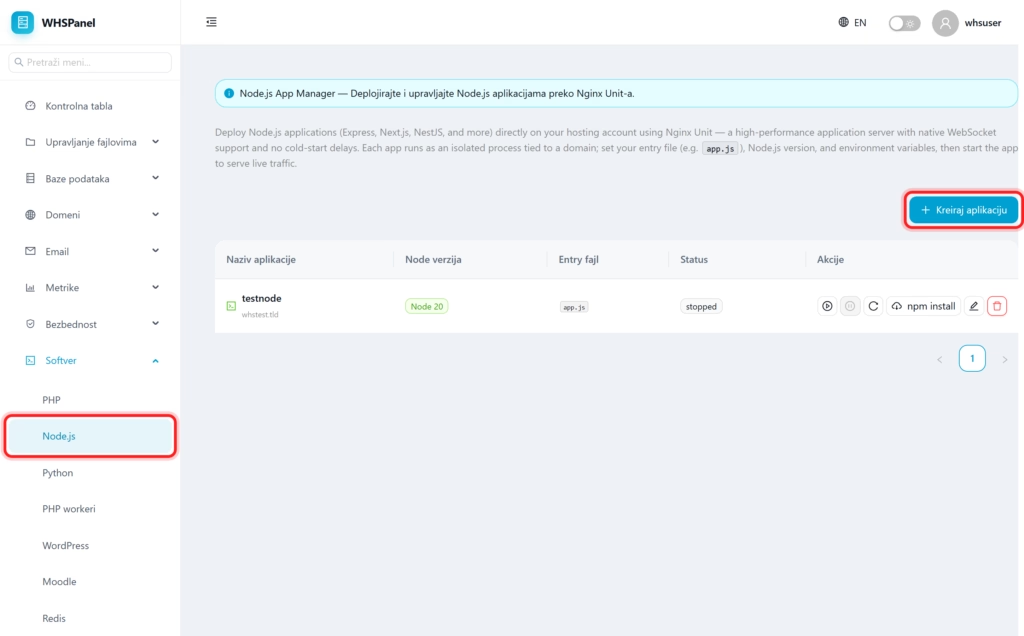
2. How to create an application
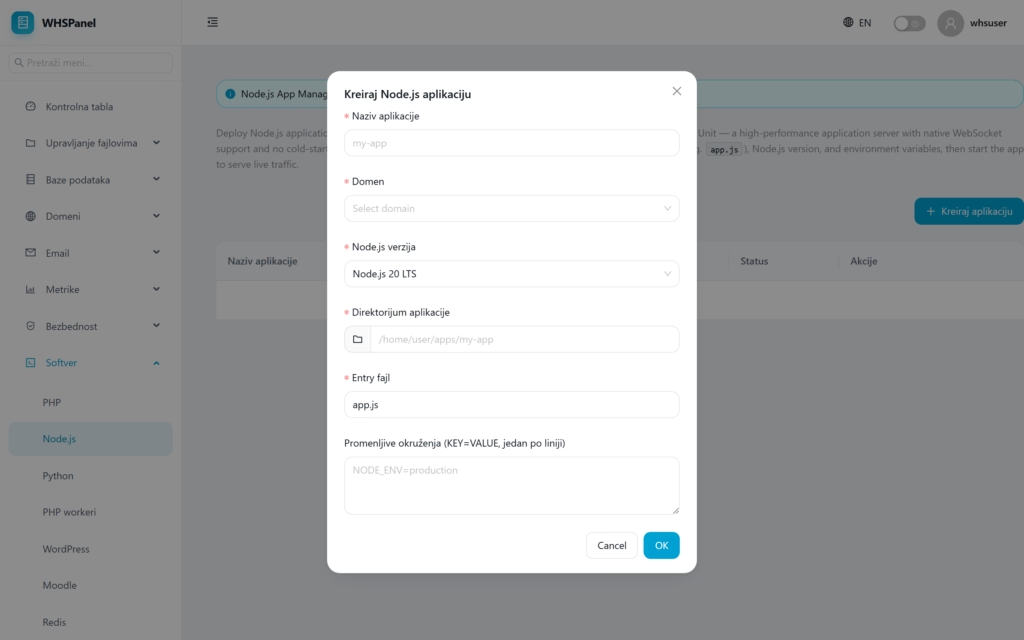
- Click Create an application.
- Application name and Domain on which he is working.
- Node.js version (for example 20 LTS).
- Application directory where is the code and Entry file (for example
app.js). - Environment variables in the form of
KEY=VALUE, one per line. - Click OK.
3. Application controls
When the application is created, in the column Actions you get a full set of controls:
| Control | What does it do? |
|---|---|
| Start | Starts the application (status changes to running) to start serving traffic. |
| Stop | Stops the application. |
| Restart | Restarts the application (for example after changing the code). |
| npm install | Installs dependencies from package.json, without the need for SSH. |
| Edit | Changes settings (Node version, entry file, environment variables). |
| Delete | Removes the application. |
Workflow: first upload the code to the selected directory (via Git repository or File Manager), so create an application, click npm install to remove dependencies, and finally Start. When the application is running (status running), is available on its own domain.