SSL certificates encrypt the connection between your visitors and the site and enable HTTPS (browser padlock). In WHSPanel, a free certificate is issued automatically, and you can also install a purchased certificate.
1. Certificate review
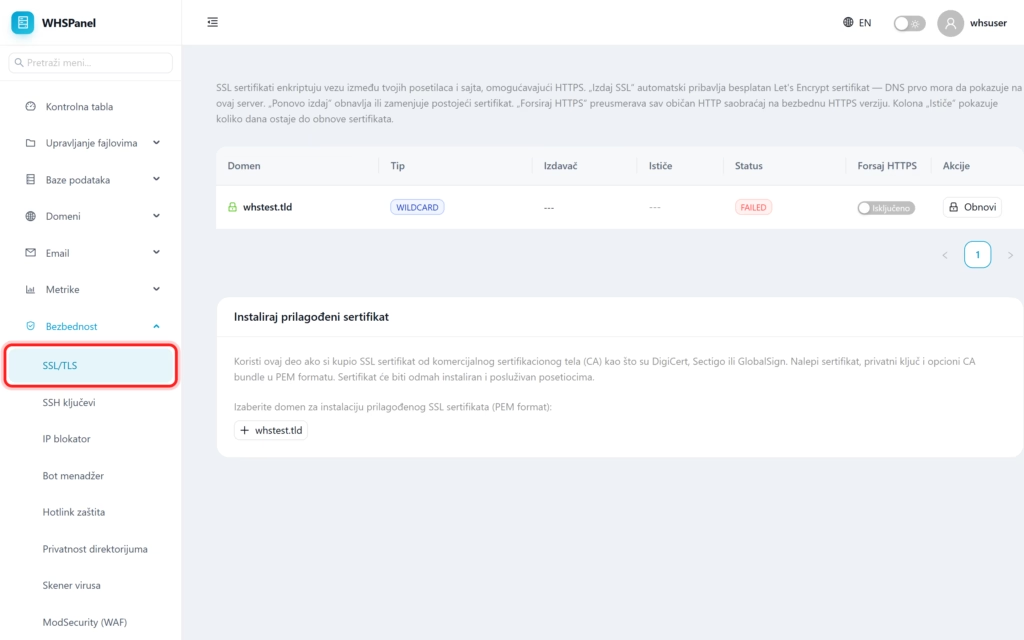
Open in the menu Security well SSL/TLS. The table shows the certificate status by domain.
| Column | Meaning |
|---|---|
| Domain | The domain to which the certificate refers. |
| Type | Type of certificate (for example wildcard for domain and all subdomains). |
| Publisher | Who issued the certificate?. |
| It points out | How many days are left until the renewal?. |
| Force HTTPS | A switch that redirects all plain HTTP traffic to the secure HTTPS version. |
2. How to issue or renew a free SSL
Issue SSL automatically obtains a free Let's Encrypt certificate. Restore or Reissue restores or replaces the existing one. For publishing to work, the domain's DNS must first point to our server.
3. Installing the purchased certificate
If you purchased SSL from a commercial certificate authority (DigiCert, Sectigo, GlobalSign), use the part Install a custom certificate: select the domain and paste the certificate, private key and optional CA bundle in PEM format. The certificate is immediately installed and served to visitors.
Note: as soon as SSL works, turn it on Force HTTPS that all visitors go to the secure version. Free Let's Encrypt renews itself automatically, so most of the time you have nothing to do while the "Expiring" column shows that everything is fine.