In the Domains section, you manage all the domains on your account. Each domain gets its own root directory (the folder on the server where the files of that site are located), and the addition of the domain is created by a virtual host in Nginx so that the domain starts pointing to your server.
1. Overview
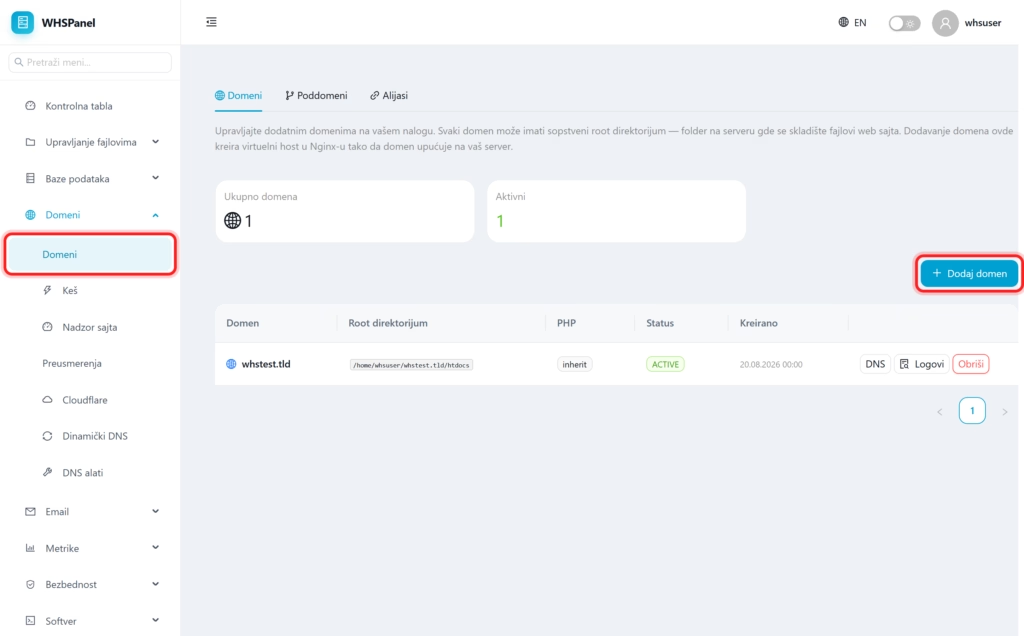
In the left menu, open Domains. At the top are tabs with the number of domains and actives, and the page has three content tabs: Domains, Subdomains and Aliases.
2. How to add a domain
- Click Add domain top right.
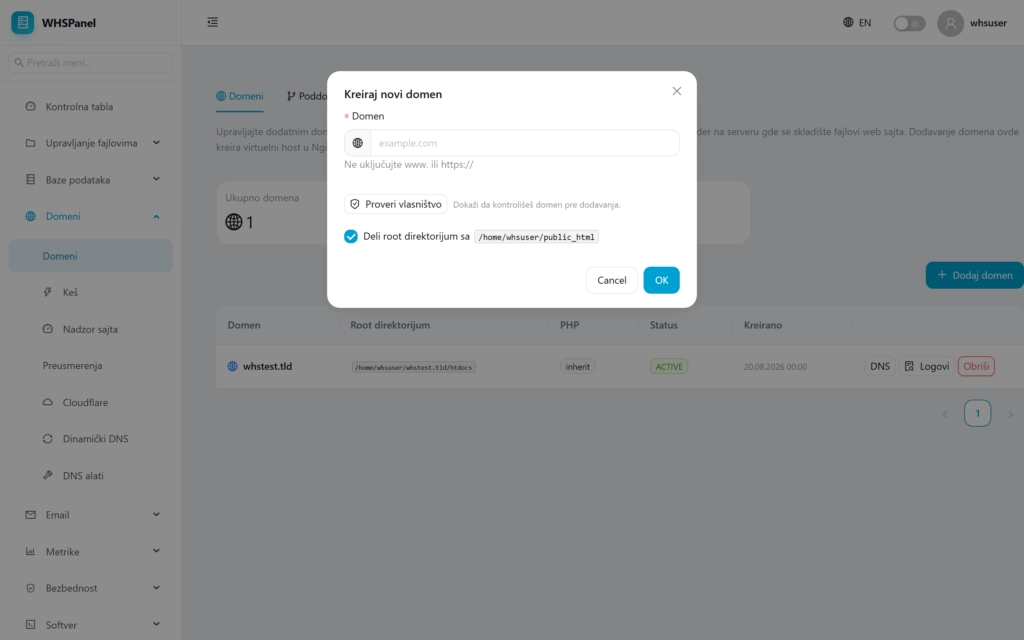
- Domain: enter the domain name without
www.and withouthttps://(for examplemysite.rs). - Check ownership: this proves that you control the domain before adding it.
- If you want the new domain to share the same folder as the main one, leave it on Share root directory.
- Click OK.
3. Table and actions over the domain
The table has columns Domain, Root directory, PHP version, Status and Created. On the right side of the row are the buttons:
| Button | What does it do? |
|---|---|
| DNS | Opens the domain's DNS zone editor (explained below). |
| Logs | Access and error logs of that domain. |
| Delete | Removes the domain. |
On the card Subdomains you make addresses like blog.mysite.rs, and on the card Aliases you link additional names to the same site.
4. DNS editor (DNS button)
By clicking on DNS you open the zone of that domain, where you can see and change all DNS records. DNS records determine how a domain is resolved on the Internet: A records map a domain to an IPv4 address, CNAME redirects one name to another, MX specifies mail servers, and TXT contains SPF, DKIM, and DMARC values.
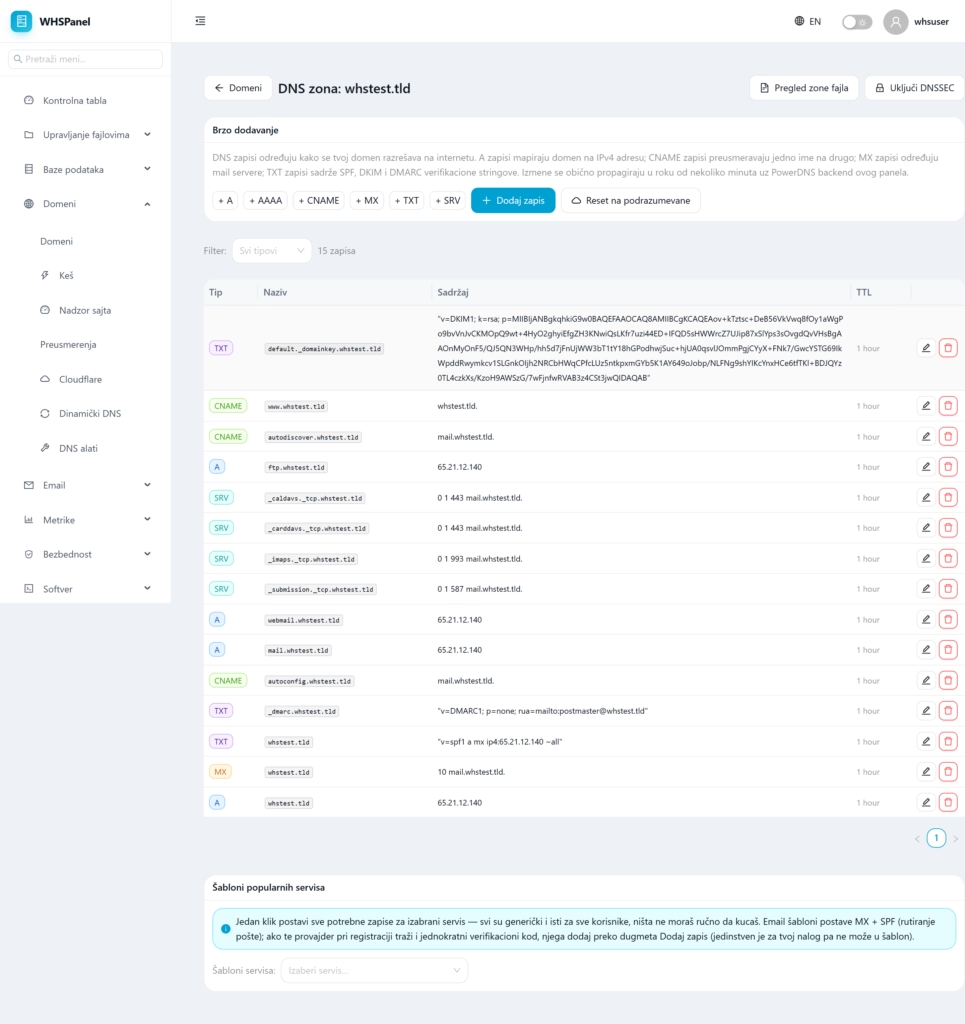
- Quick add: buttons + A, + AAAA, + CNAME, + MX, + TXT, + SRV and Add record for a new record.
- Record table (Type, Name, Content, TTL) with buttons to modify and delete each record.
- Templates from popular services: with one click, you set all the necessary records for the selected service (for example, for email). If the provider also asks for a one-time verification code, you add it manually via Add record.
- Enable DNSSEC (additional zone protection), File zone overview and Reset to defaults.
Note: changes to DNS records are usually propagated in a few minutes (the panel uses PowerDNS). In order for the domain to work, set the registry code so that the name servers point to ours. You place the site files in
htdocsdomain folder.